Introduction: This article is going to discuss the significance and importance of the modern internet under the shado...

Read More...

Introduction: The dymamic search feature of Windows has been a long anticipated one. unlike in older versions of Window...

Read More...

Introduction I cannot find any other reason for a gear shift lever to get bent except for a blunt force applied onto it...

Read More...

Introduction there are plenty of ways to start a motorcycle using various electrical methods that some and at least, th...

Read More...

Introduction In this article i will go over all of the possible ways to highten the performance of your computer and ge...

Read More...

Introduction: Dealing with car mechanics is inevitable for the tech savvy person and at some point he or she would reso...

Read More...

Introduction: In the following post I will demonstrate how I tried making an old and ugly kitchen be, well, less old an...

Read More...

Introduction: Computers. They have found their ways to almost every aspect of our lives it seems and have come a long w...

Read More...

Introduction Apart from armor and a helmet, usually a motorcycle rider doesn't need much in order to ride their horse. ...

Read More...

Introduction Noise. Its sucks, unless it comes in the form of music and sometimes it sucks even then. When it comes to ...

Read More...

Introduction: In this article i will go over an absolute nessesity for bikers who use their smartphones often while the...

Read More...

1. Introduction The Dell Latitude E-7450 is one of the easiest laptops to have its battery replaced, considering the fa...

Read More...

Intoduction: The product in this post is a must for everyone who would consider themselves a professional, an aspiring ...

Read More...

Introduction: Apple’s products are not guaranteed forever and just like any other mobile on the market, they too use an...

Read More...

This article is going to express something that has been beginning to annoy not just me, but probably millions of other ...

Read More...

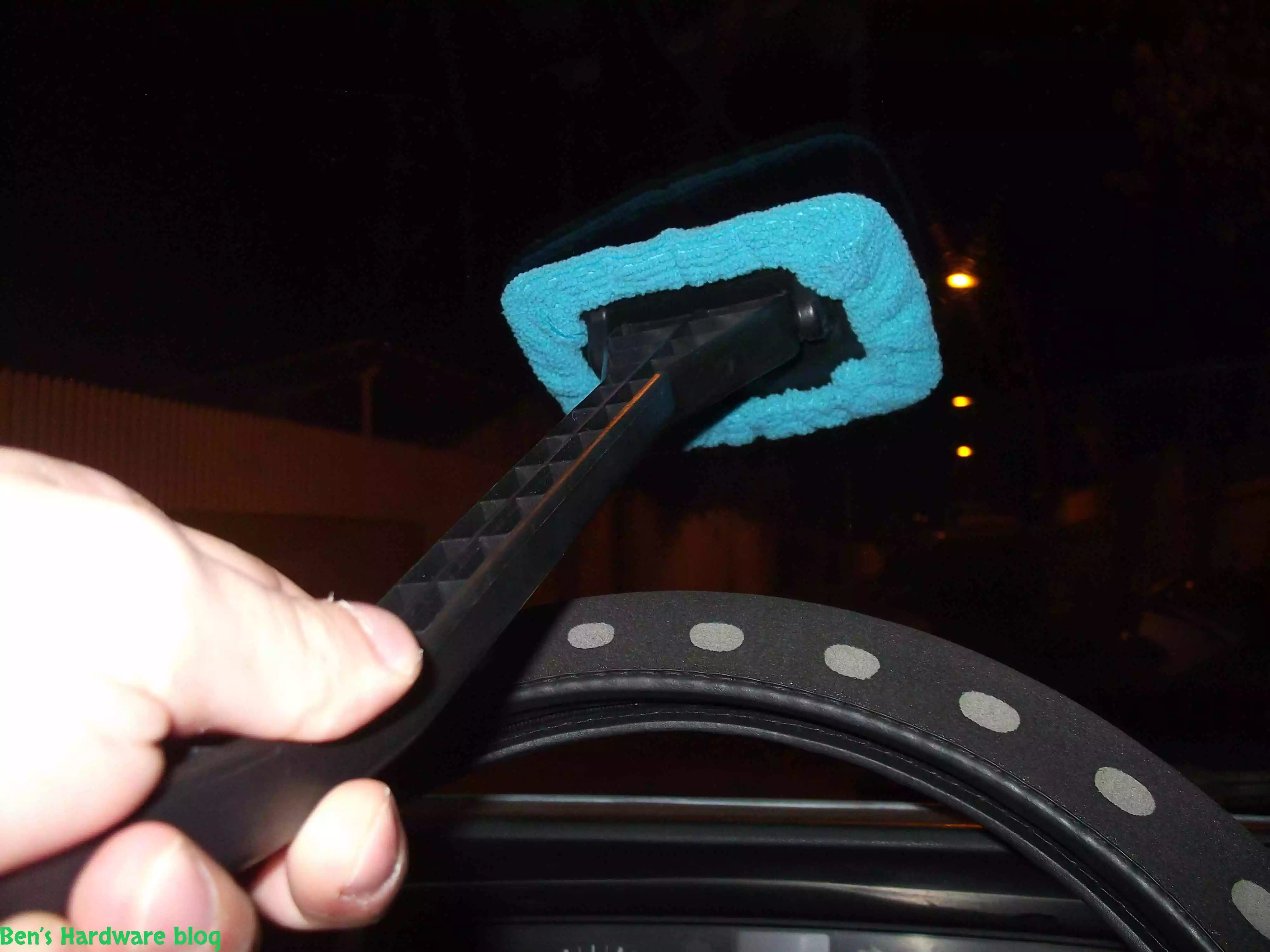
Have you ever tried to clean your car’s front windshield from the inside of it? It’s annoying and not easy and whoever t...

Read More...

If you are like me, and you don’t carry around a fancy touch screen smart phone such as an Iphone,  or a Galaxy, an...

Read More...

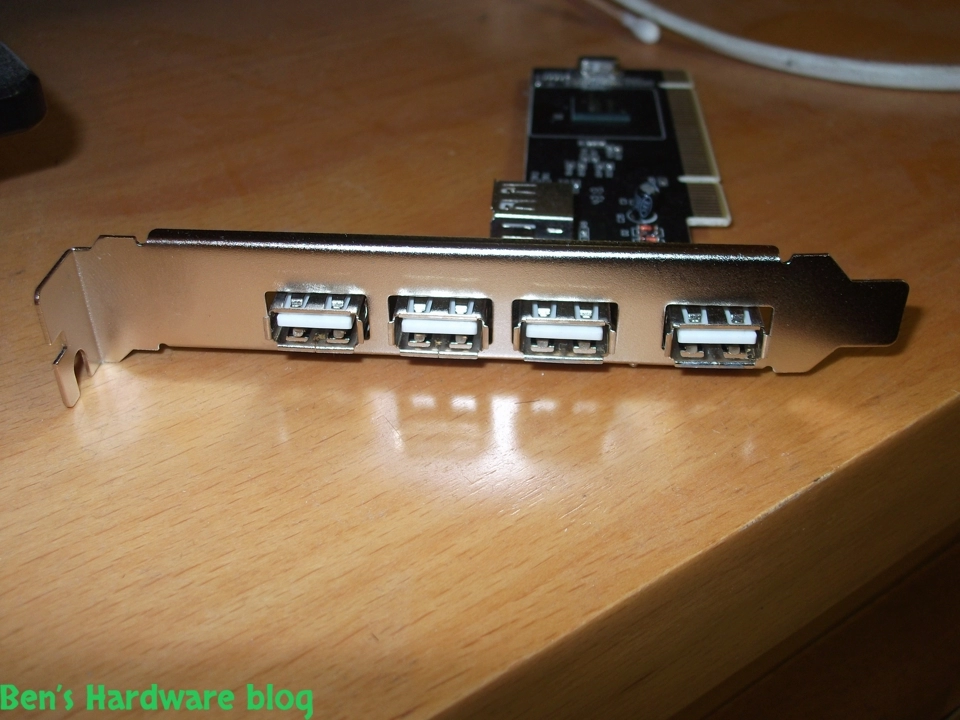
Need more USB ports? This is a great solution for those who just have and use a lot of devices that connect to the PC w...

Read More...

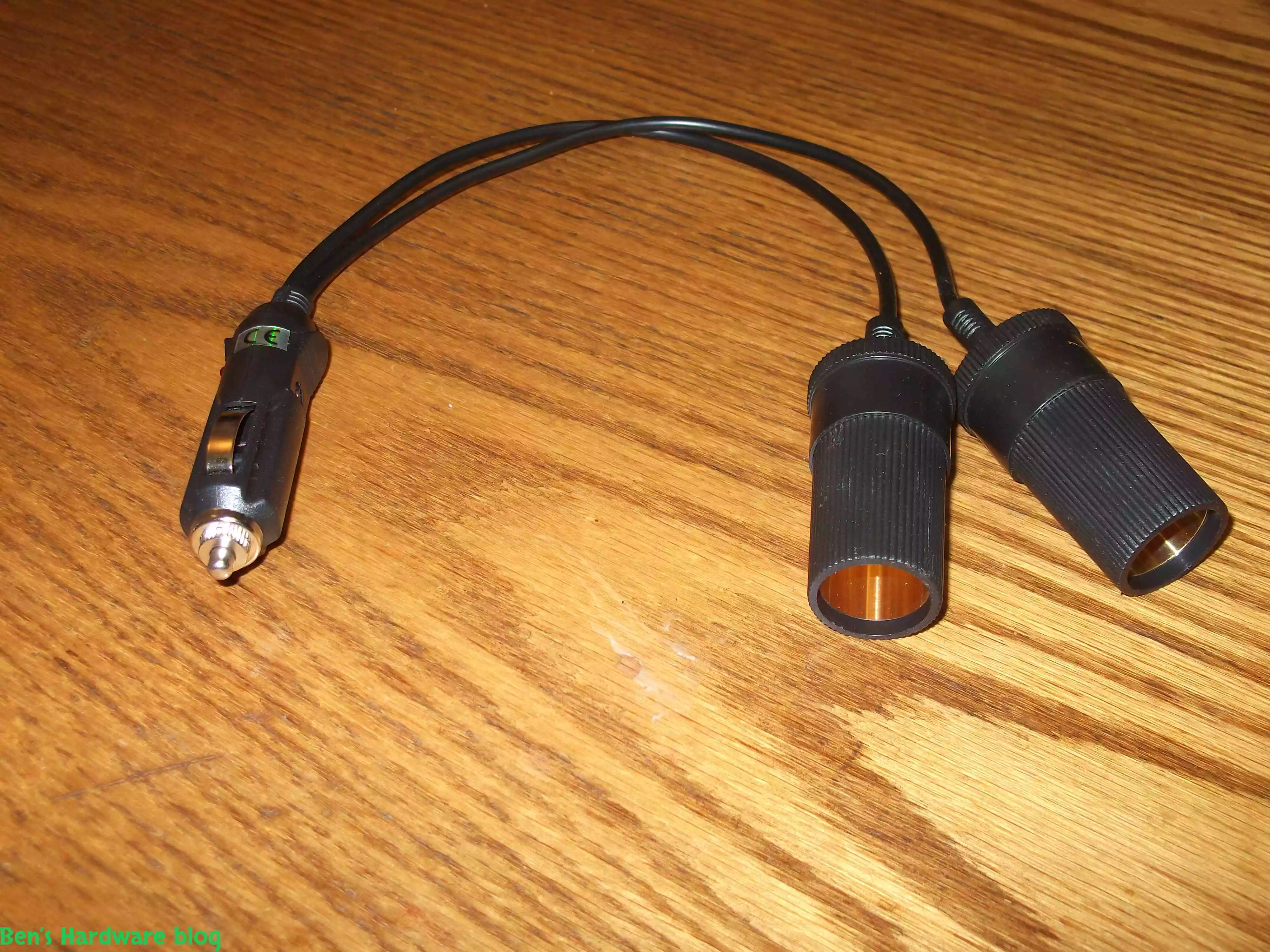
After installing more than one 4 way power splitter in my car I have decided not to connected them on series in order no...

Read More...

My dear Dell Inspiron 1545 keeps getting old and slow on me. I have replaced my old HDD hard disk with a new SSD one and...

Read More...

I have been using this old cellphone on daily basis for over 3 years now and time has taken its price on it. when I say ...

Read More...

I bought this little car gadget in order for my car to be less stinky on the inside when driving with no air circulation...

Read More...

I got this piece of antique from my dad and yet as I'm typing these words he still doesn't have a clue where he found it...

Read More...

I got this card from a friend who just didn't need it , I didn't really need it either but I said thanks to the dude and...

Read More...

LED and optical fibers are a really good combination and this product really shows it. if you want to be a bit original ...

Read More...

This is a great product that saves time and fuel by making your vehicle's tires pressure visually noticeable without hav...

Read More...

This is a great product that saves time and fuel by making your vehicle's tires pressure visually noticeable without hav...

Read More...

I admit - my car is full of gadgets and they require power don't they? This is why I bought this: Over time I added a l...

Read More...

In this post I will demonstrate a simple fixing method of simple 2 computer speakers. I got these speakers from my uncl...

Read More...

as a result of being mobile some items tend to "fall" from your beg , hand , the coffee table you are sitting next to et...

Read More...

You gotta maintain and take care of your possessions – that's my motto , and one of my possessions which I deeply care a...

Read More...

This is by far one of the most useful and cheap gadjets out there. As long as you have a generic car power socket in you...

Read More...

If you are mobile , like me , you might like this simple gadget... in today's world many mobile electronic devices are ...

Read More...

For people who are techjunkies or that work with a large number or computers is part of their job this would be a *must ...

Read More...

Wifi is everywhere today and with it comes many problems, among those - the problem getting and maintaining a proper rec...

Read More...

Simple, small and elegant. These are the main words I can use to describe this product. While the words are being typed ...

Read More...

Cheap, simple, precise and looks pretty good,  I bought this mouse off E-Bay for 4.6 USD and it does the job w...

Read More...

I bought this SD card to IDE converter in order to install a Windows XP operating system on it so one of my file servers...

Read More...

In this post i will demonstrate how i used spare cables i scavenged from an old power supply unit, to create a power cab...

Read More...

This product is just awesome! At first I was very skeptic about its abilities because up until I bought it I had known t...

Read More...

During the past month some annoying noises began emerging from my pc ... After carefully eliminating the source of the...

Read More...

If you read my "Upgrading a Dell Laptop" post then you'd know why i bought this product for. For those who you who didn...

Read More...

in this post I will demonstrate how you can use some old fans and build an effective cooling solution to any high-end 3d...

Read More...

Since I am a gadget freak and a security freak as well I decided to look online for a nice addition to my already over p...

Read More...

Upgrading a Dell laptop with an Solid State Drive (SSD): In this post i will show how you can take an old laptop (3-4 y...

Read More...

This is a very cheap and yet a very useful product. I bought it for mainly 2 reasons: 1 –my laptop would get very hot ...

Read More...

The more data you gather - video files, games, software backups etc. the more space you need. It's one thing to buy an a...

Read More...

Up until now I used to buy only 6 cell batteries. This time I decided to go with a 9 cell one. My main reason was the l...

Read More...
No More Articles

Introduction:


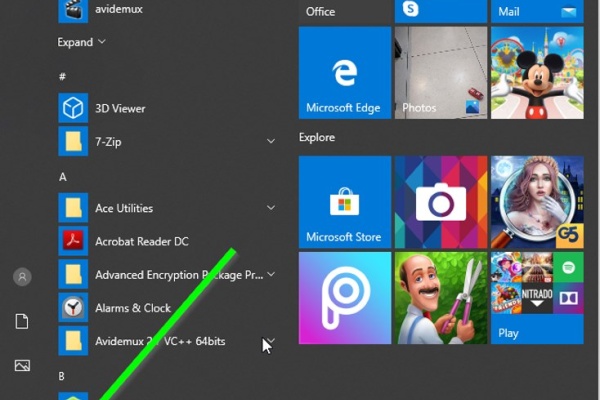
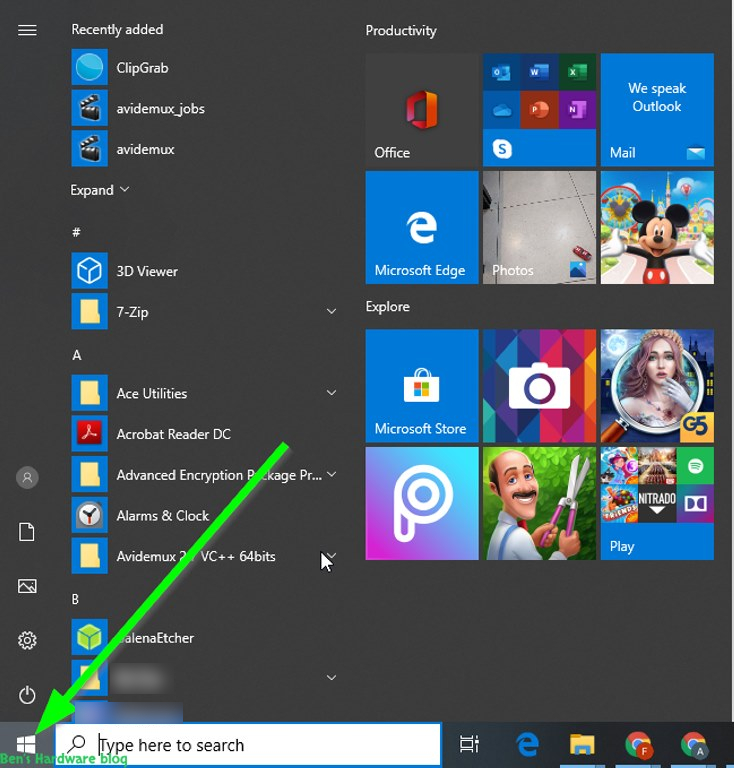
The dymamic search feature of Windows has been a long anticipated one. unlike in older versions of Windows where one had to press the F3 key trying to find a specific file, folder or an app while waiting for the searching engine to find the file, now it is possible to just hit the Start button and do the same by using a prebuilt file and folder index. but what happens when this index stops working? this often happens, apparatnly after upgrading to the new Windows 1909 update. This article is going instruct how to solve searching issues in Windows 10

Symptoms:

When attempting to search for files or applications through the Start menu by typing the word/s and/or letter/s their names contain, no results seem to appear in the Start menu.Resolutions:

Resolution#1 – Killing Explorer.exe process and running it again:

Steps:

Killing Explorer.exe:

  1. Go to the Task Manager by hitting the keyboard combination of CTRL+ATL+DELETE.
  2. Once the key combination is done, you will be presented with a blue screen with a menu in the middle.
  3. Click the Task Manager option.
 HTSSIIW10-1.jpgHTSSIIW10-2.jpgHTSSIIW10-3.jpgHTSSIIW10-4.jpgHTSSIIW10-5.jpgHTSSIIW10-6.jpgHTSSIIW10-7.jpgHTSSIIW10-8.jpgHTSSIIW10-9.jpgHTSSIIW10-10.jpg

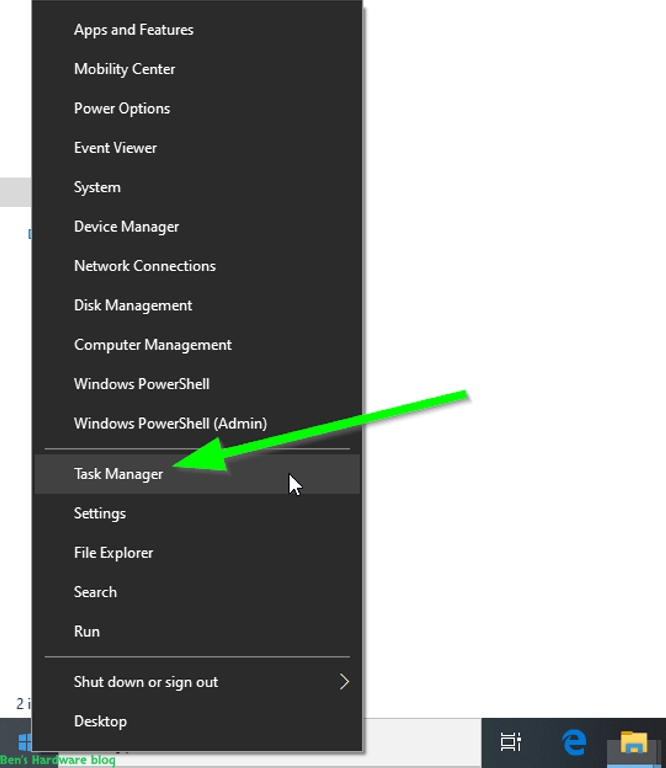
Another way to go to Task Manager would be by right clicking the Start menu and clicking on Task Manager in the pop-up menu:


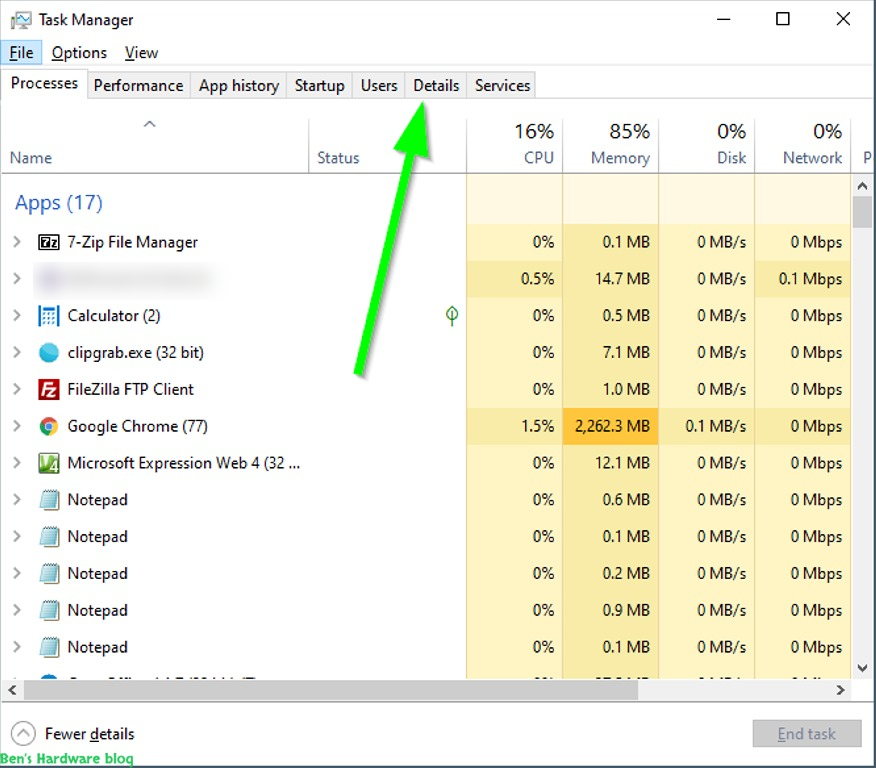
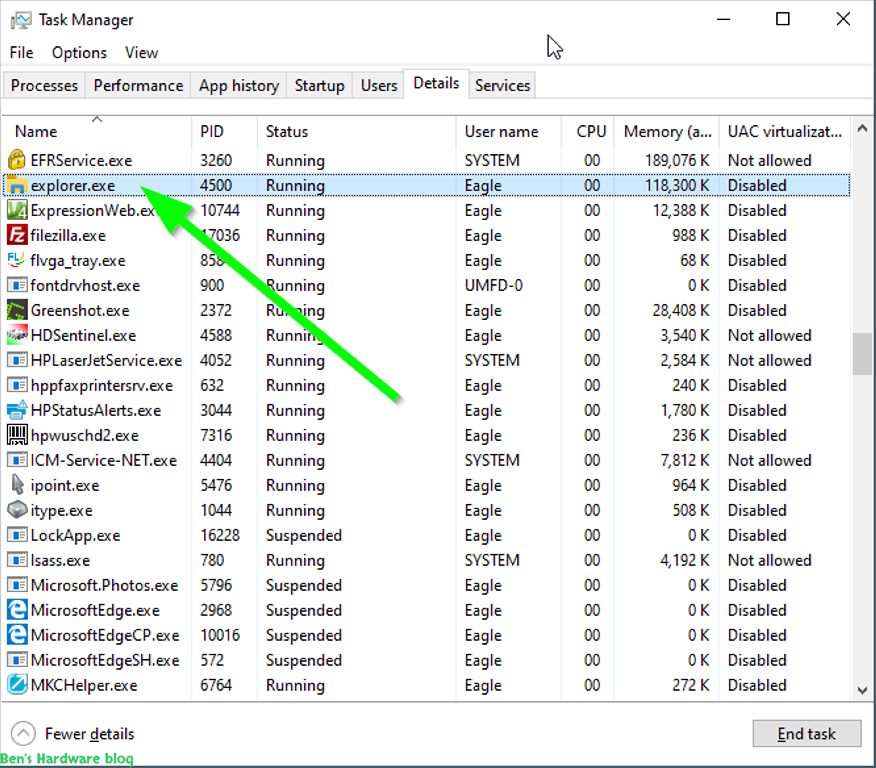
  • Go to the Details tab, usually it is the second one from the left:
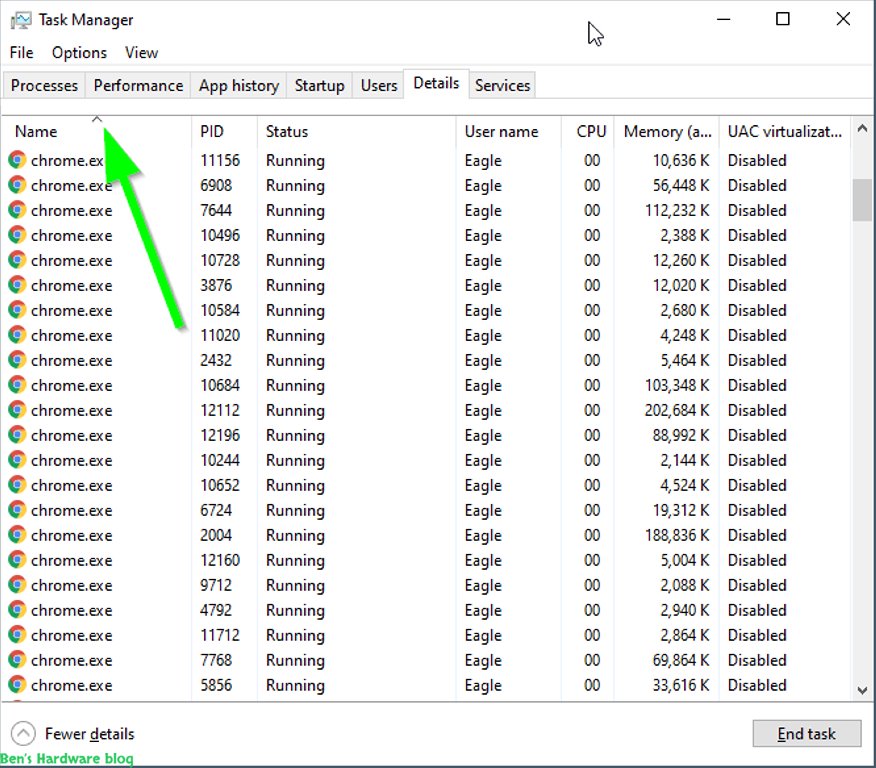
  • Make sure the list of is sorted by Name. This can be verified by making sure an arrow is apparent in the top cell, next to the Name header:
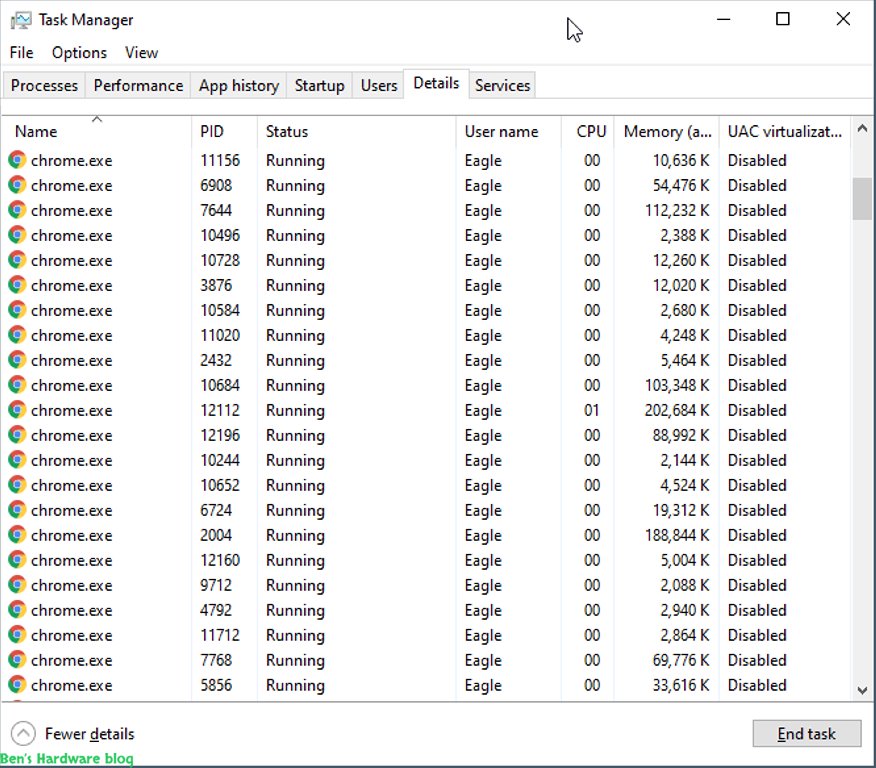
  • Browse through the list until you find Explorer.exe process. You can also find it by marking one the processes on the list and repeatedly hitting the E key on the keyboard until Task Manager finds Explorer.exe
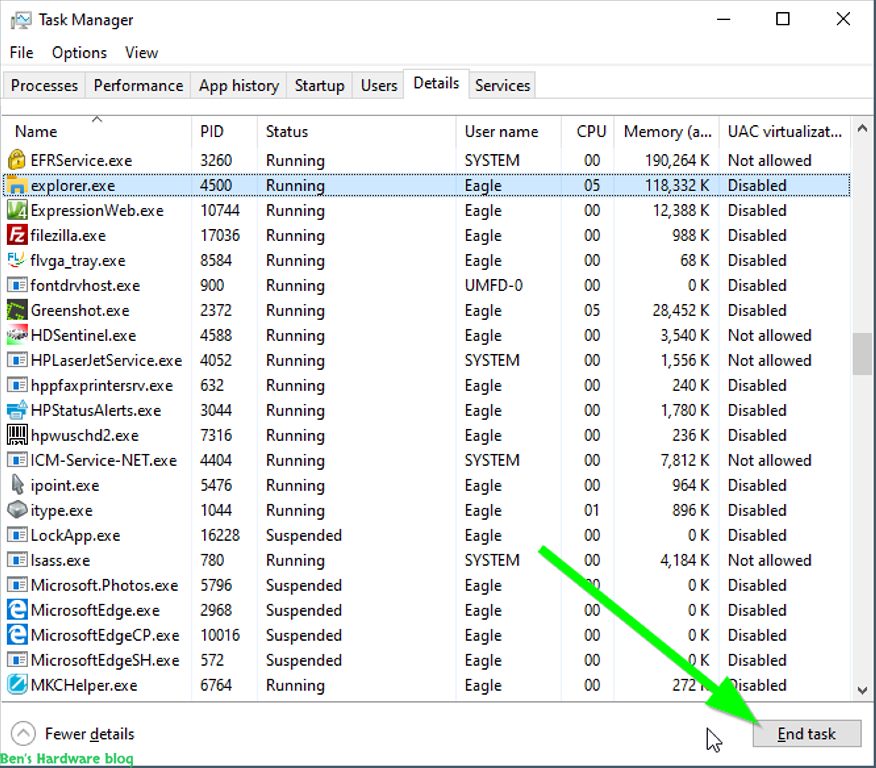
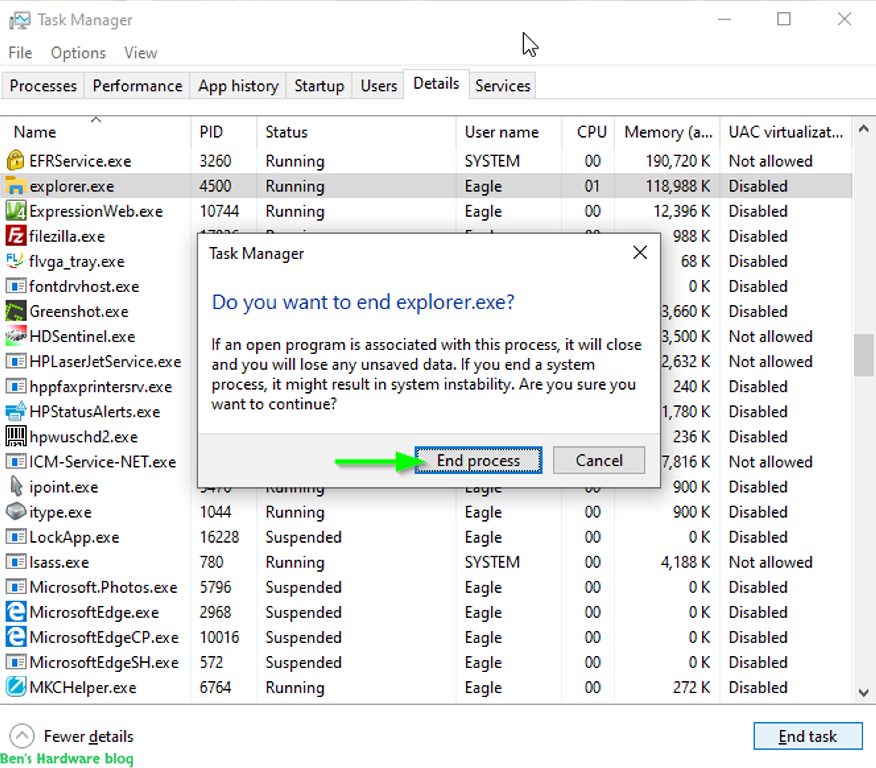
  • Once Explorer.exe is found, mark it by clicking it once using the left mouse key and click the End Task button on the bottom right corner of the Task Manager's window
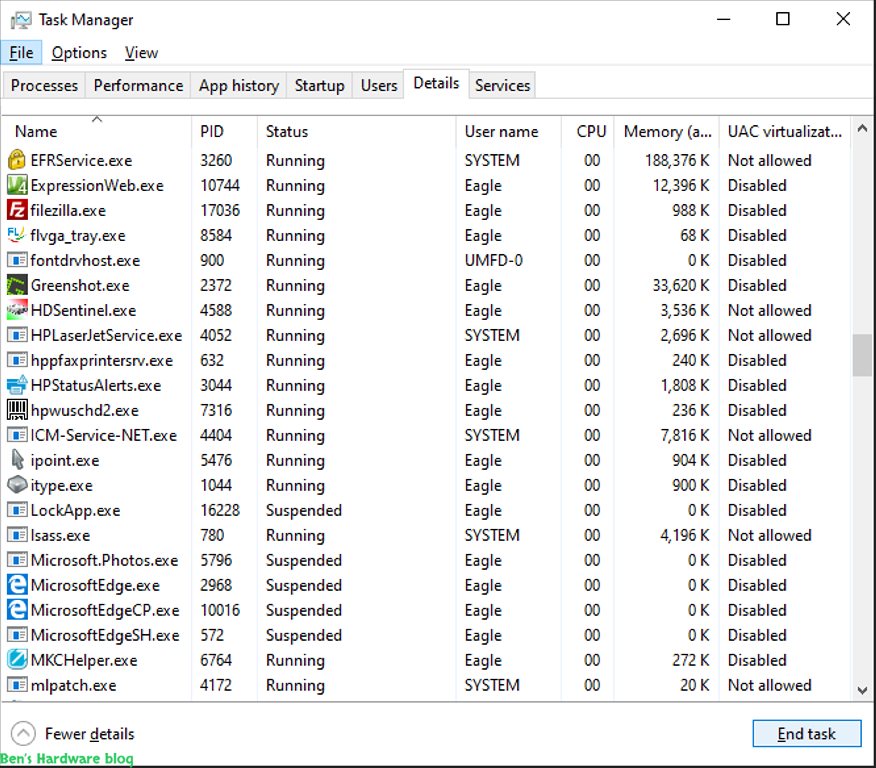
  • Within the new pop-up confirmation window click the End Process button to finally kill the Explorer.exe task. Keep Task Manager open afterwards.

Running Explorer.exe again:

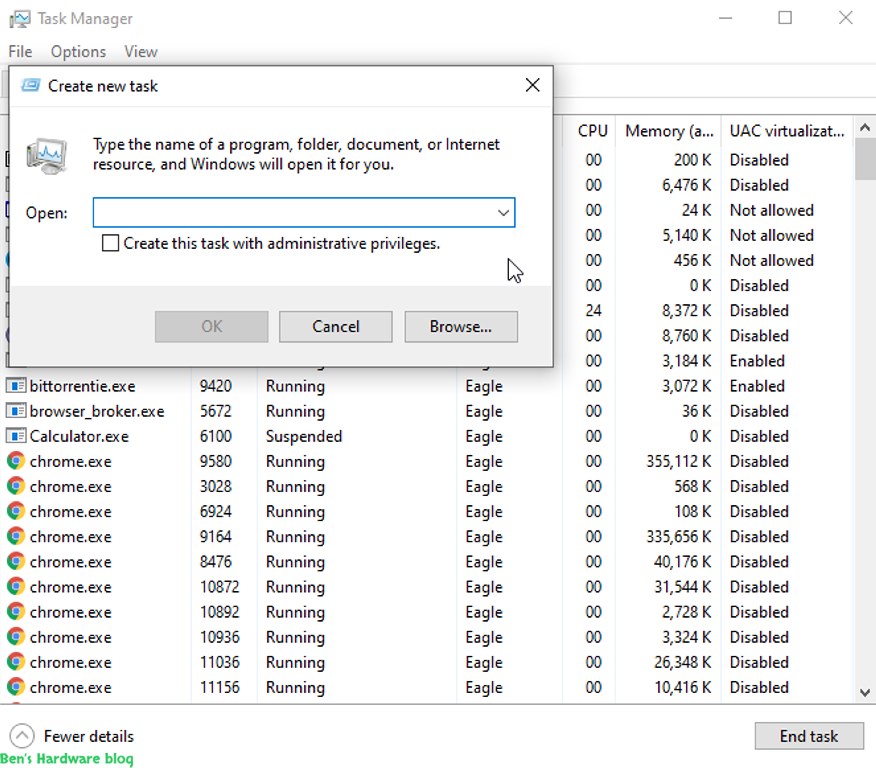
  • From within the Task Manager, go to File and go to Run New Task:
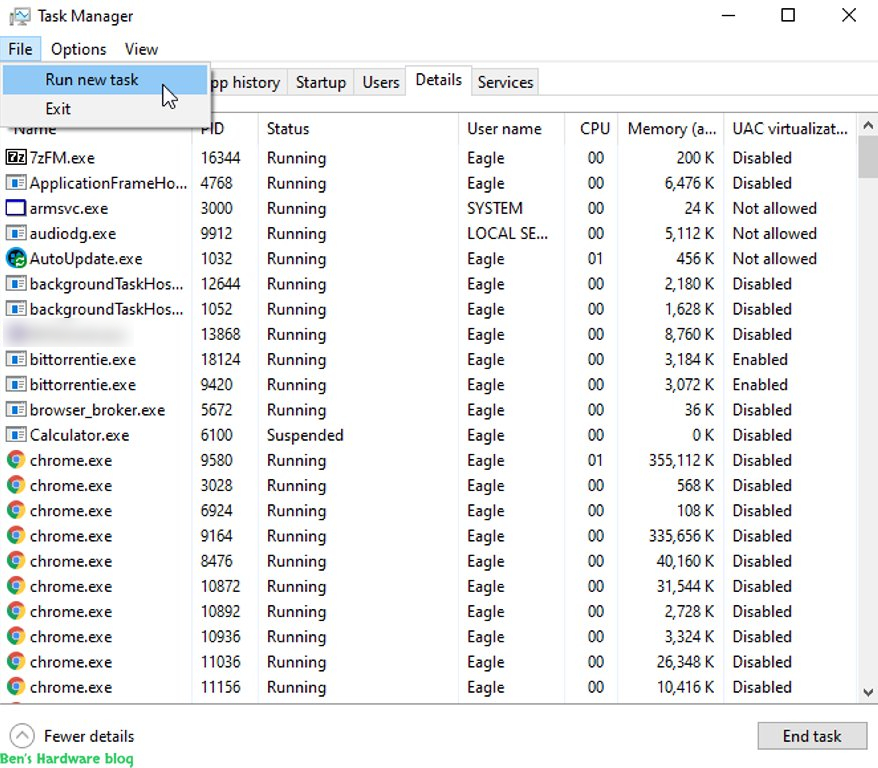
HTSSIIW10-11.jpgHTSSIIW10-12.jpg

  • Within the new pop-up window, type: explorer.exe, and click OK or just hit the Enter key on your keyboard
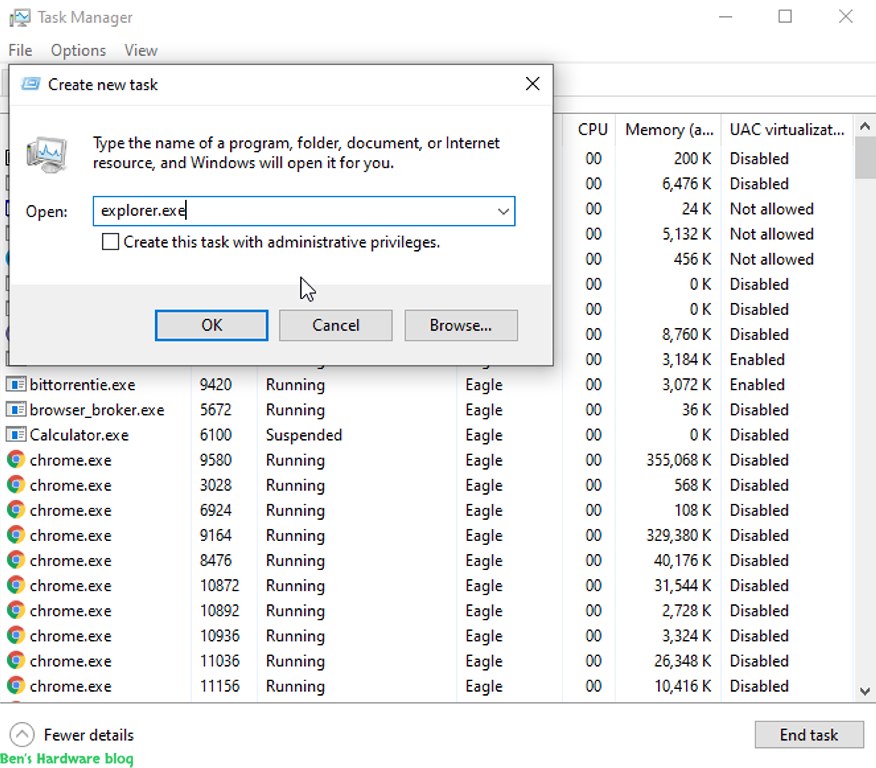
HTSSIIW10-13.jpgHTSSIIW10-14.jpg

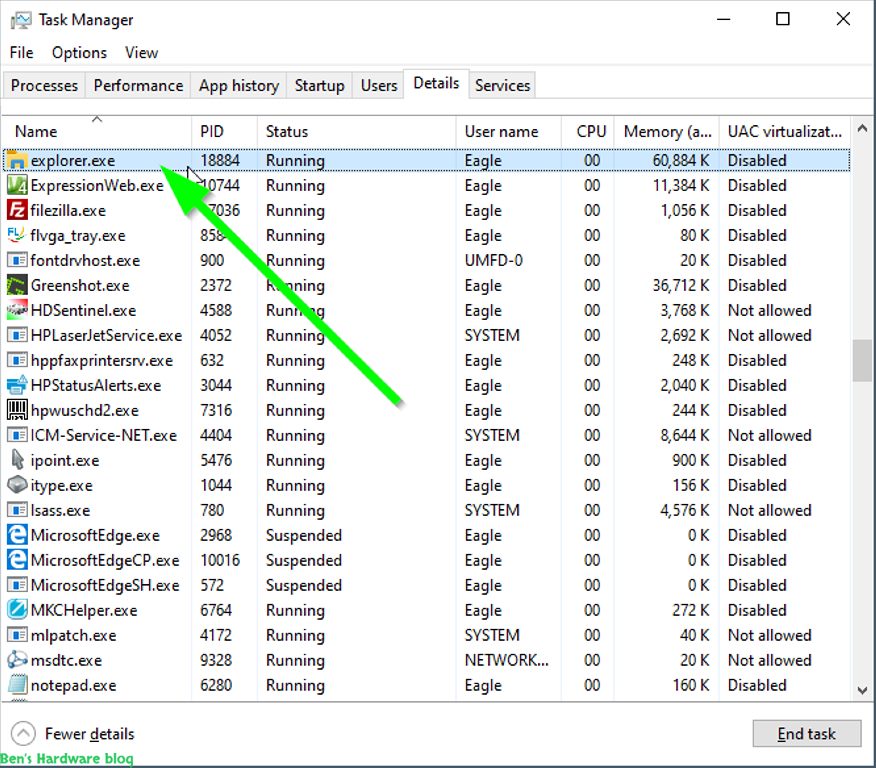
  • Explorer.exe should be running again now. Make sure that is the case by looking for it within the Details tab of the Task Manager using the described method mentioned in the previous paragraph.
  • Try to look for files and applications again from the Start menu. If it still can't find files and applications, try the next resolution method next.

Resolution#2 – Rebuilding Windows Search Index:

It seems that rebuilding Windows' Search Index solves this problem. In some cases, after the rebuilding is done and the problem persists, killing the Explorer.exe process and re-running it again solves it entirely.

Steps:

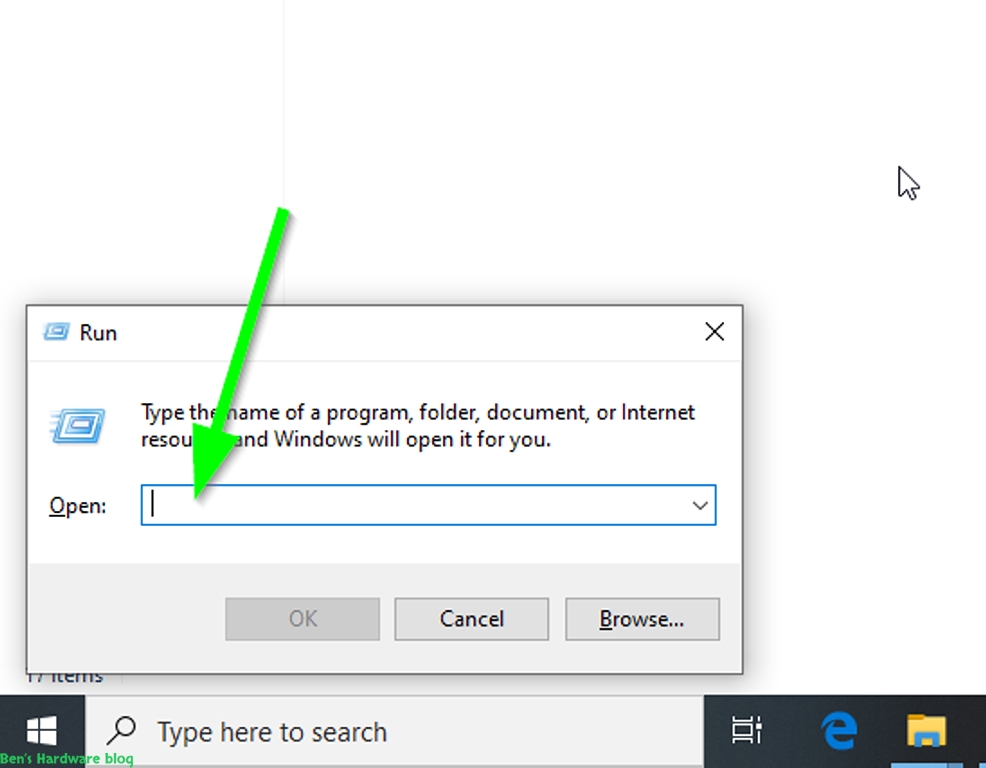
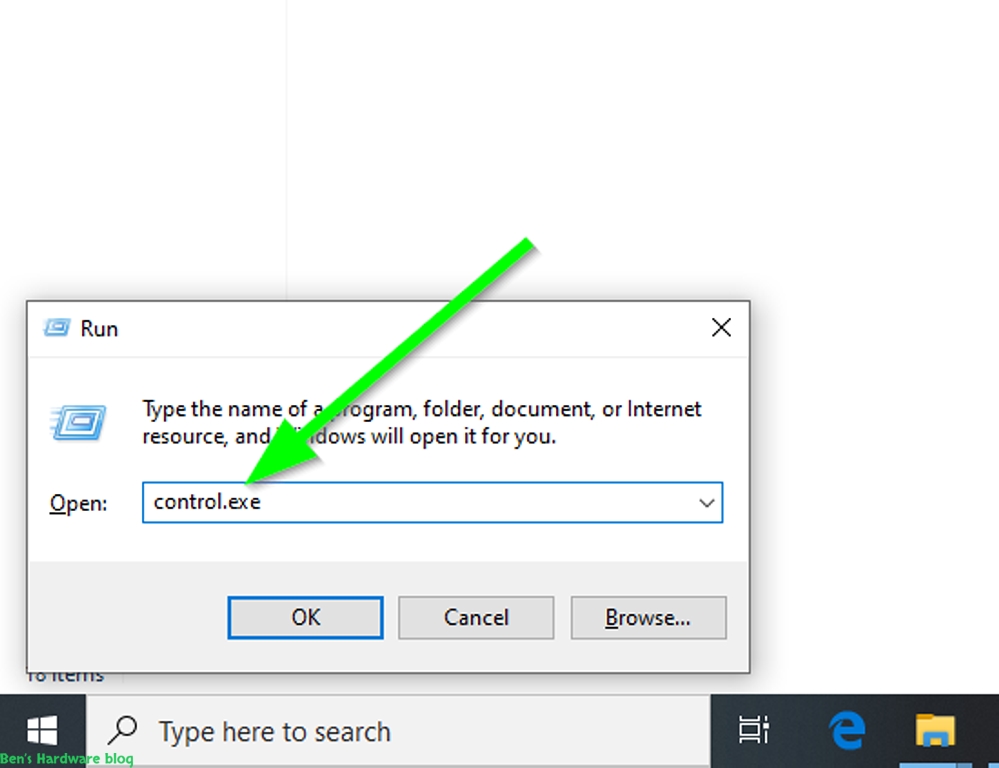
  1. Go to Control Panel preferably from the Run window
    1. hit the Start button + R key on the keyboard (Hold the Start keyboard button and hit the R keyboard button
    2. In the Run window type Control.exe and click the OK button or hit the Enter key on your keyboard
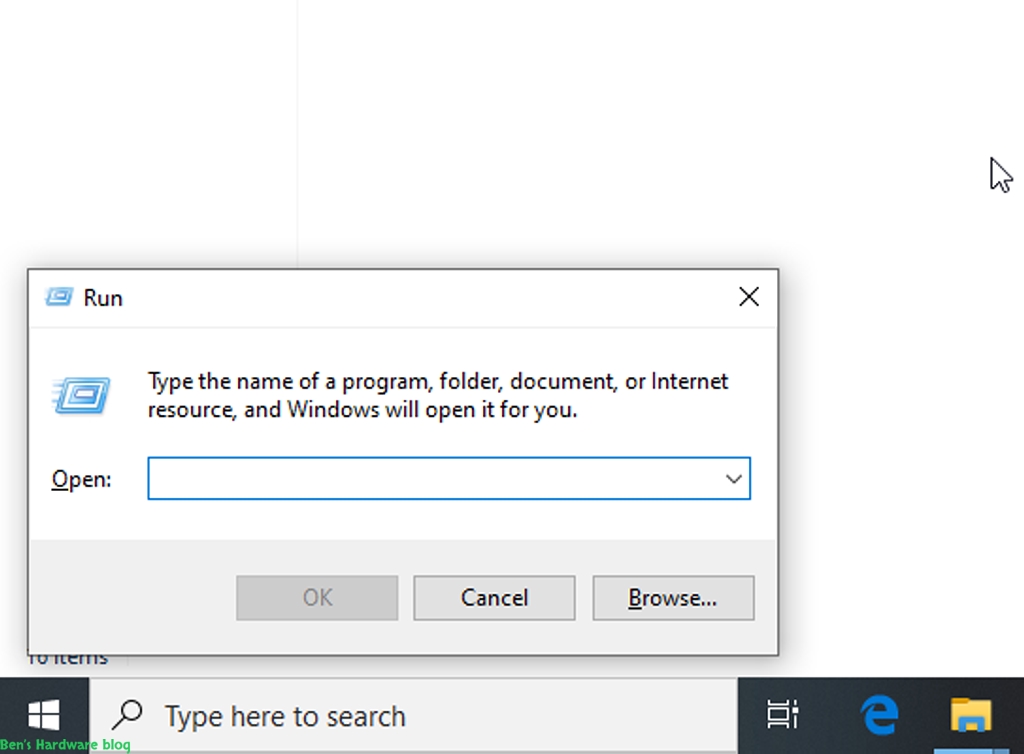
HTSSIIW10-15.jpgHTSSIIW10-16.jpgHTSSIIW10-17.jpgHTSSIIW10-18.jpg

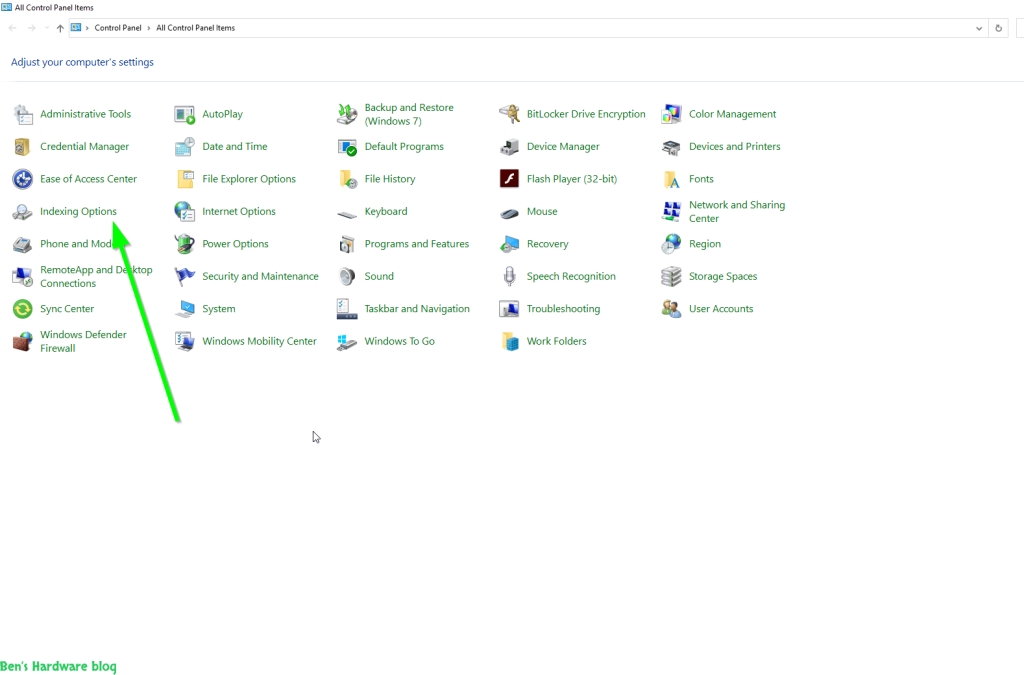
3. Open Indexing Options

 HTSSIIW10 18  HTSSIIW10 19

4. Click the Modify button on the bottom part of the window

HTSSIIW10 20 HTSSIIW10 21

5. Click the Show All Locations button on the bottom part of the window

HTSSIIW10 23 HTSSIIW10 24

6. Check ALL of the locations within the Change Selected Locations box and click the OK button

HTSSIIW10 25 HTSSIIW10 26

7. Click the Advanced button on the bottom part of the window

8. Click the Rebuild button

9. You will be presented with a pop-up window, click the OK button within it.

10. After clicking OK, you will notice that the number of indexed items has dropped and is now incrementing again and the searching icon next to that number has started animating. This means that the indexing process has begun and file and folder are being indexed in the background:

 HTSSIIW10 34  HTSSIIW10 35

10. WAIT and be patient while Windows rebuilds its searching index. This could take from a while to a very long while which depends on the amount of files and folders you have on your various storage devices. It is best to leave the computer be while the indexing process is being done in the background for faster results since when Windows detects a user activity, it actually reduces the intesity of the indexing process in favor or overall performance:

11. An indication that the indexing process is done could be seen within the Indexing Options window as a sentence that says “Indexing Complete”. 

12. Once the process is done, try to search for files and application. if that fails, kill and reload the Explorer.exe process and try to search for files and folders again. If that fails, reboot your computer and try searching for files and folders again.