Introduction: This article is going to discuss the significance and importance of the modern internet under the shado...

Read More...

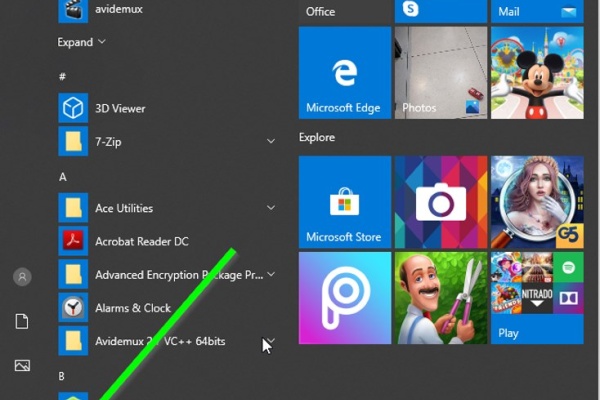
Introduction: The dymamic search feature of Windows has been a long anticipated one. unlike in older versions of Window...

Read More...

Introduction I cannot find any other reason for a gear shift lever to get bent except for a blunt force applied onto it...

Read More...

Introduction there are plenty of ways to start a motorcycle using various electrical methods that some and at least, th...

Read More...

Introduction In this article i will go over all of the possible ways to highten the performance of your computer and ge...

Read More...

Introduction: Dealing with car mechanics is inevitable for the tech savvy person and at some point he or she would reso...

Read More...

Introduction: In the following post I will demonstrate how I tried making an old and ugly kitchen be, well, less old an...

Read More...

Introduction: Computers. They have found their ways to almost every aspect of our lives it seems and have come a long w...

Read More...

Introduction Apart from armor and a helmet, usually a motorcycle rider doesn't need much in order to ride their horse. ...

Read More...

Introduction Noise. Its sucks, unless it comes in the form of music and sometimes it sucks even then. When it comes to ...

Read More...

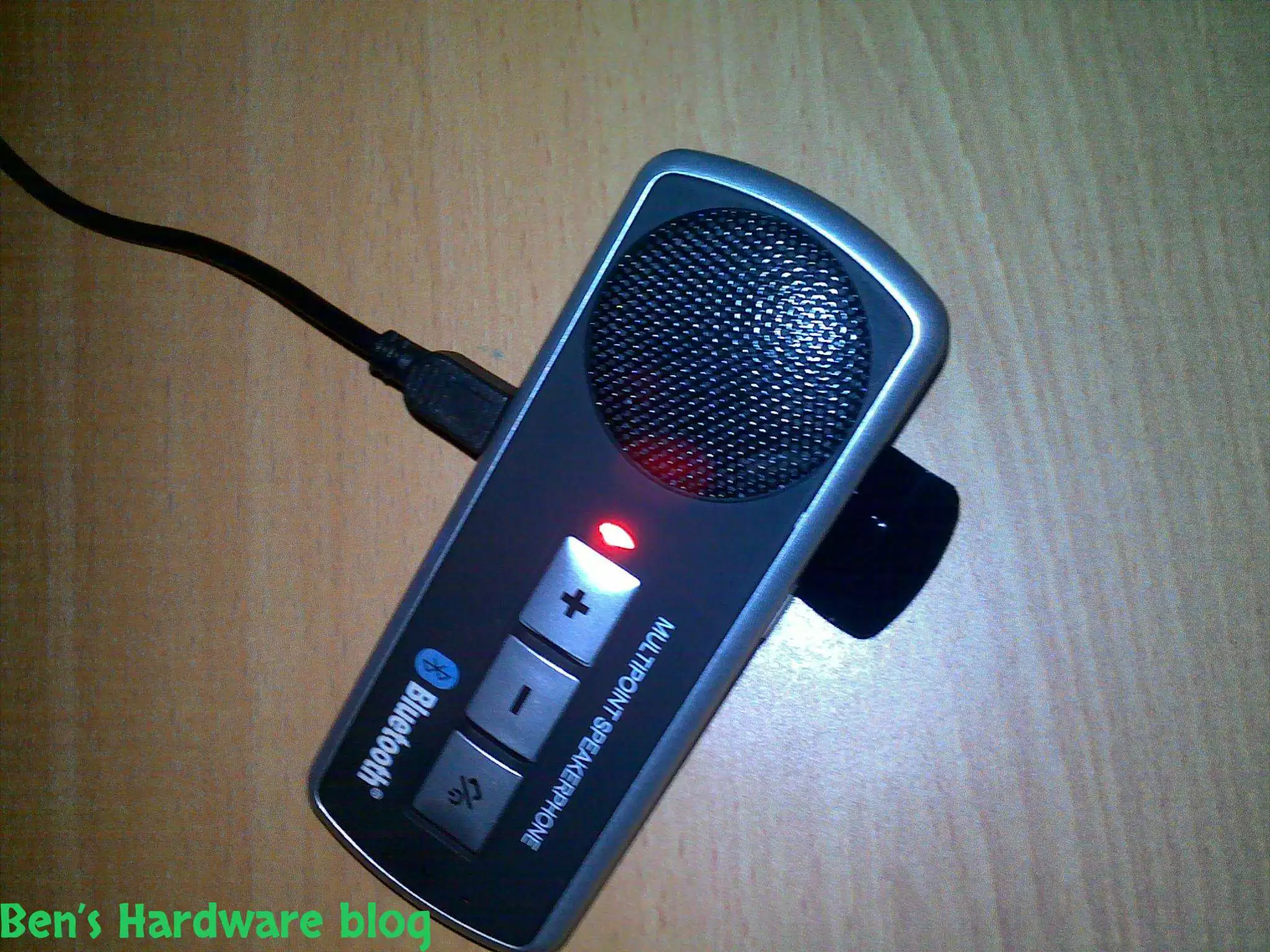
Introduction: In this article i will go over an absolute nessesity for bikers who use their smartphones often while the...

Read More...

1. Introduction The Dell Latitude E-7450 is one of the easiest laptops to have its battery replaced, considering the fa...

Read More...

Intoduction: The product in this post is a must for everyone who would consider themselves a professional, an aspiring ...

Read More...

Introduction: Apple’s products are not guaranteed forever and just like any other mobile on the market, they too use an...

Read More...

This article is going to express something that has been beginning to annoy not just me, but probably millions of other ...

Read More...

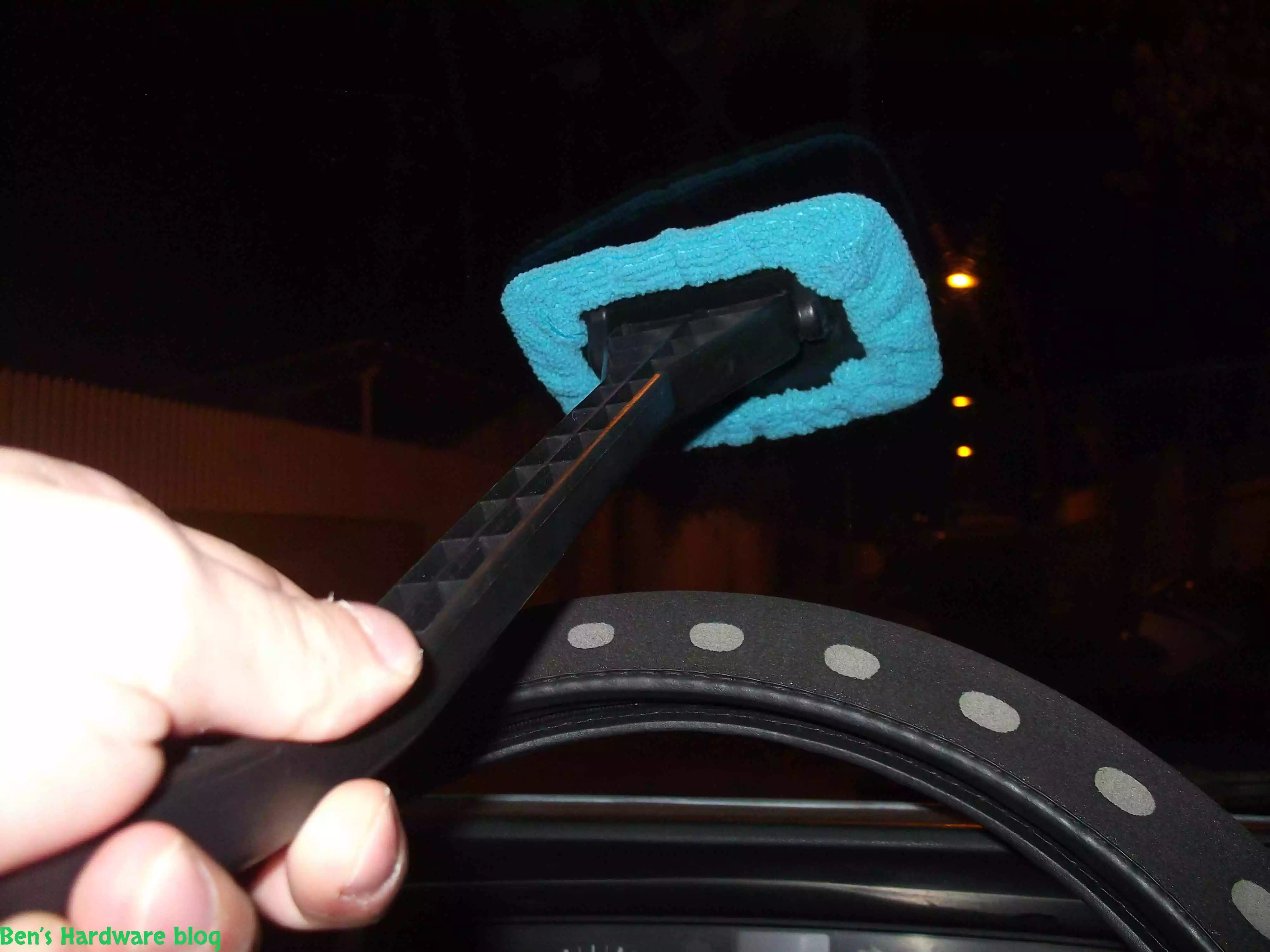
Have you ever tried to clean your car’s front windshield from the inside of it? It’s annoying and not easy and whoever t...

Read More...

If you are like me, and you don’t carry around a fancy touch screen smart phone such as an Iphone,  or a Galaxy, an...

Read More...

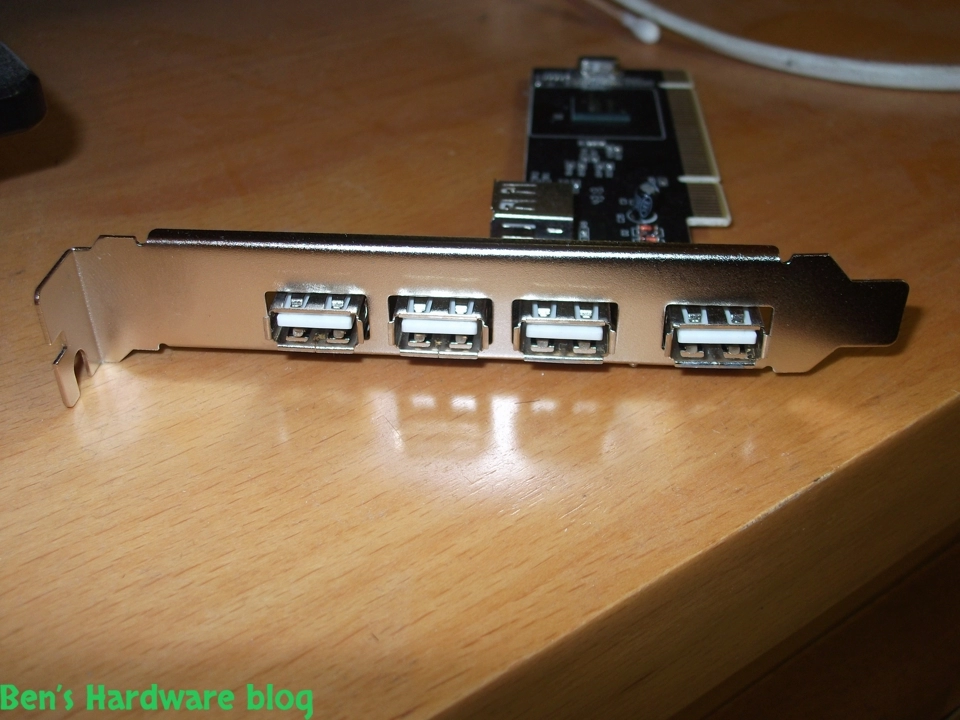
Need more USB ports? This is a great solution for those who just have and use a lot of devices that connect to the PC w...

Read More...

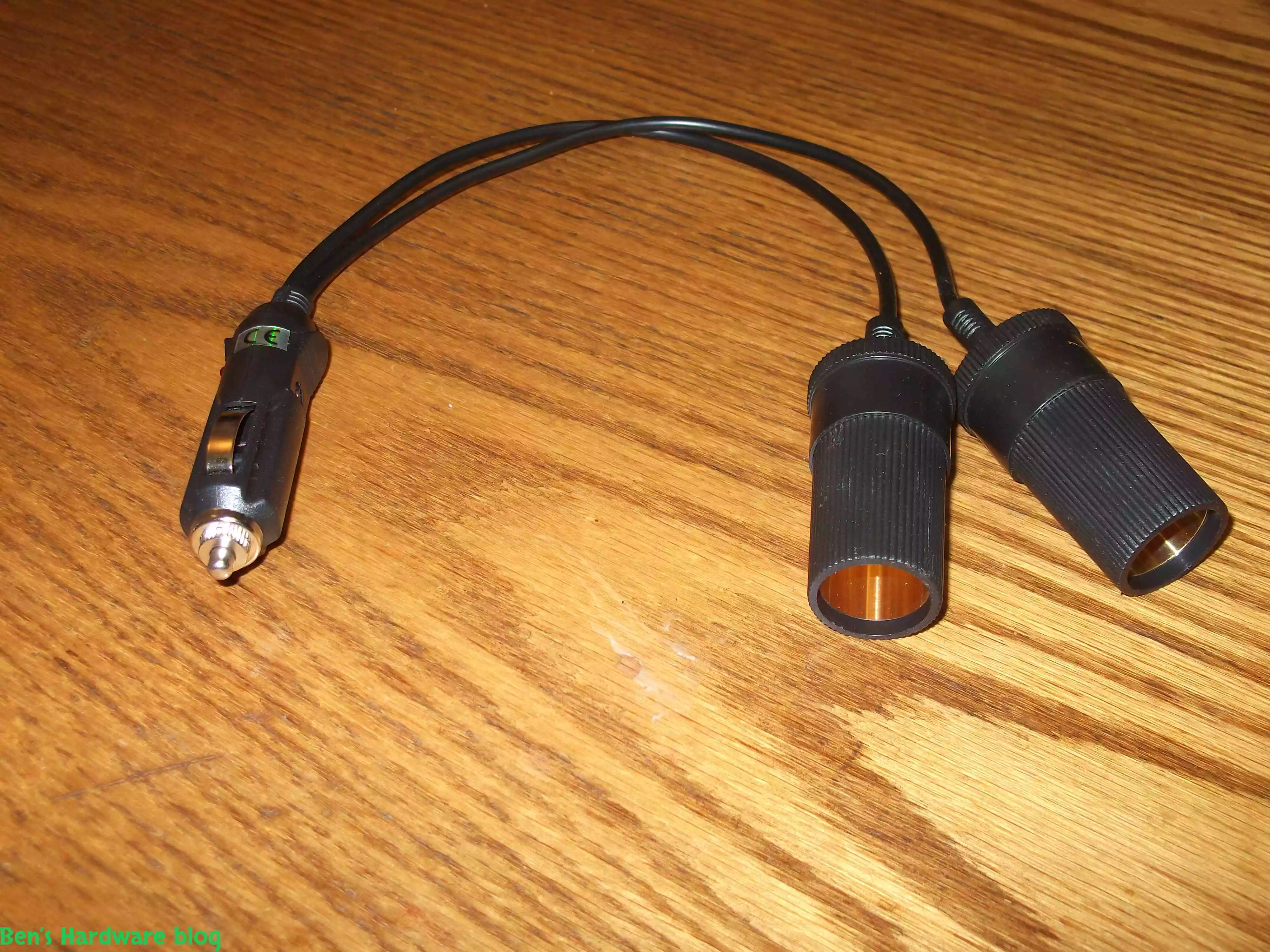
After installing more than one 4 way power splitter in my car I have decided not to connected them on series in order no...

Read More...

My dear Dell Inspiron 1545 keeps getting old and slow on me. I have replaced my old HDD hard disk with a new SSD one and...

Read More...

I have been using this old cellphone on daily basis for over 3 years now and time has taken its price on it. when I say ...

Read More...

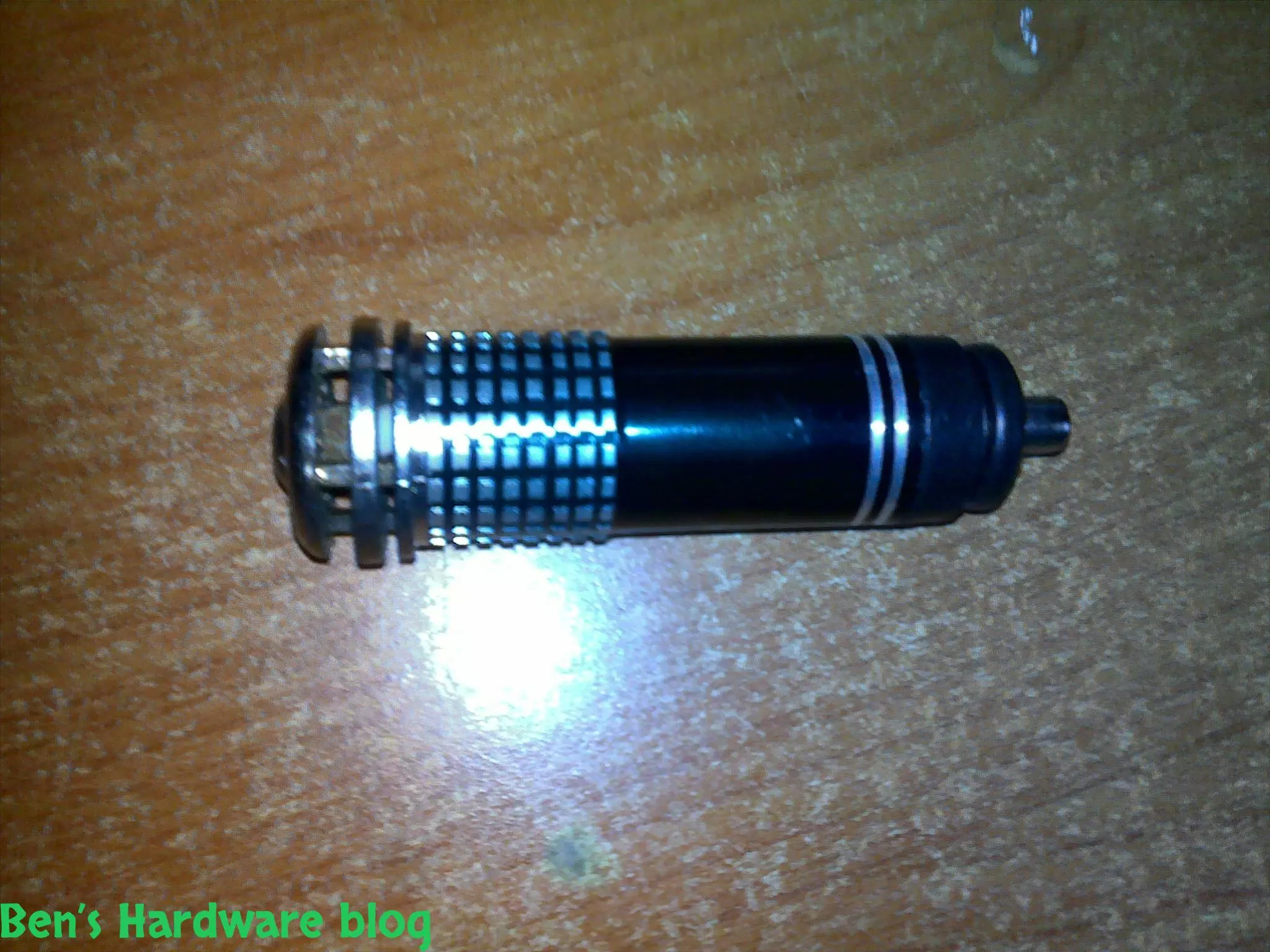
I bought this little car gadget in order for my car to be less stinky on the inside when driving with no air circulation...

Read More...

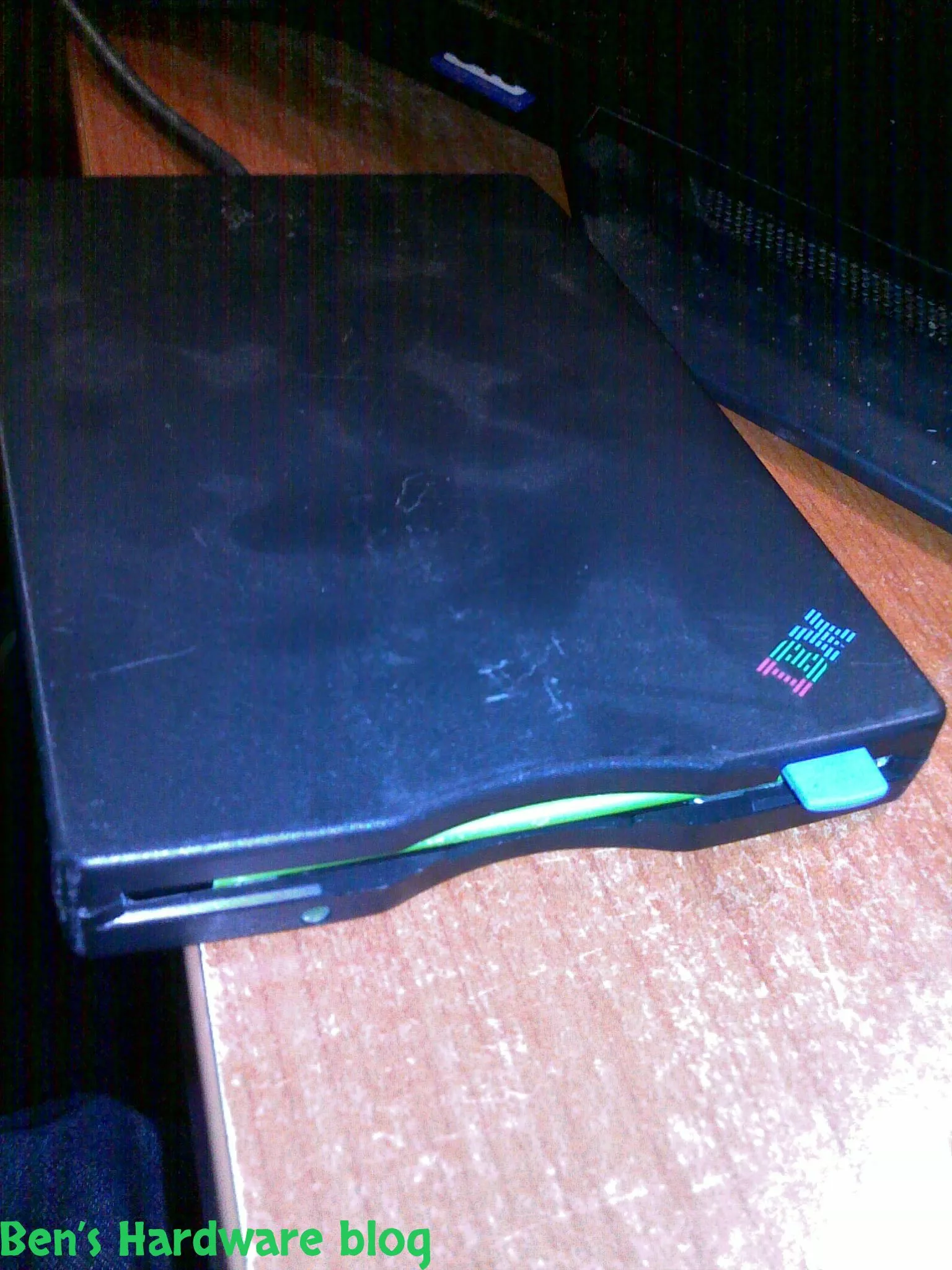
I got this piece of antique from my dad and yet as I'm typing these words he still doesn't have a clue where he found it...

Read More...

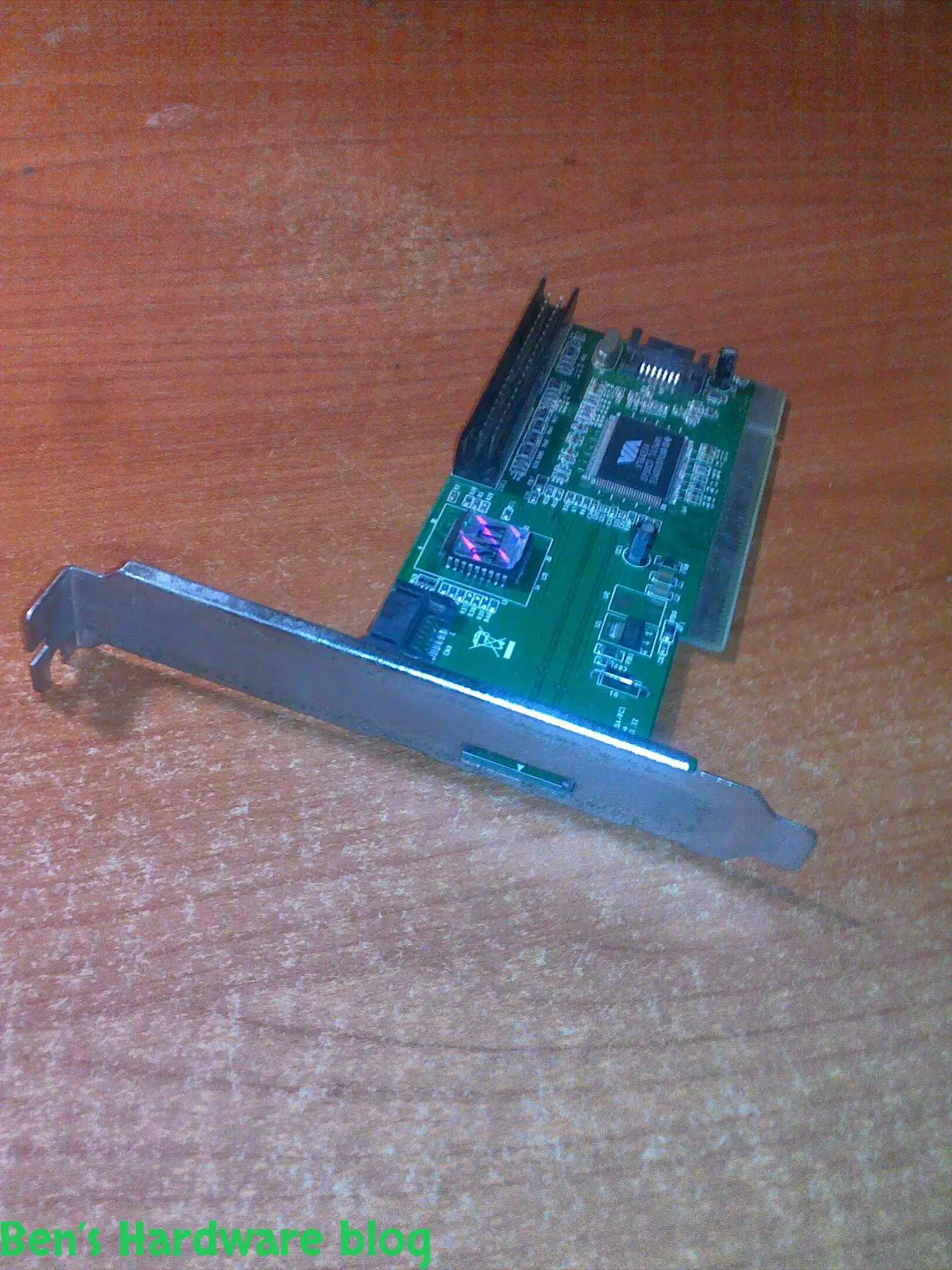
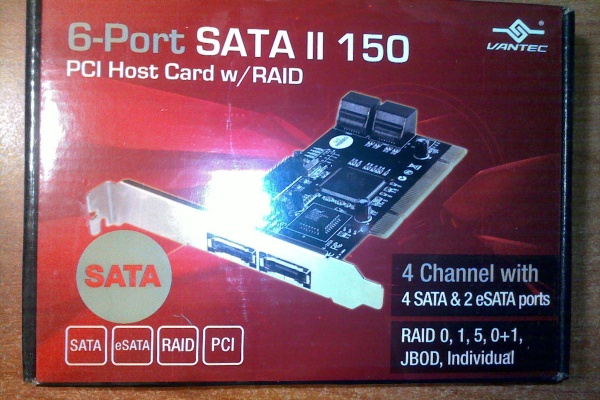
I got this card from a friend who just didn't need it , I didn't really need it either but I said thanks to the dude and...

Read More...

LED and optical fibers are a really good combination and this product really shows it. if you want to be a bit original ...

Read More...

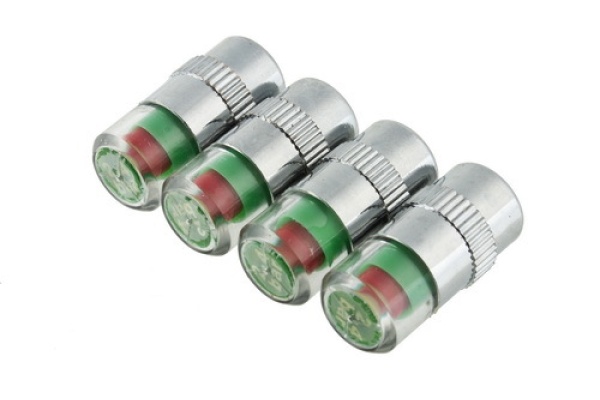
This is a great product that saves time and fuel by making your vehicle's tires pressure visually noticeable without hav...

Read More...

This is a great product that saves time and fuel by making your vehicle's tires pressure visually noticeable without hav...

Read More...

I admit - my car is full of gadgets and they require power don't they? This is why I bought this: Over time I added a l...

Read More...

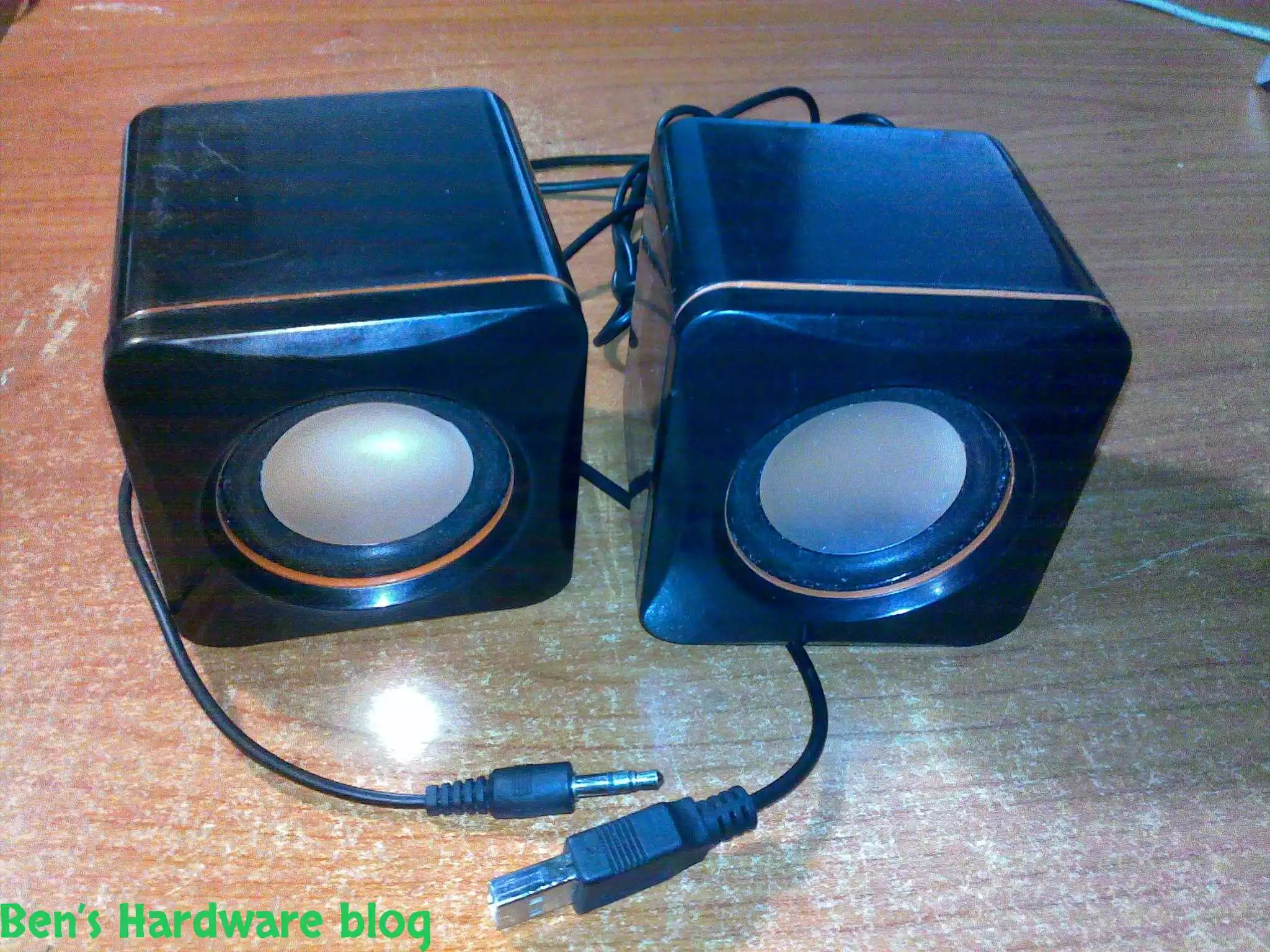
In this post I will demonstrate a simple fixing method of simple 2 computer speakers. I got these speakers from my uncl...

Read More...

as a result of being mobile some items tend to "fall" from your beg , hand , the coffee table you are sitting next to et...

Read More...

You gotta maintain and take care of your possessions – that's my motto , and one of my possessions which I deeply care a...

Read More...

This is by far one of the most useful and cheap gadjets out there. As long as you have a generic car power socket in you...

Read More...

If you are mobile , like me , you might like this simple gadget... in today's world many mobile electronic devices are ...

Read More...

For people who are techjunkies or that work with a large number or computers is part of their job this would be a *must ...

Read More...

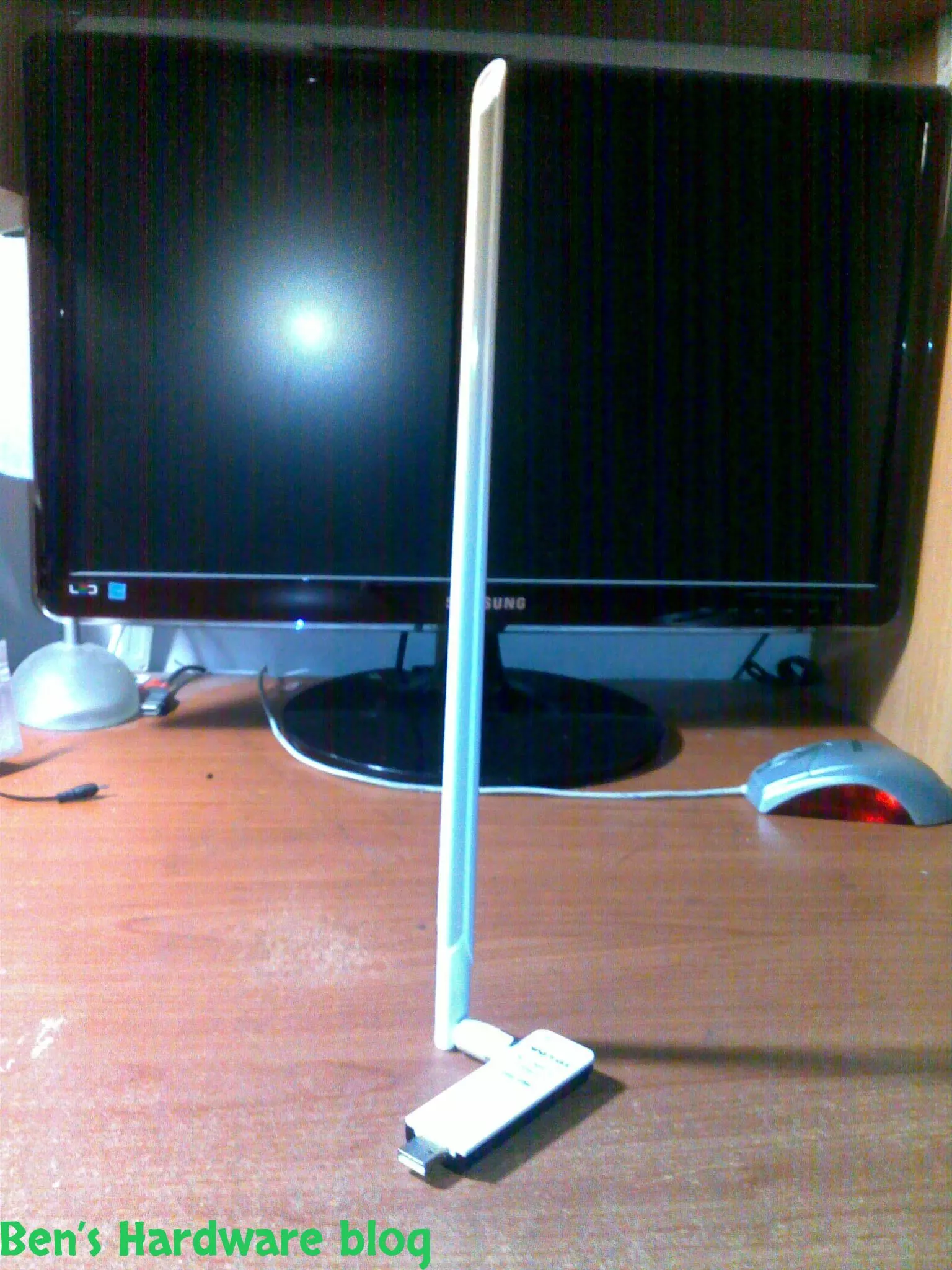
Wifi is everywhere today and with it comes many problems, among those - the problem getting and maintaining a proper rec...

Read More...

Simple, small and elegant. These are the main words I can use to describe this product. While the words are being typed ...

Read More...

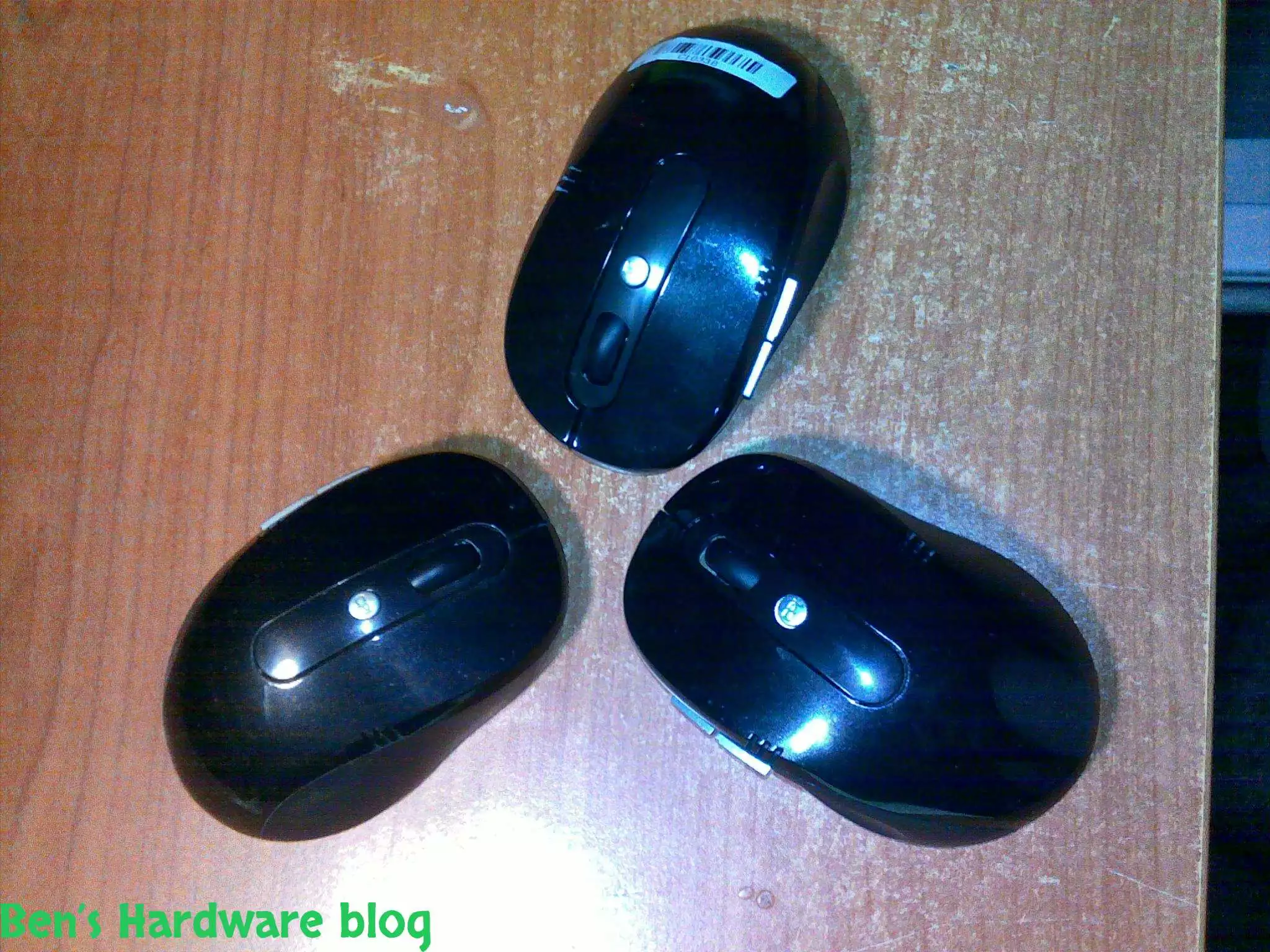
Cheap, simple, precise and looks pretty good,  I bought this mouse off E-Bay for 4.6 USD and it does the job w...

Read More...

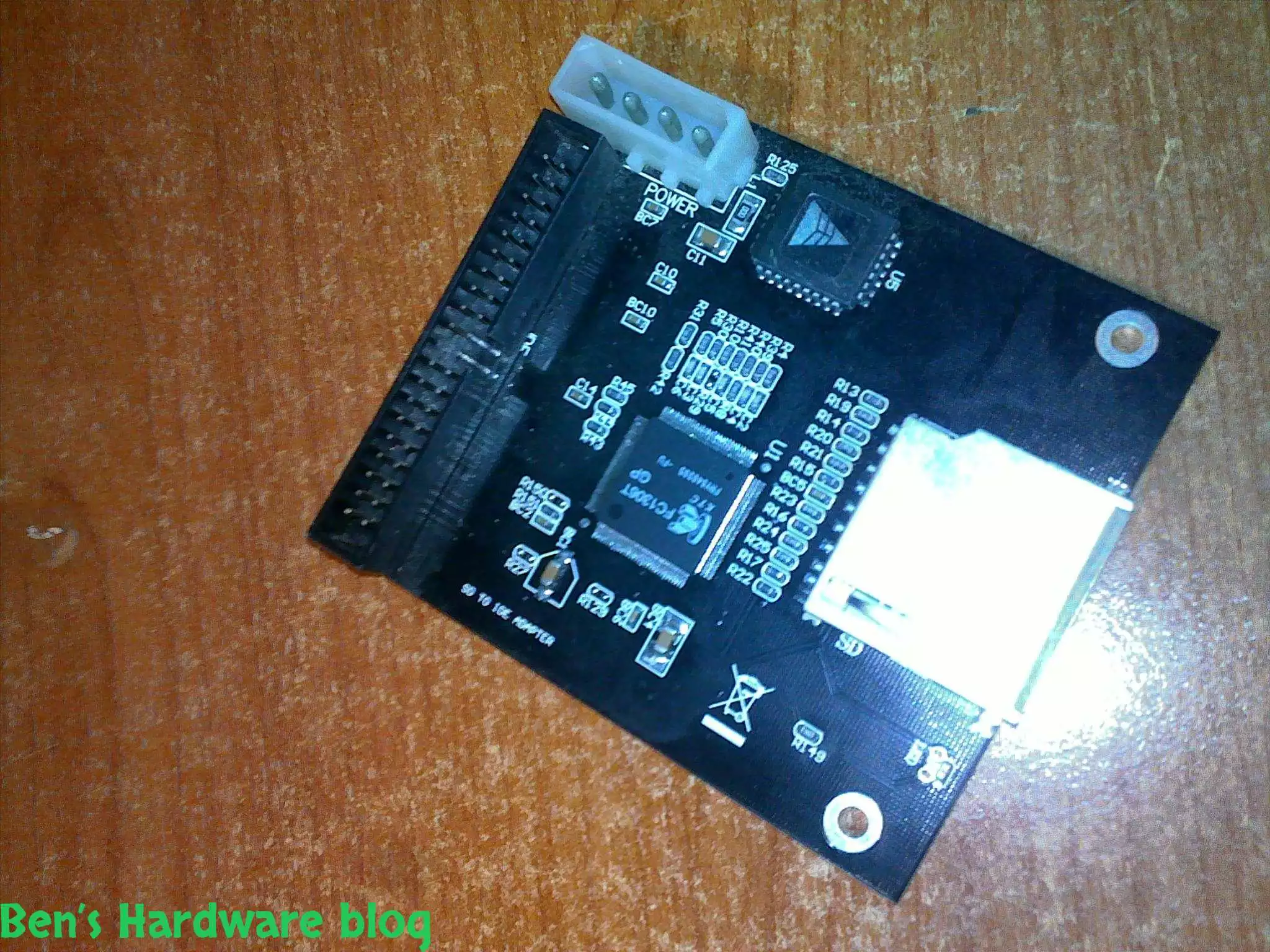
I bought this SD card to IDE converter in order to install a Windows XP operating system on it so one of my file servers...

Read More...

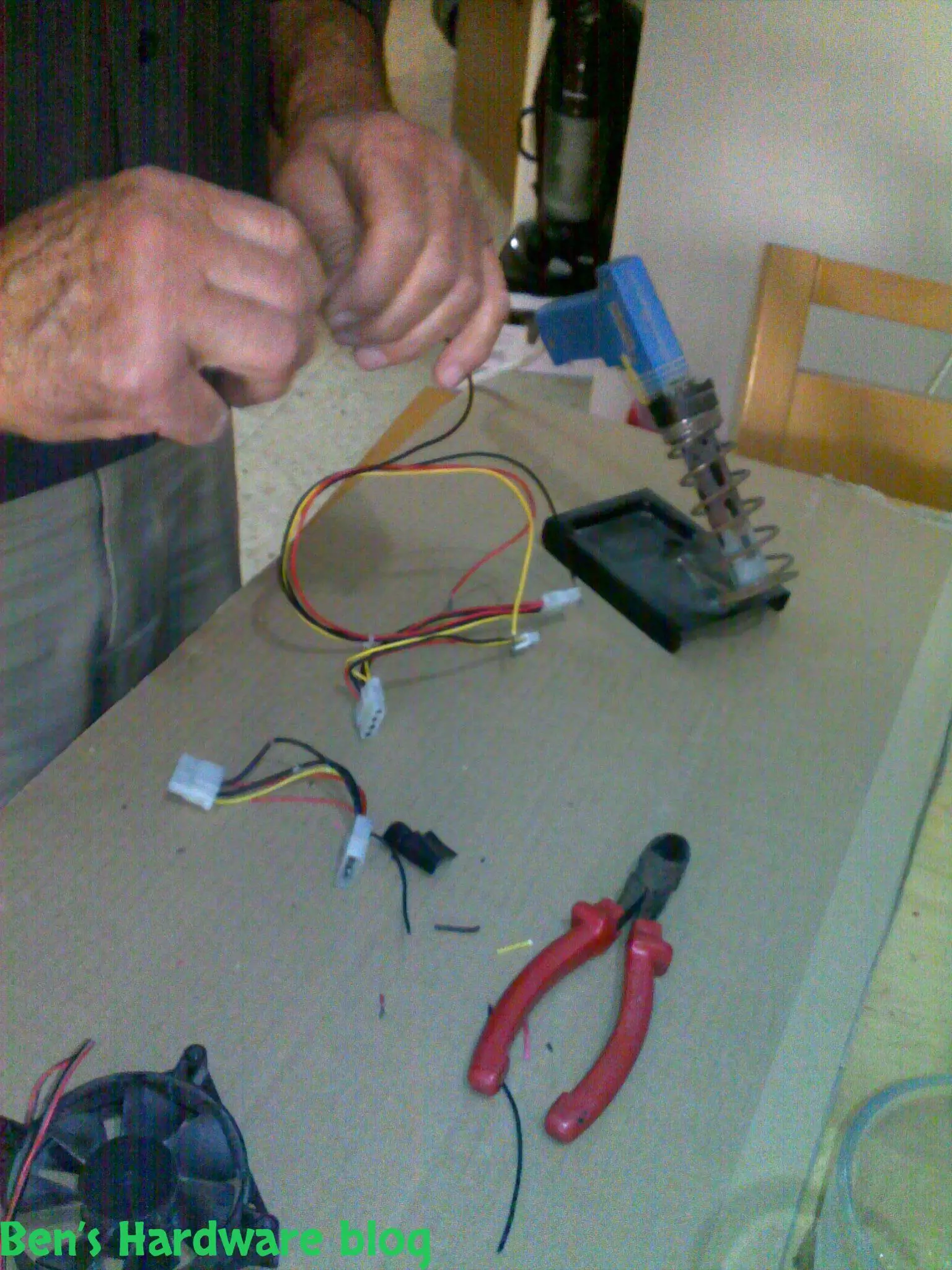
In this post i will demonstrate how i used spare cables i scavenged from an old power supply unit, to create a power cab...

Read More...

This product is just awesome! At first I was very skeptic about its abilities because up until I bought it I had known t...

Read More...

During the past month some annoying noises began emerging from my pc ... After carefully eliminating the source of the...

Read More...

If you read my "Upgrading a Dell Laptop" post then you'd know why i bought this product for. For those who you who didn...

Read More...

in this post I will demonstrate how you can use some old fans and build an effective cooling solution to any high-end 3d...

Read More...

Since I am a gadget freak and a security freak as well I decided to look online for a nice addition to my already over p...

Read More...

Upgrading a Dell laptop with an Solid State Drive (SSD): In this post i will show how you can take an old laptop (3-4 y...

Read More...

This is a very cheap and yet a very useful product. I bought it for mainly 2 reasons: 1 –my laptop would get very hot ...

Read More...

The more data you gather - video files, games, software backups etc. the more space you need. It's one thing to buy an a...

Read More...

Up until now I used to buy only 6 cell batteries. This time I decided to go with a 9 cell one. My main reason was the l...

Read More...
No More Articles

1. Introduction

The Dell Latitude E-7450 is one of the easiest laptops to have its battery replaced, considering the fact it's an internal battery.

2. Packaging:

The battery comes in a very well packed box enclosed in a thin transparent thing plastic enclosure. It has to be noted that the battery comes without the power cable that connects the battery itself physically to the power connector on the laptop's motherboard.
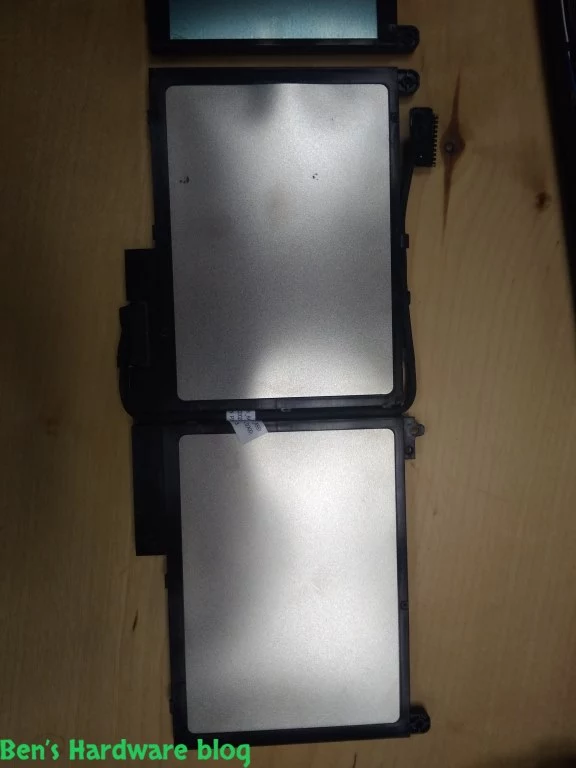
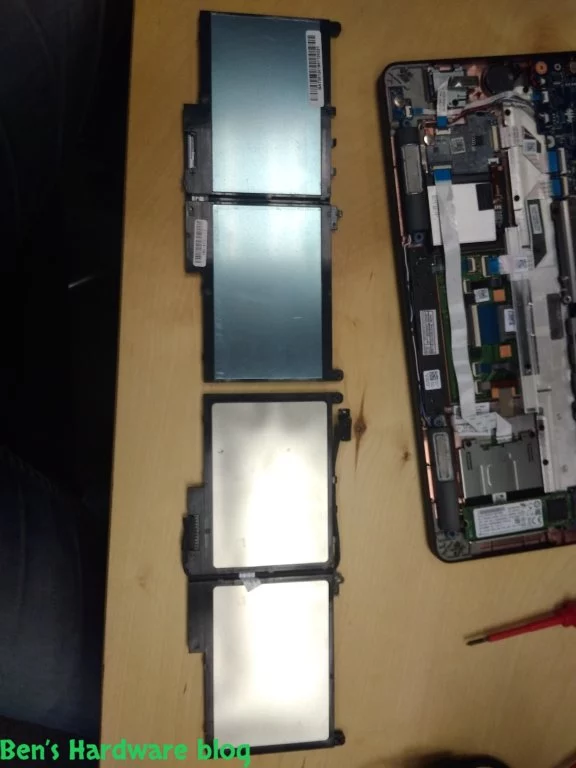
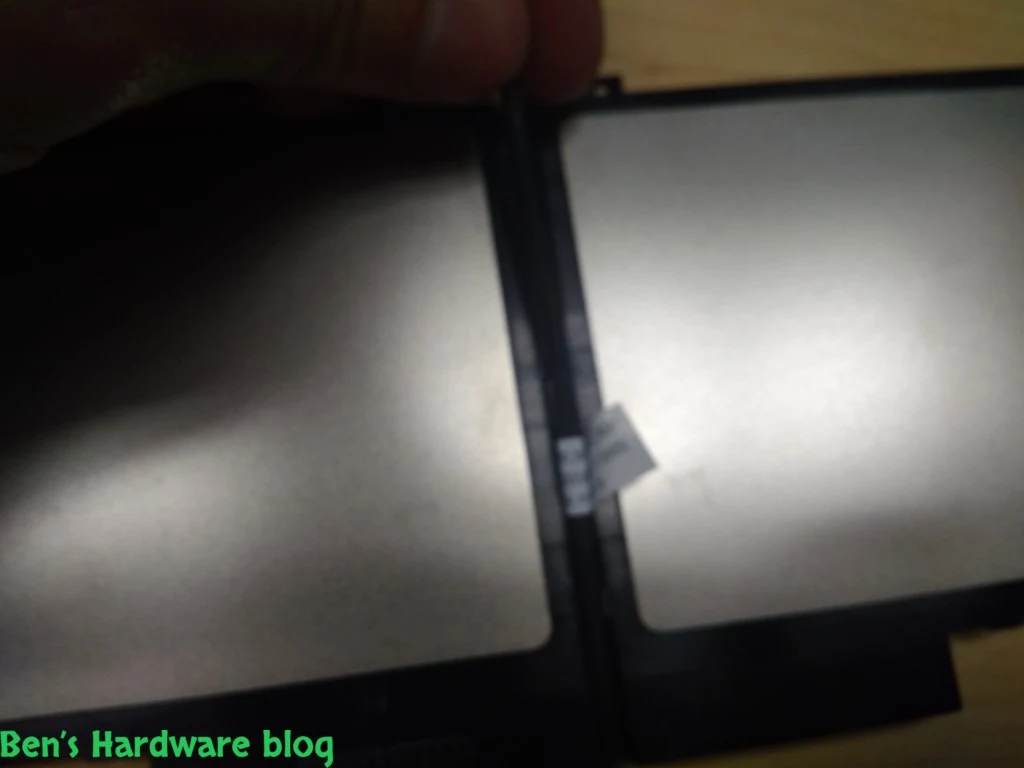
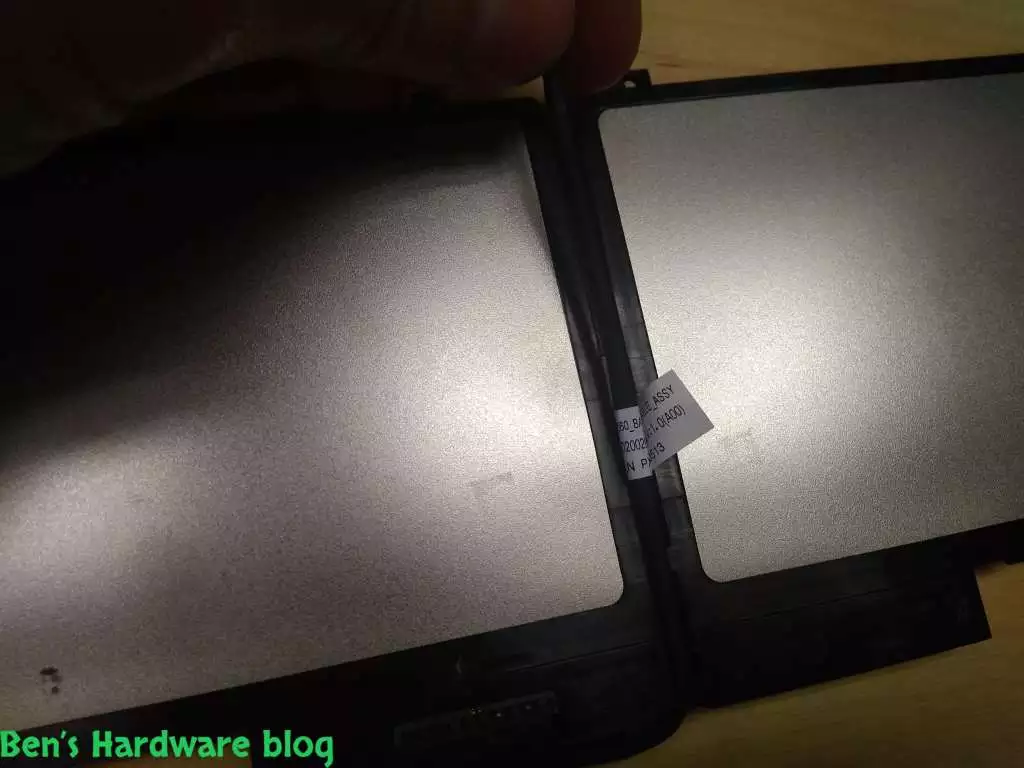
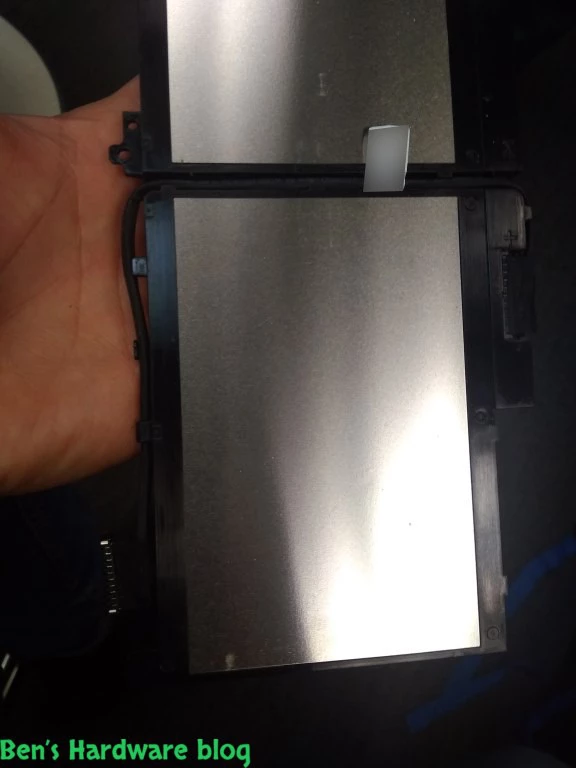
The only part in the product package is the battery itself which comes with a cover of a thin adhesive nylon cover that is attached to both of the battery's cells.

3. Quick Overview:

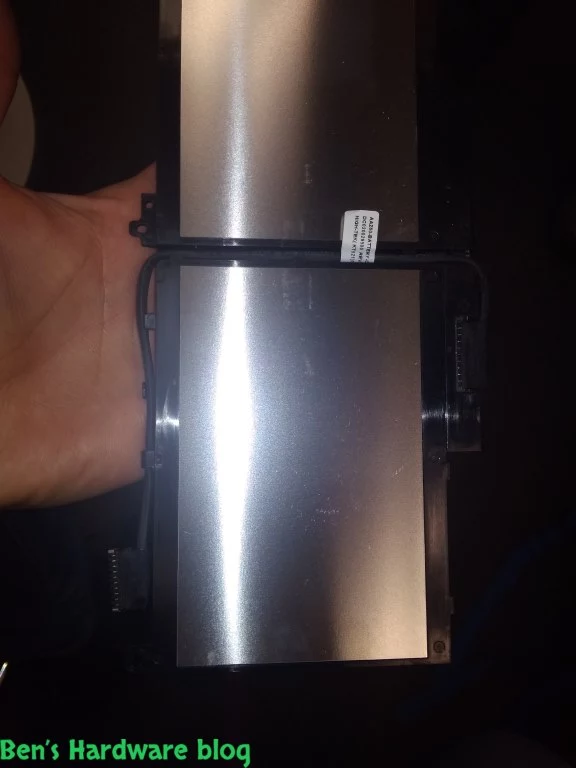
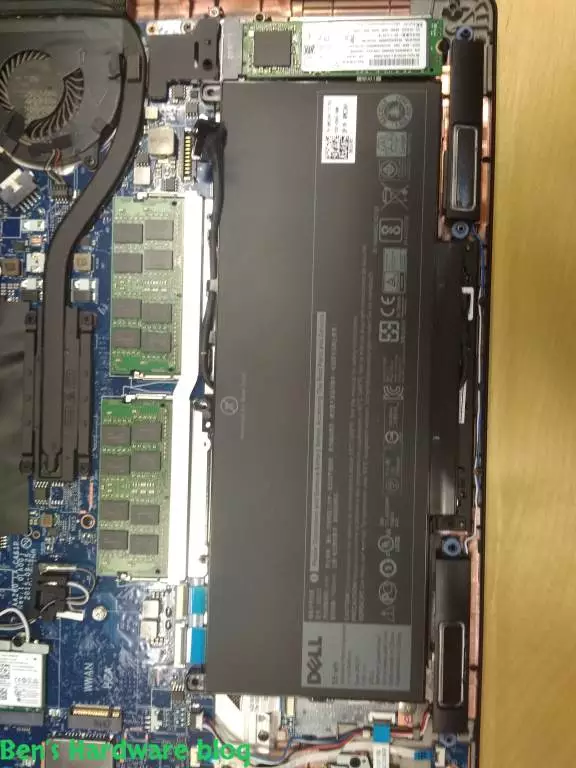
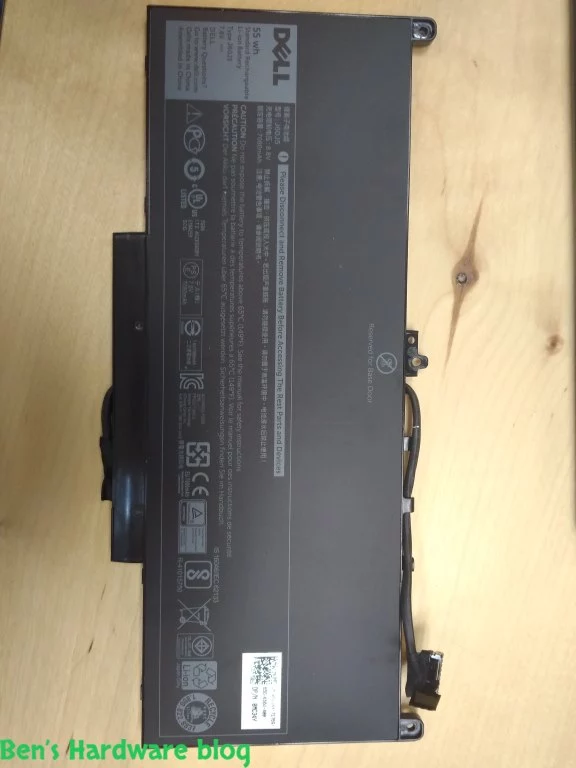
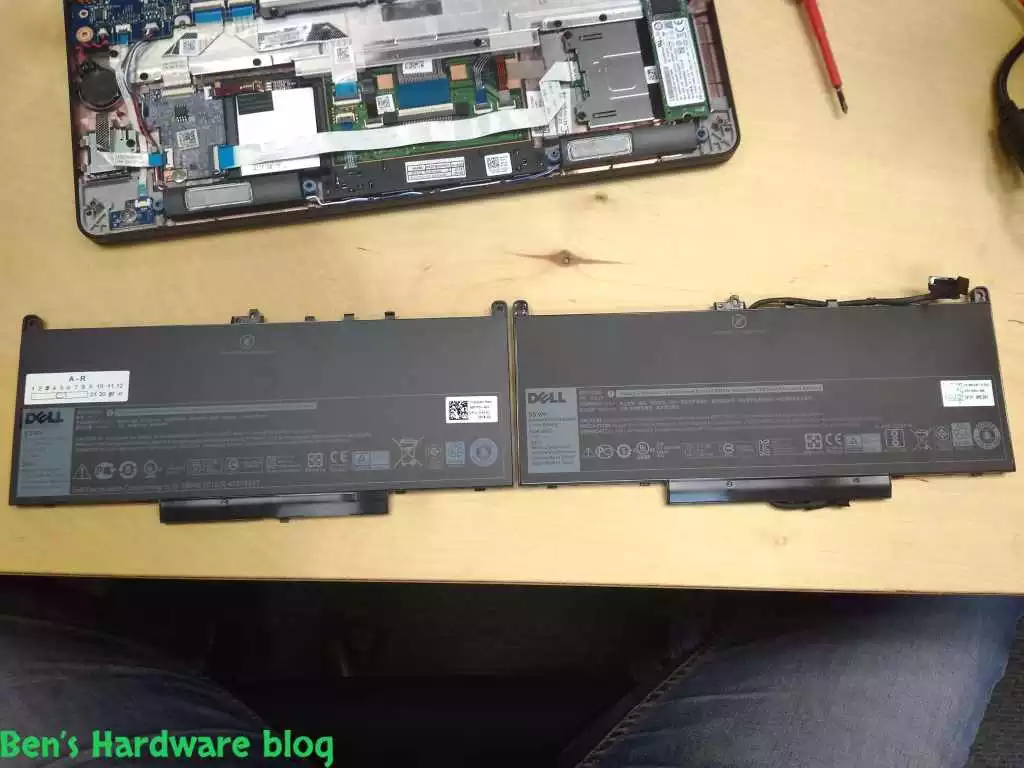
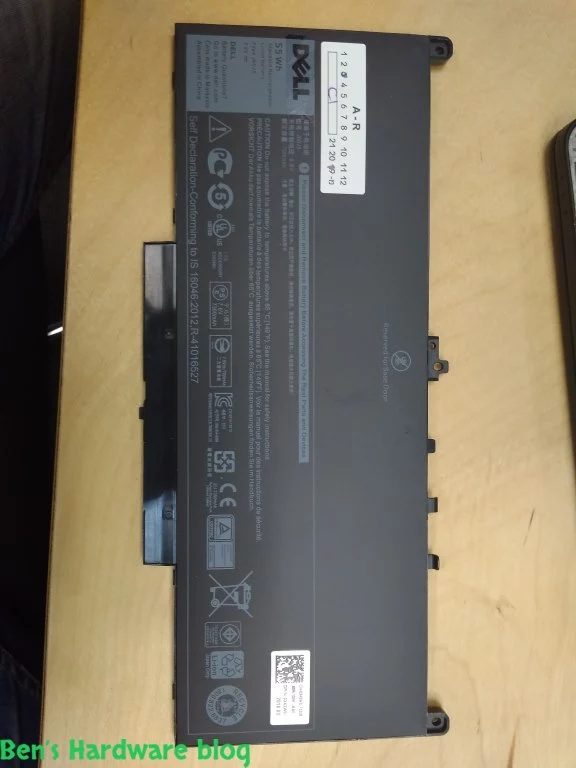
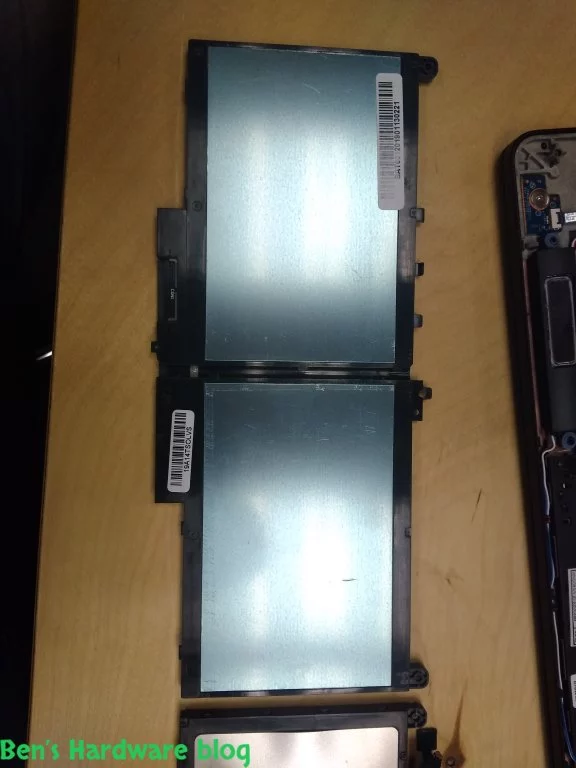
At a first glance the battery's overall shape and structure looks very compact and to the point. The battery is split into two main parts which seem to be its cells. The top part is made out of a plastic cover with the battery's technical details printed over it.

There are two screw holes in the “upper” elongated part of the battery. These holes are meant to mount the the battery to the laptop battery's cradle of the inner laptop inner case.

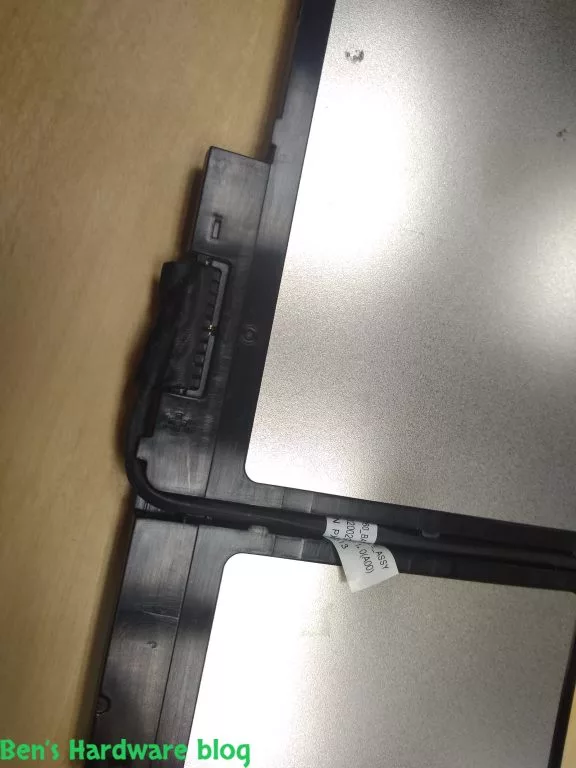
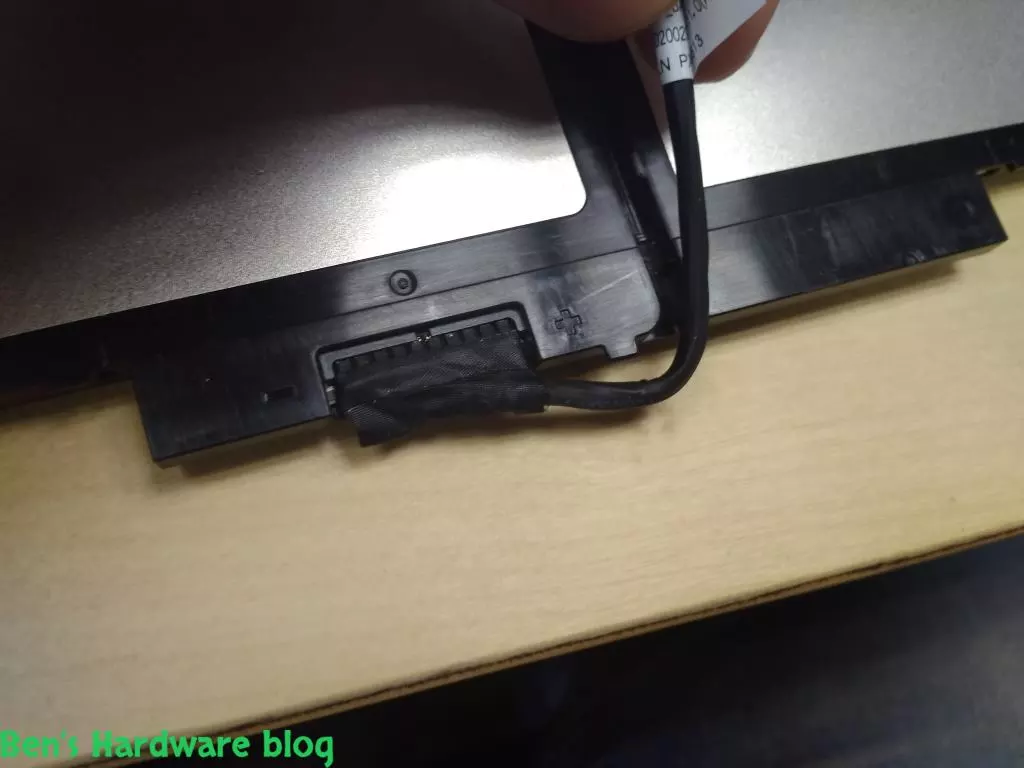
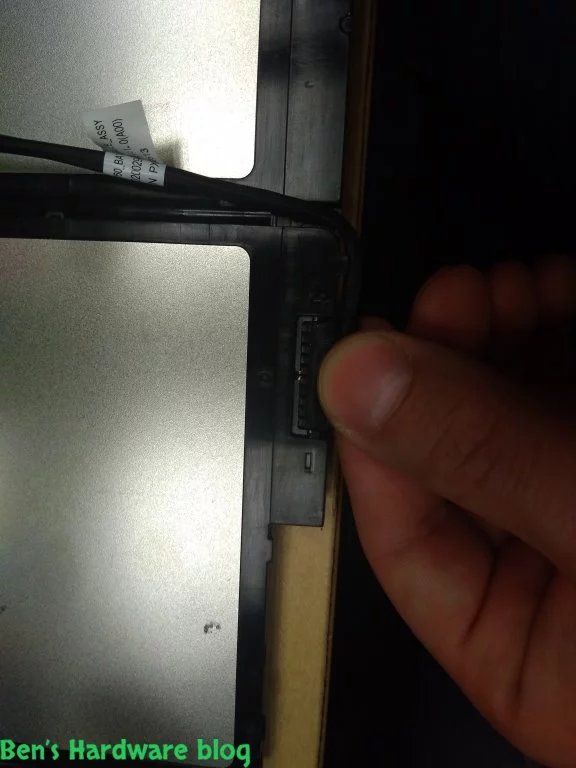
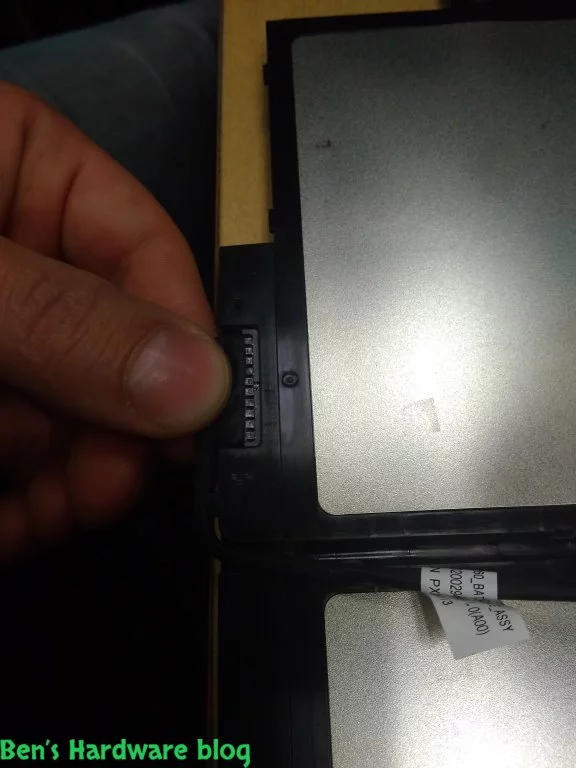
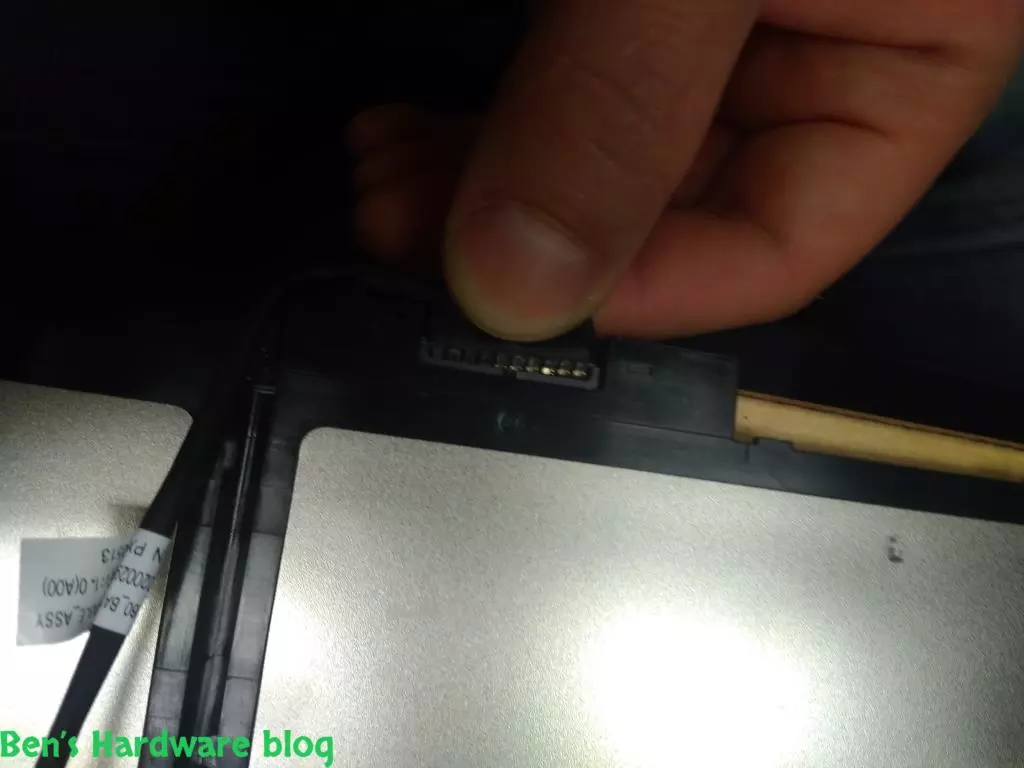
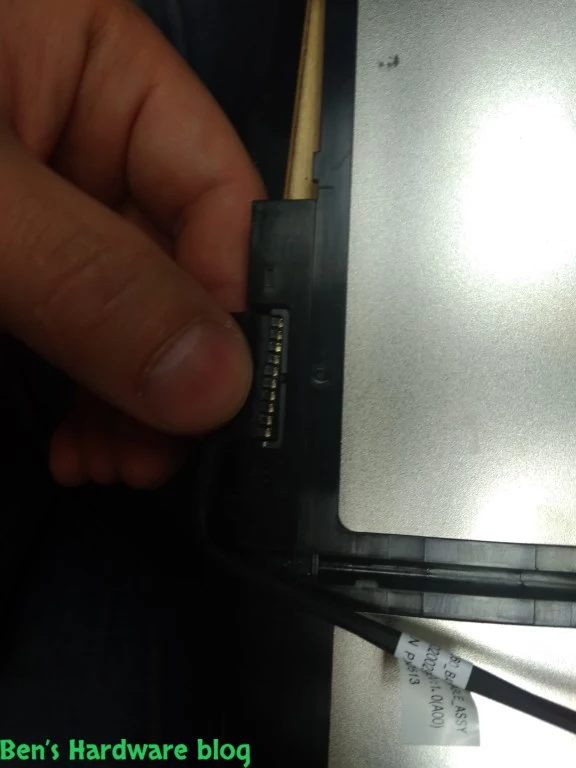
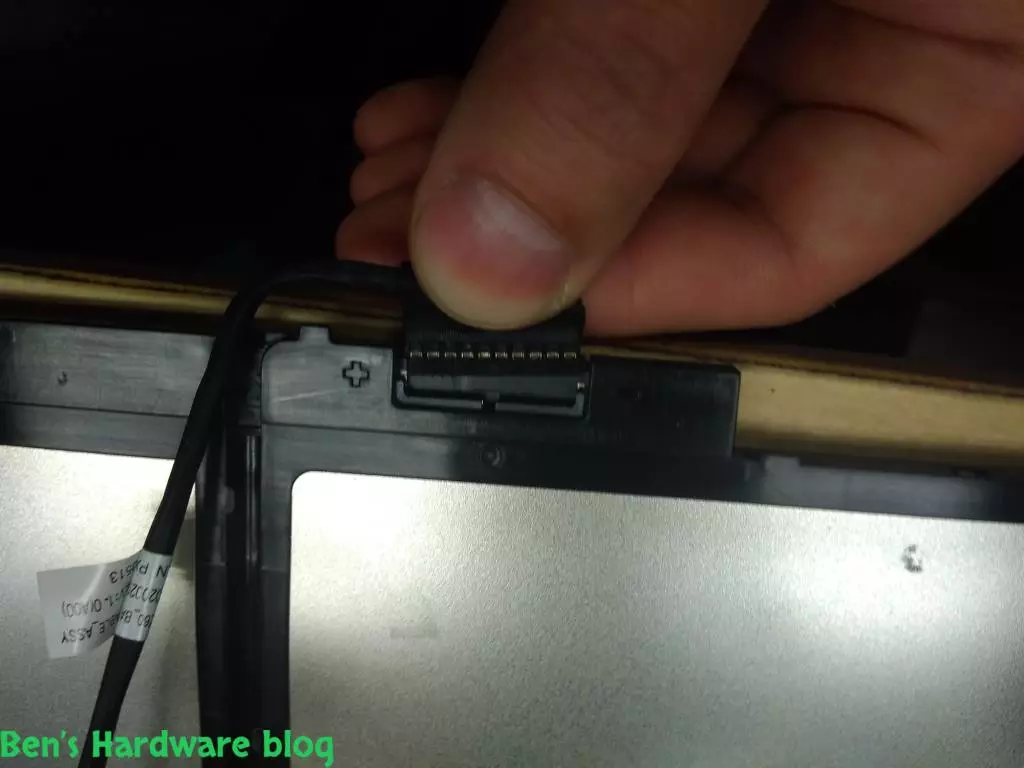
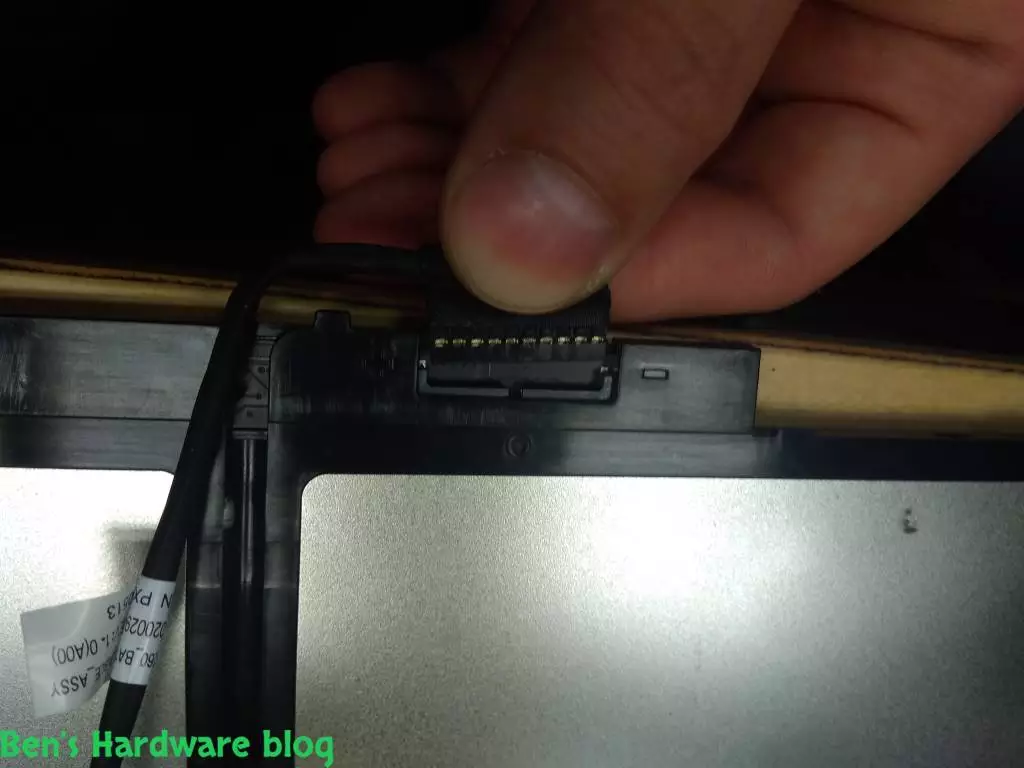
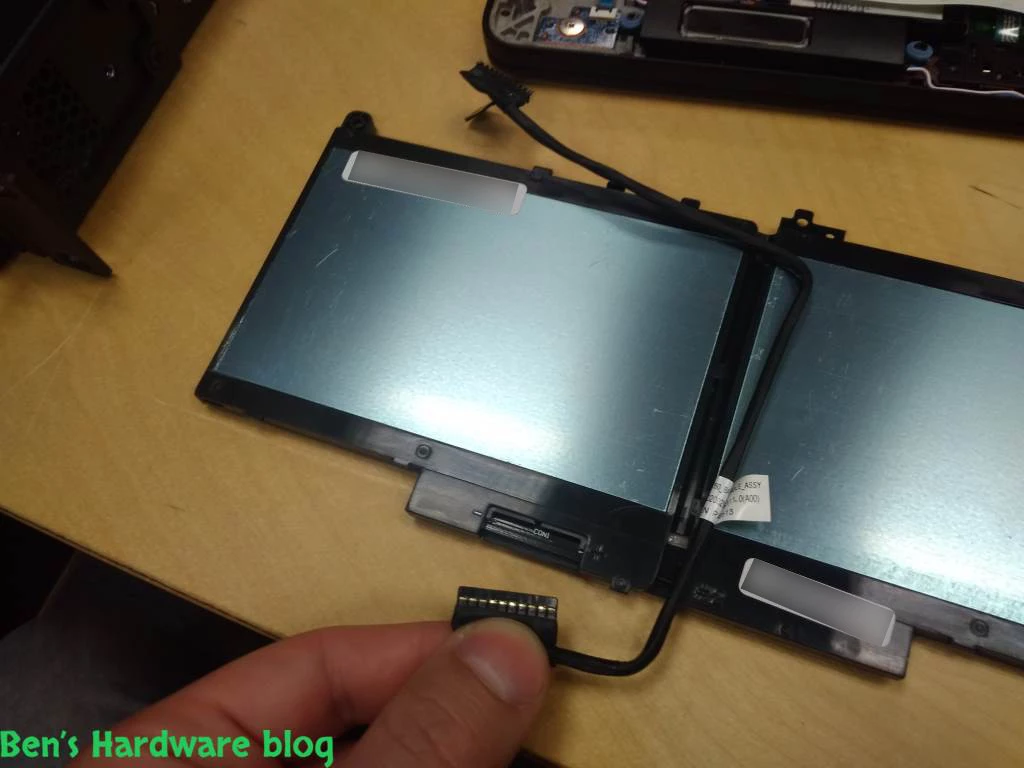
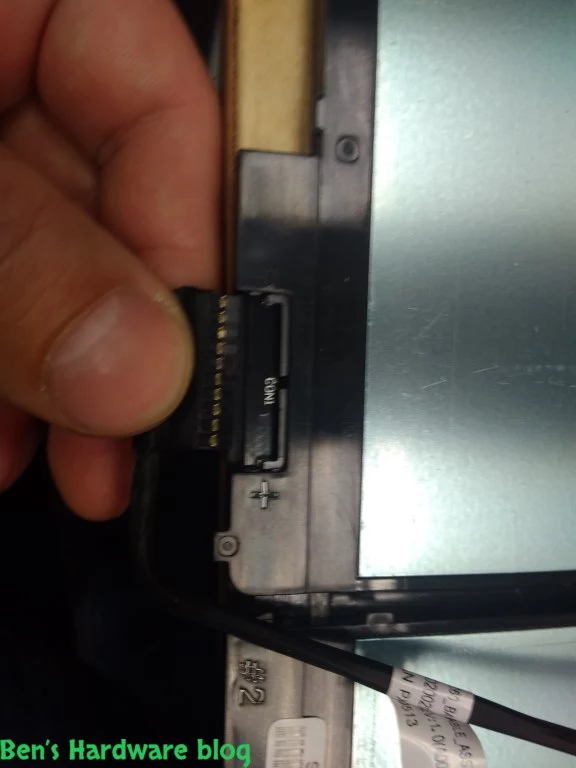
On the opposite of that elongated part there is a part in the middle that is meant to be come in contact first with the battery's cradle when inserting the battery into the laptop. This part also contains 10 exposed metal pins that are supposed to be connected to the power cable which connects the battery to the laptop's motherboard.


4. Assembly:

Removing the bottom cover of the laptop:

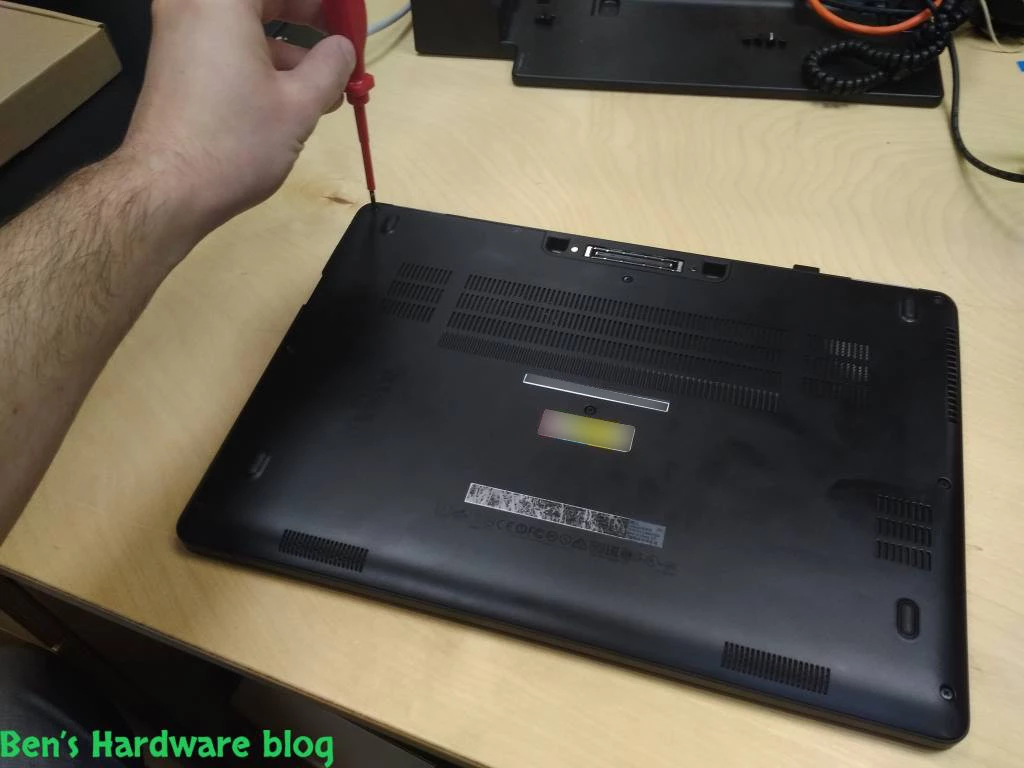
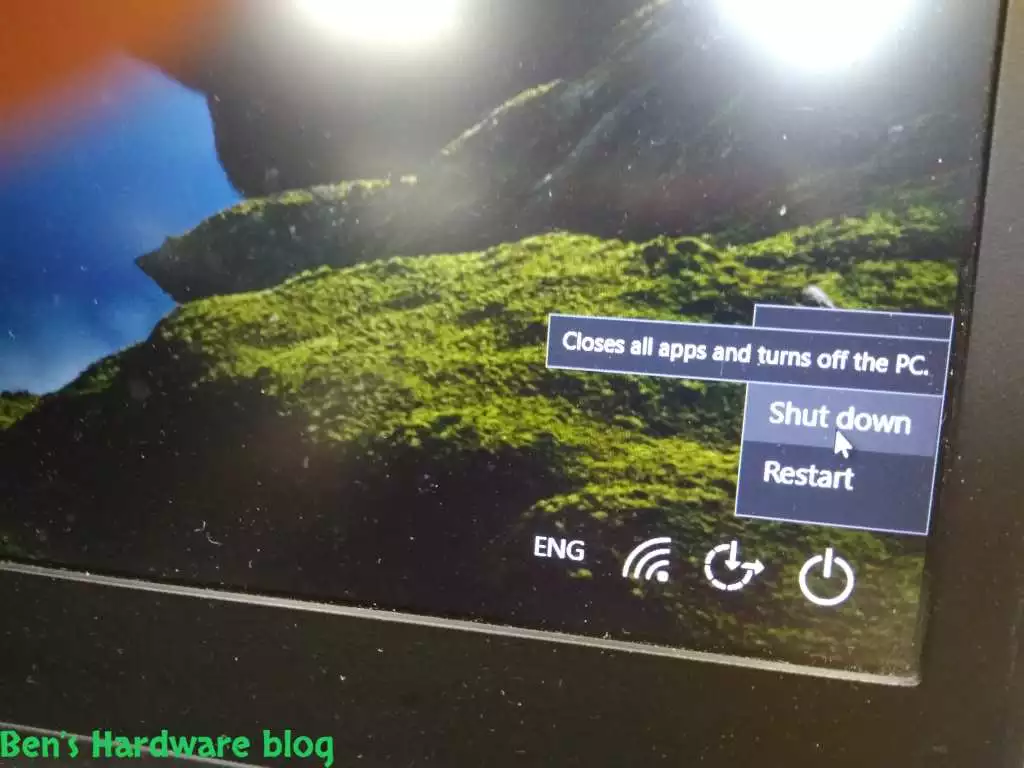
1. Power off the laptop

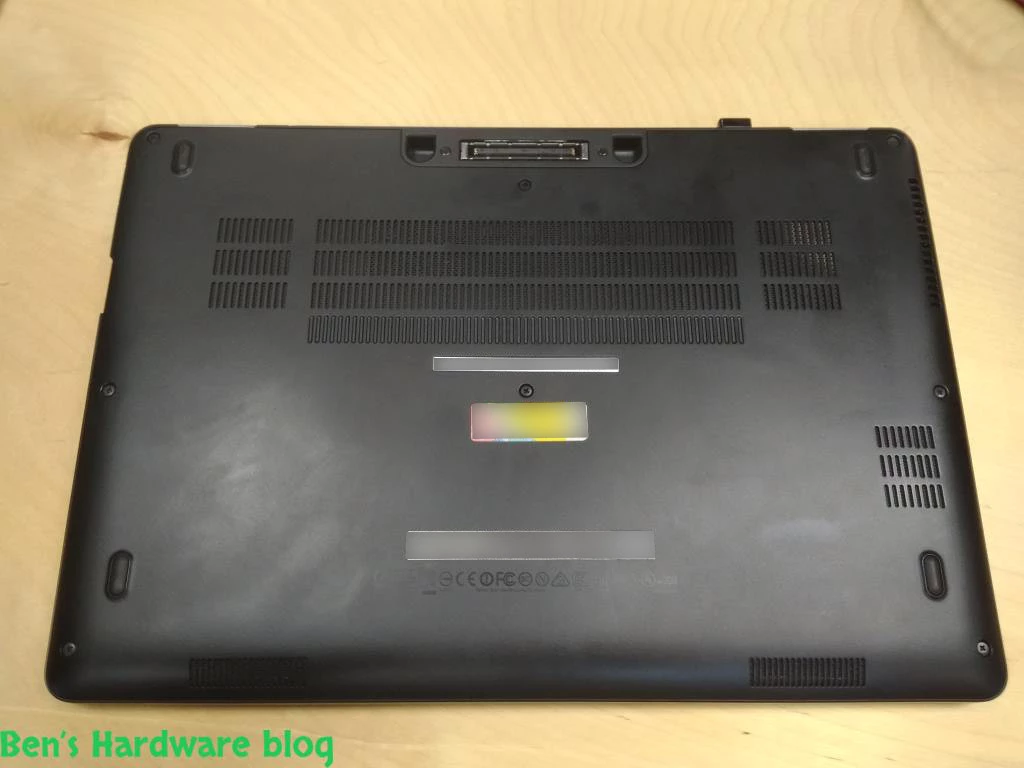
2. Flip the laptop on its monitor back cover

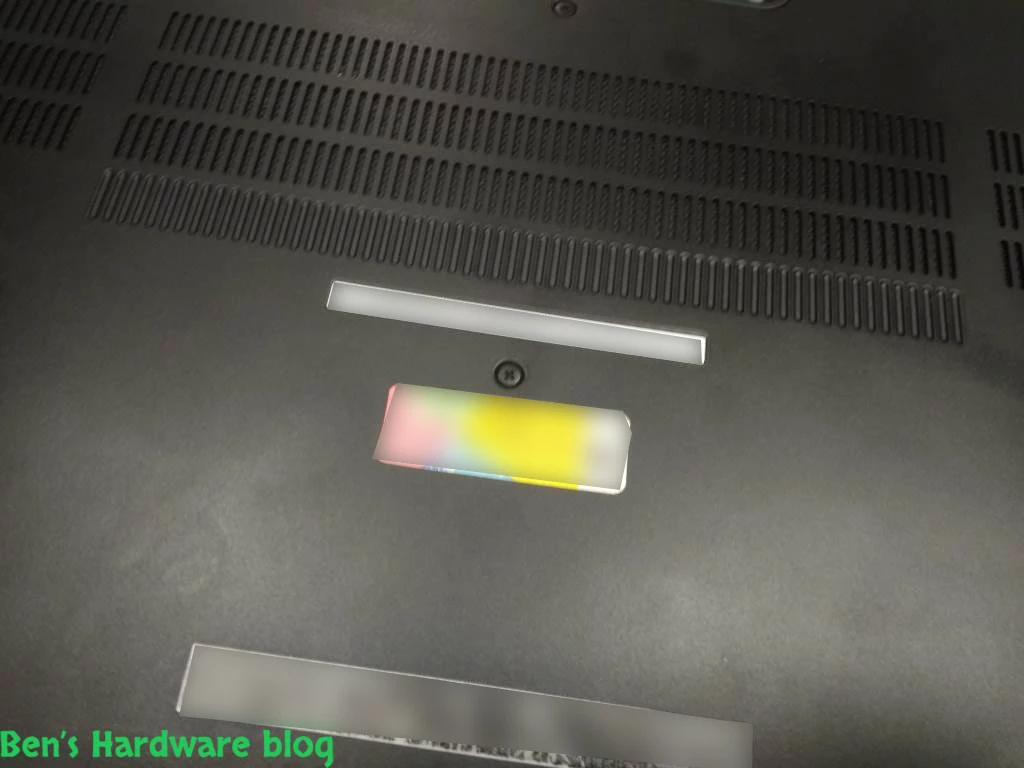
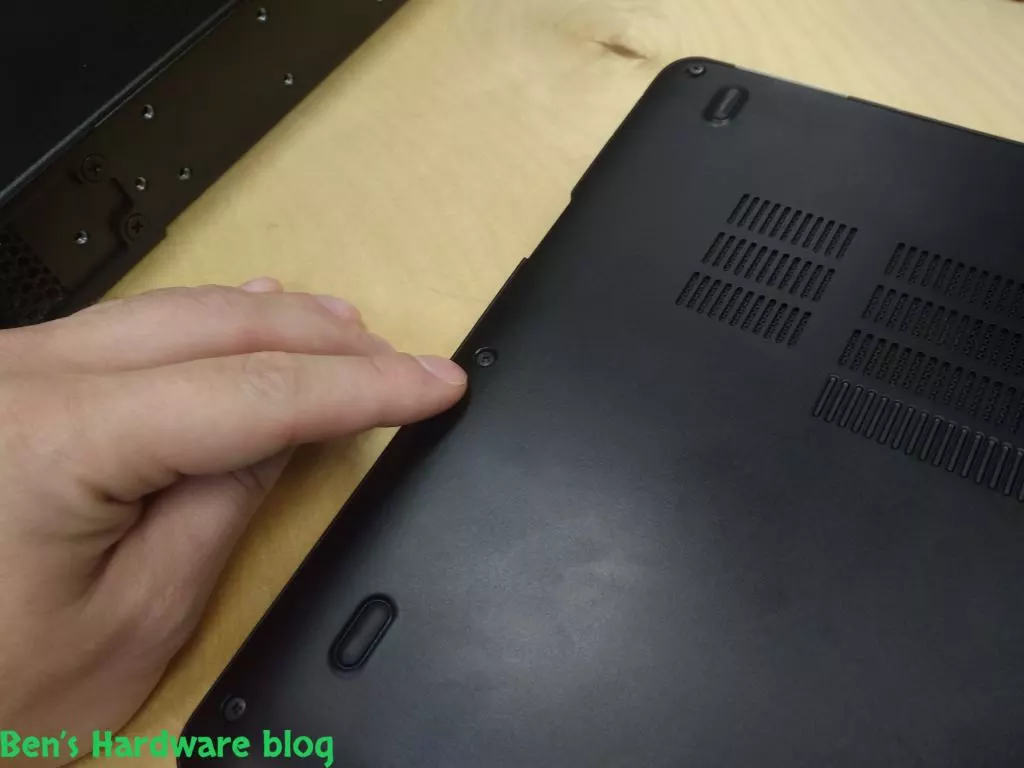
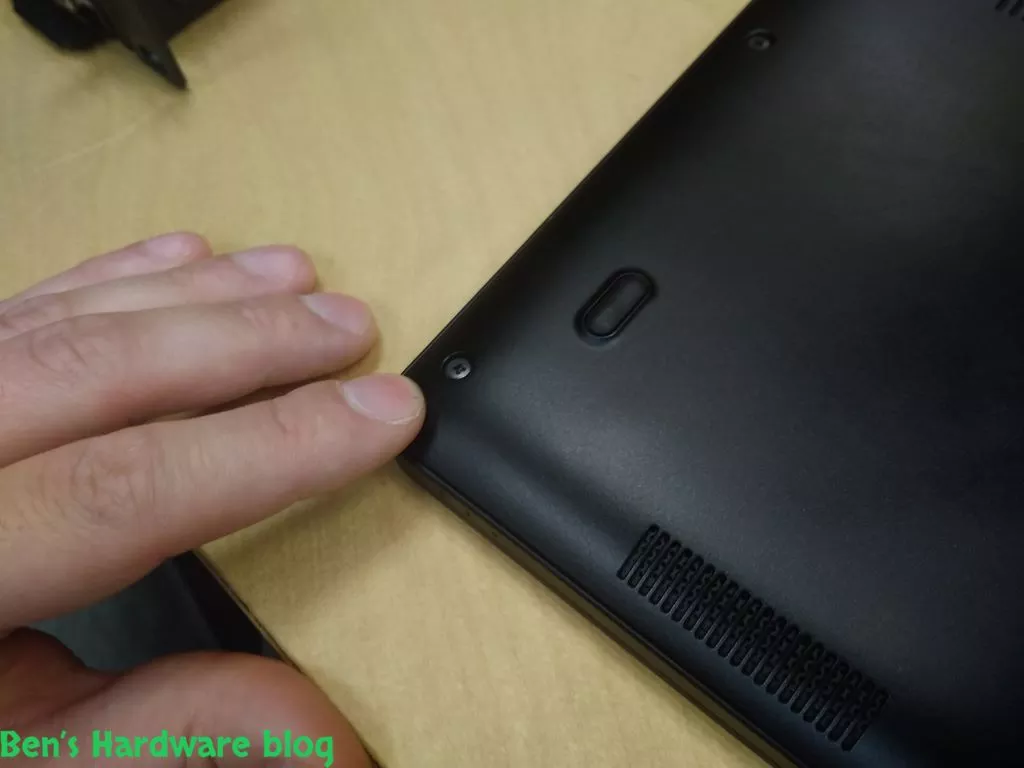
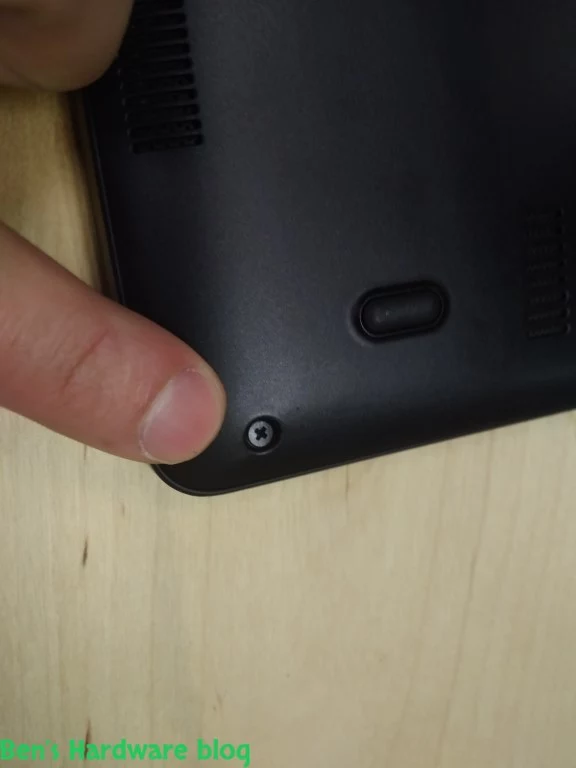
3. Unscrew the 8 laptop bottom cover screws

RABFADLE7450 5 RABFADLE7450 4
RABFADLE7450 6 RABFADLE7450 8
RABFADLE7450 11 RABFADLE7450 13

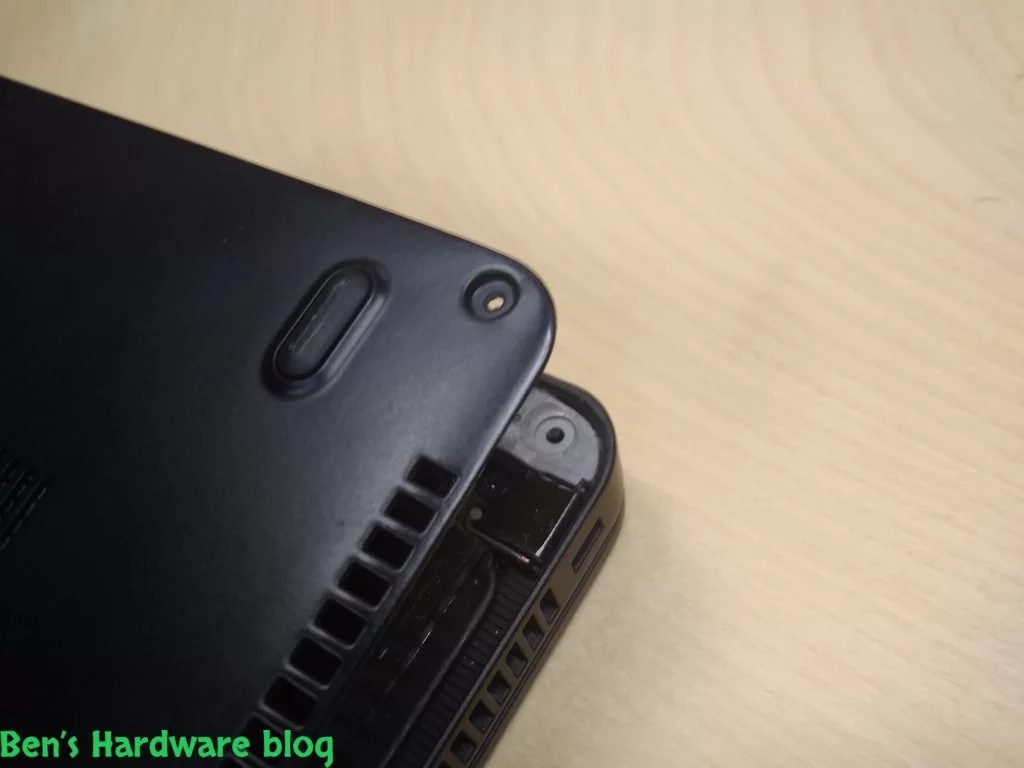
4. Removing the laptop bottom cover:

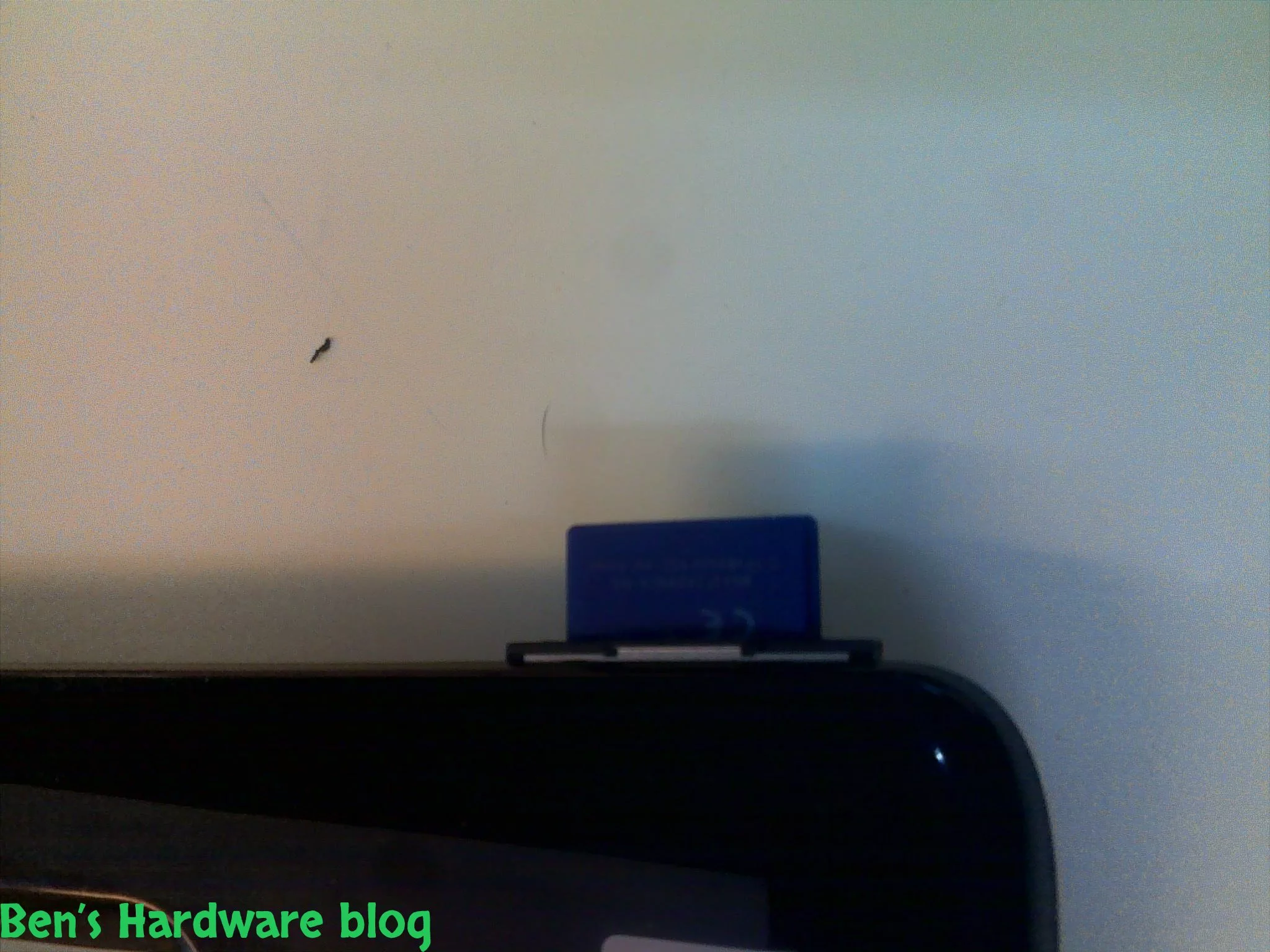
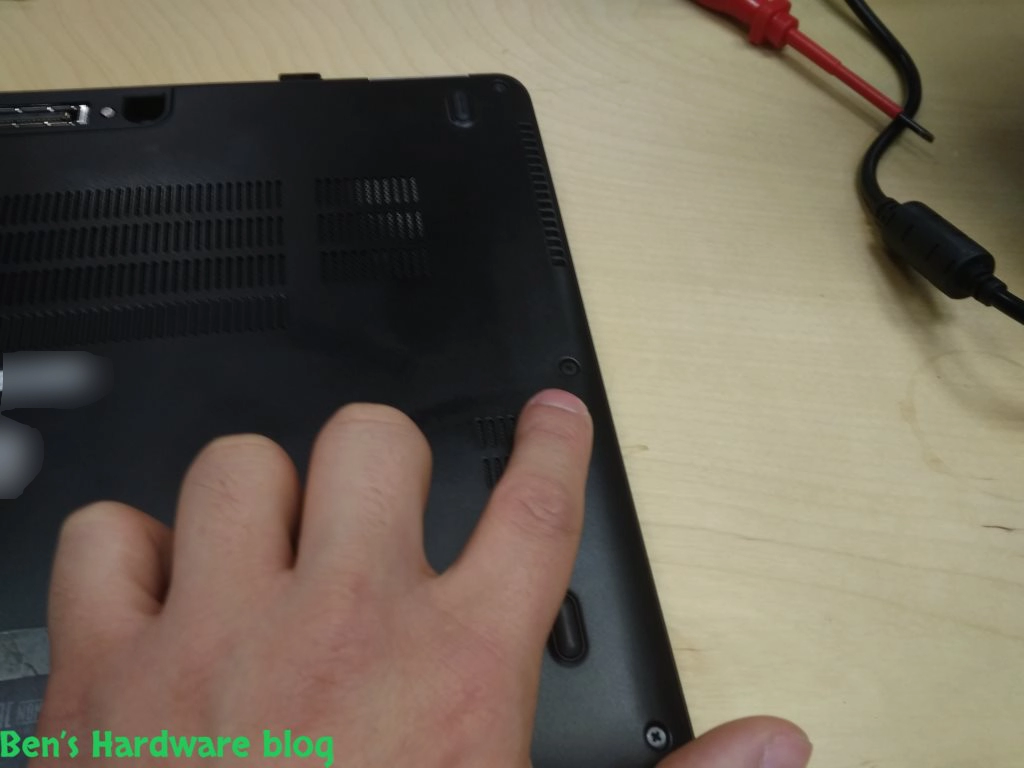
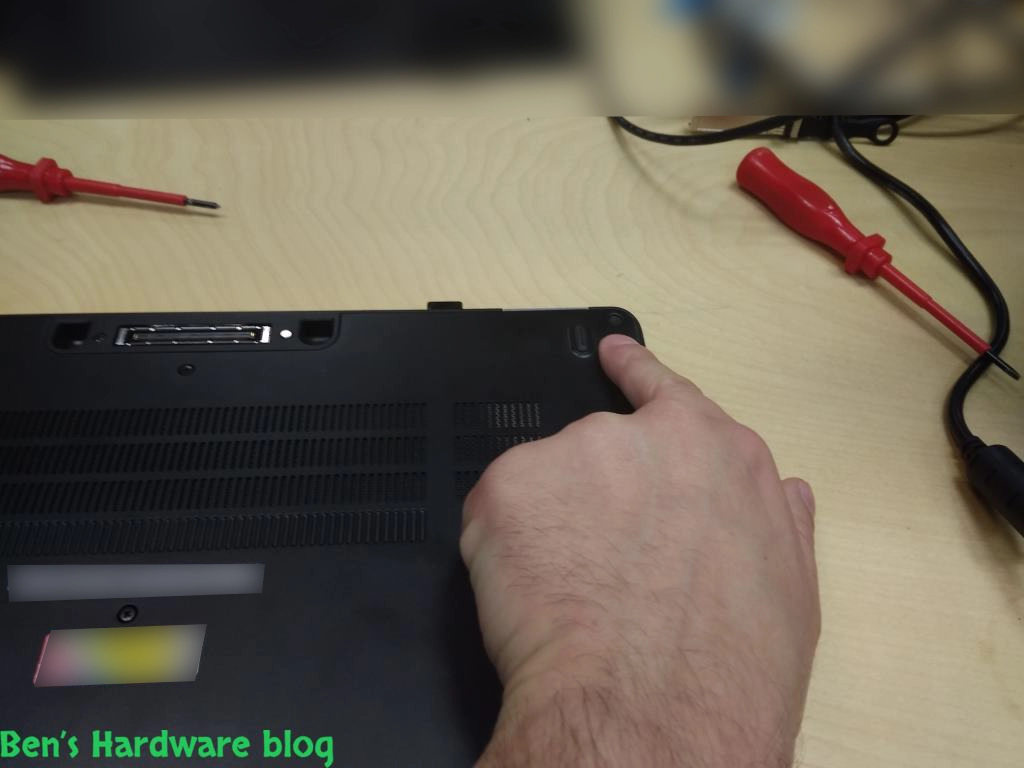
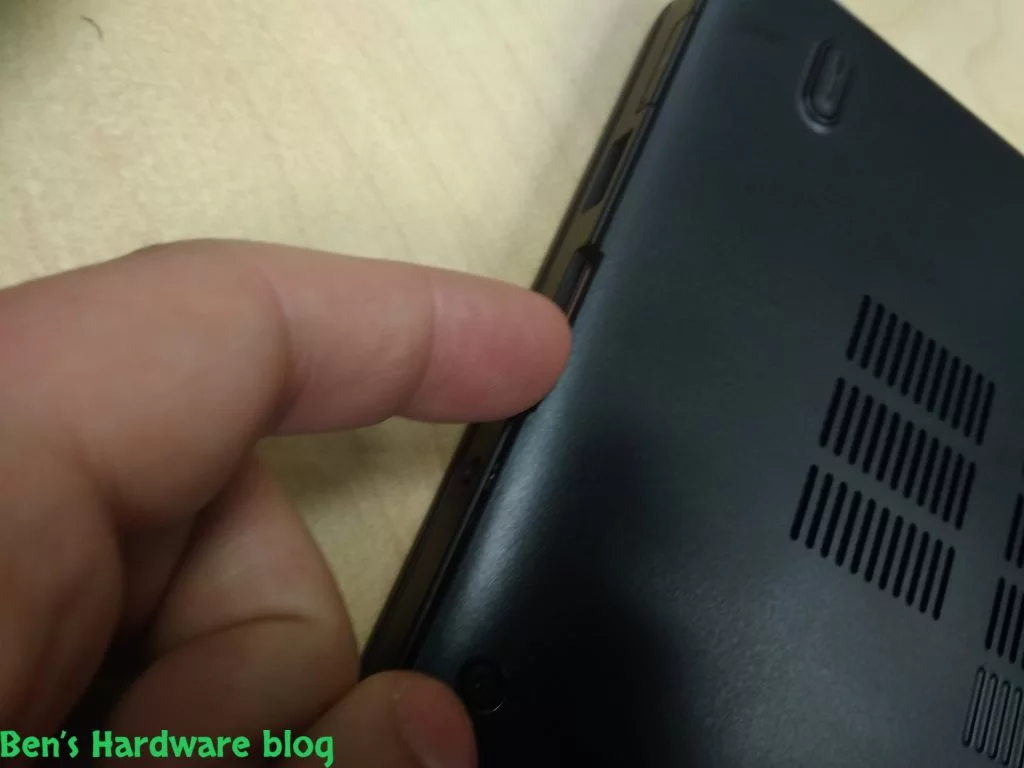
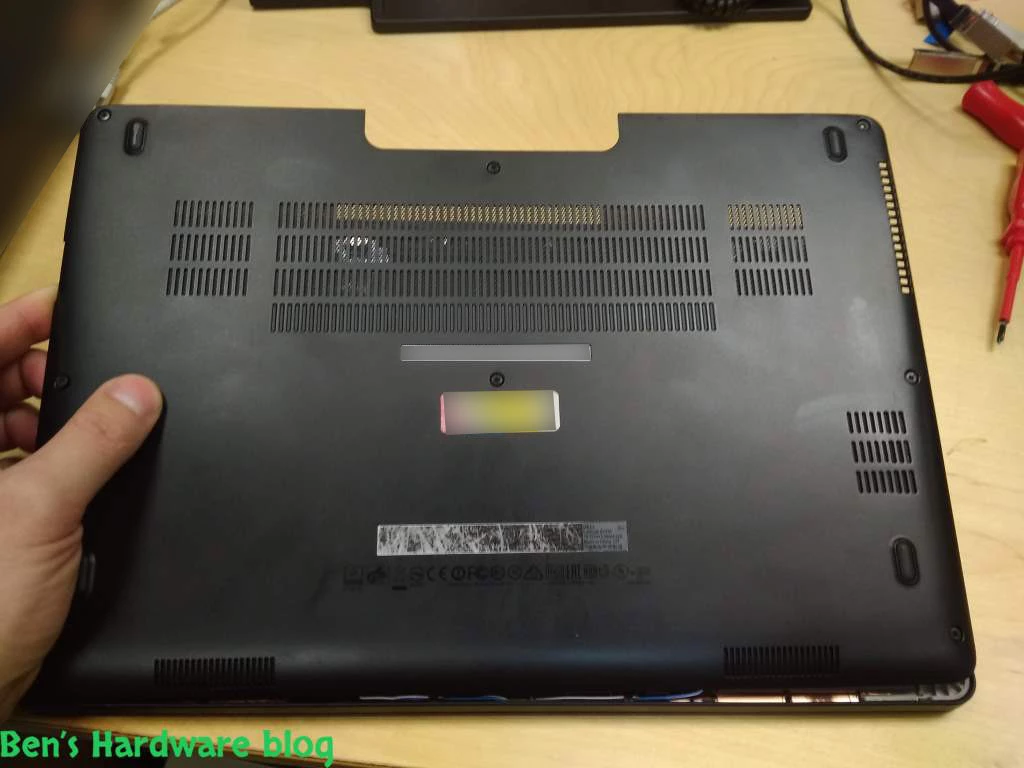
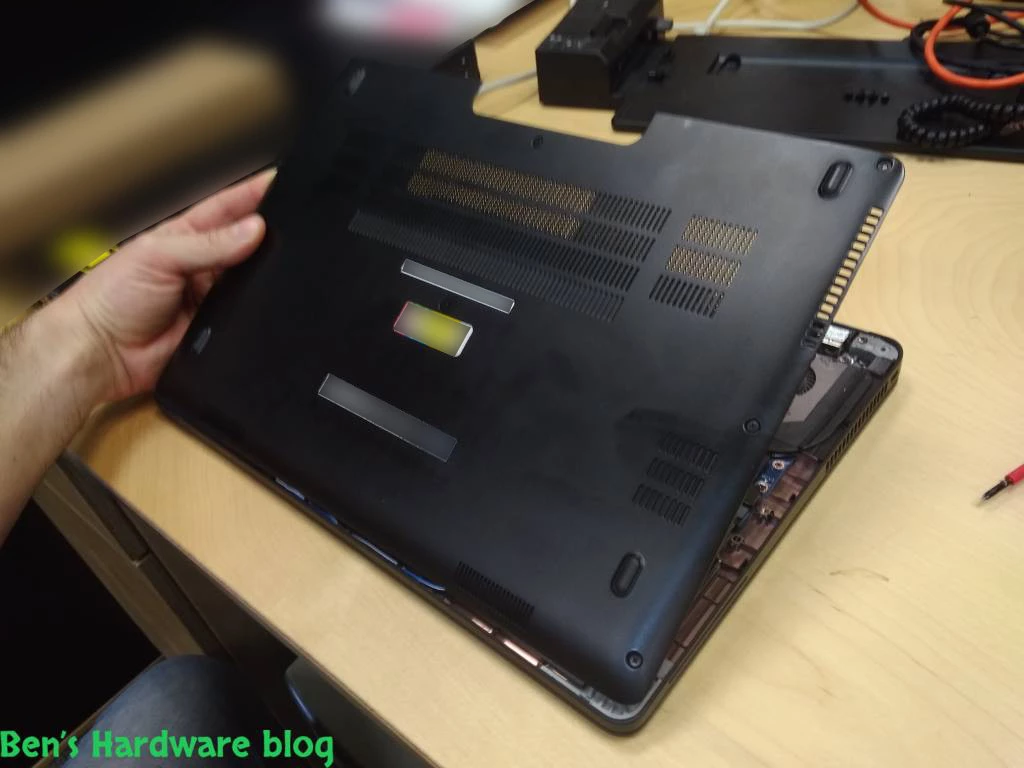
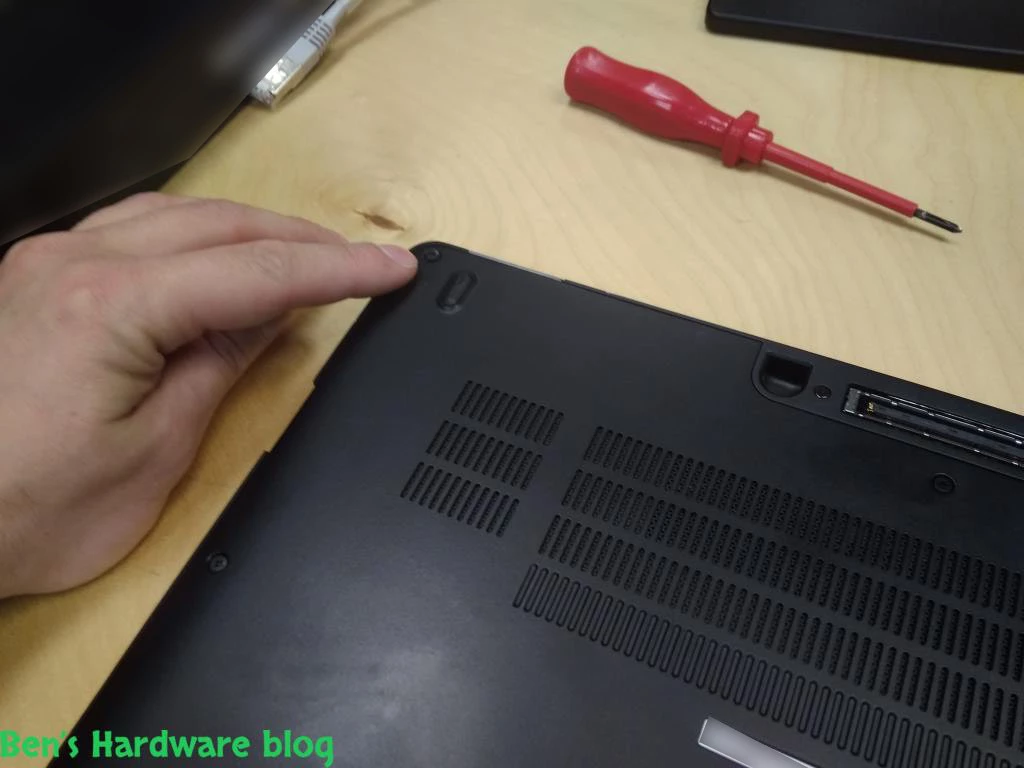
- I found getting the SD card plastic cover to be very useful when removing these laptop's bottom cover. Press on the SD bay plastic cover inwards and let it slide out half way. Get the whole plastic cover out – This way it would be easier to lift the bottom cover by having a very comfortable leverage point.
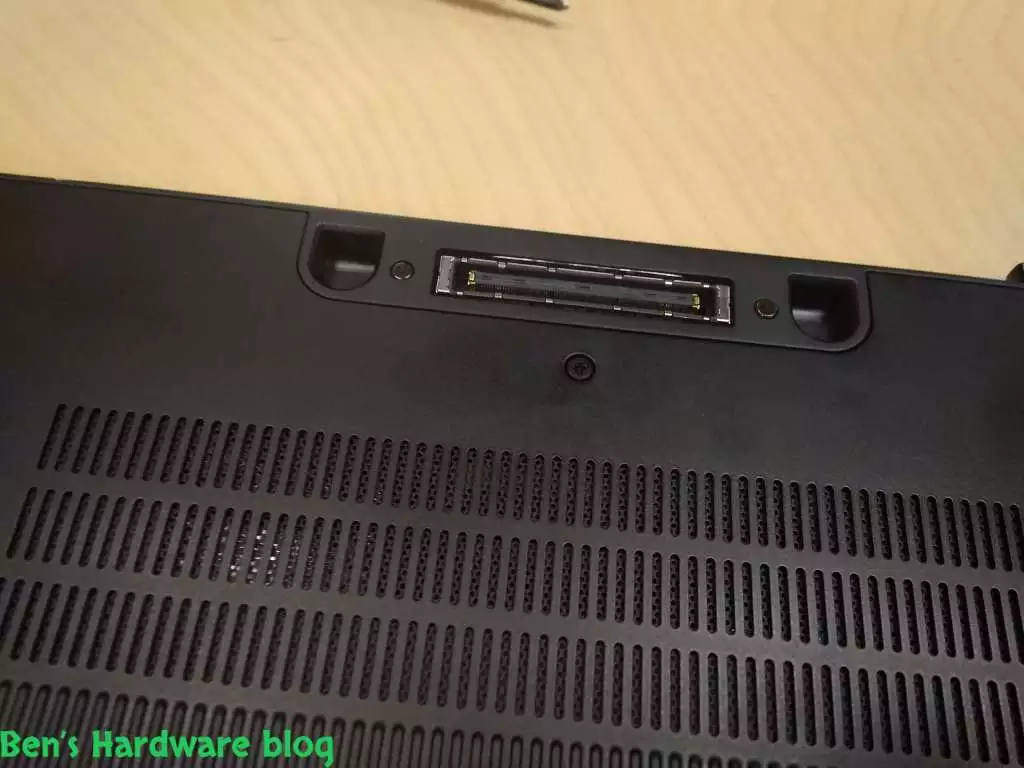
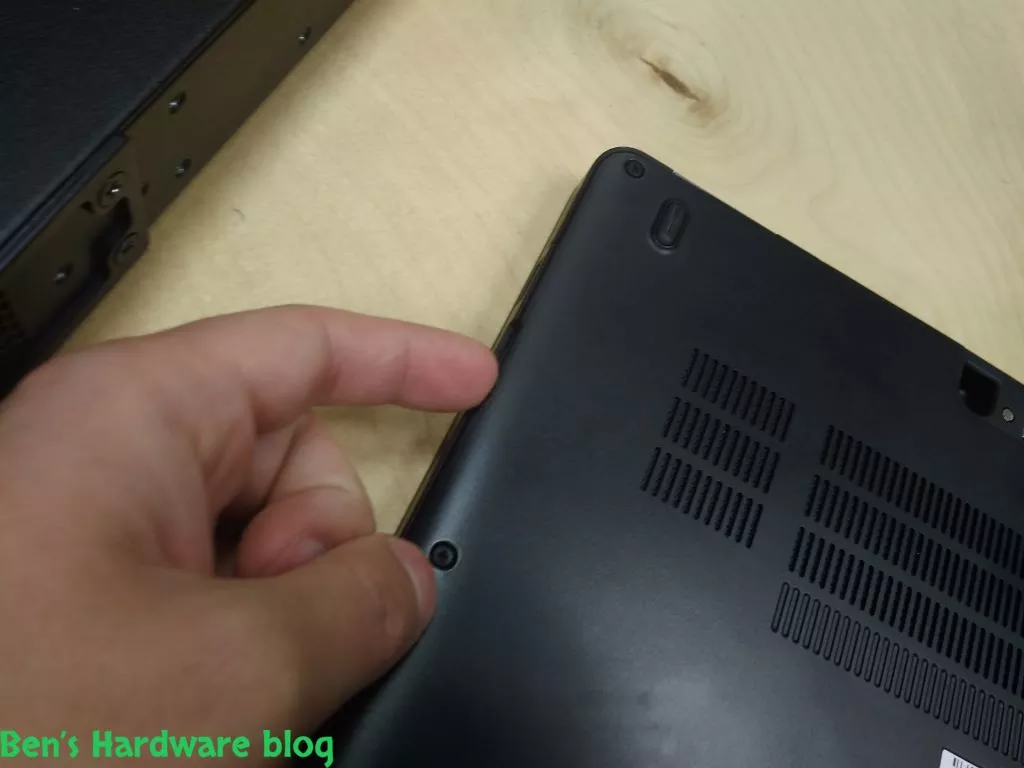
- Position the laptop so that the Dell docking station connector is facing away from you
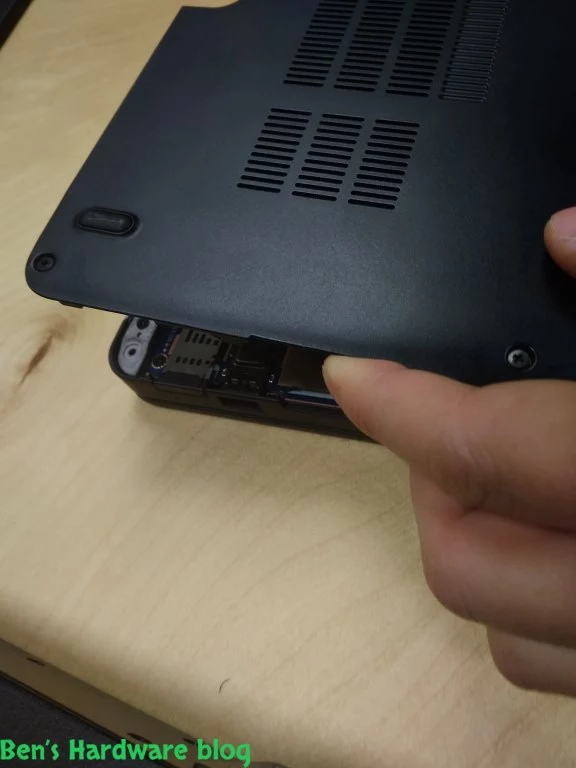
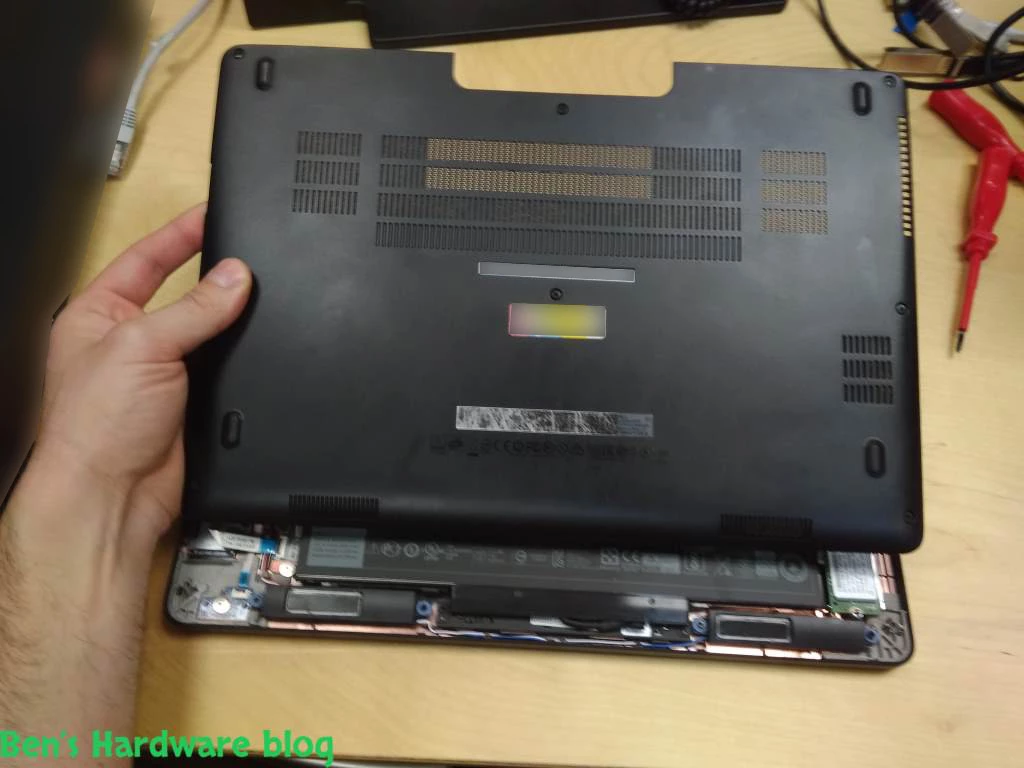
- Get a single finger into the SD card bay and gently lift the bottom cover upwards towards you. Use the other hand to continue lifting the cover from the adjacent side of the bottom cover, the one above the power connector. About 45 degrees upwards , even less, the bottom cover should be able to be completely removed away in the opposite direction from you.

RABFADLE7450 15 RABFADLE7450 16

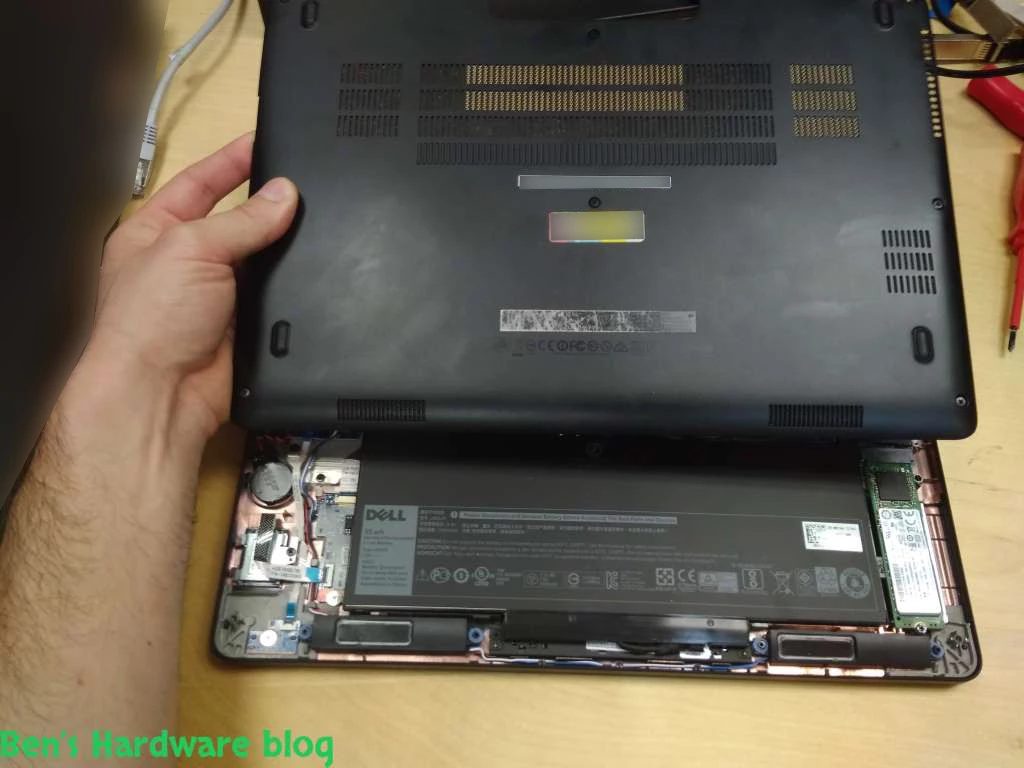
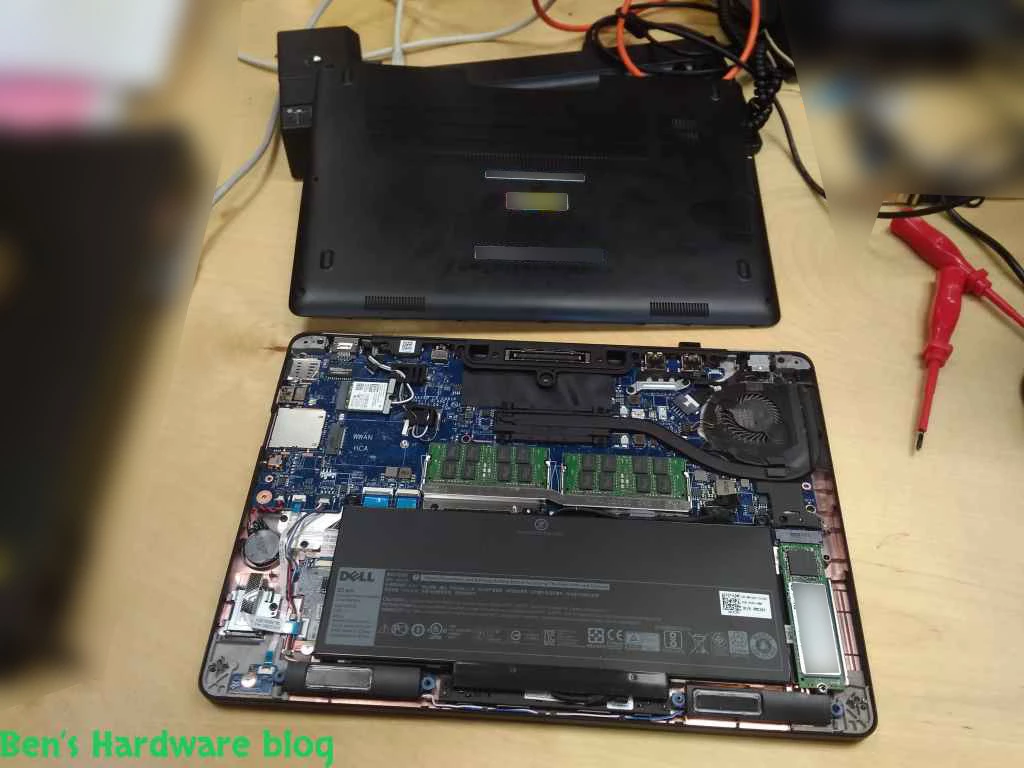
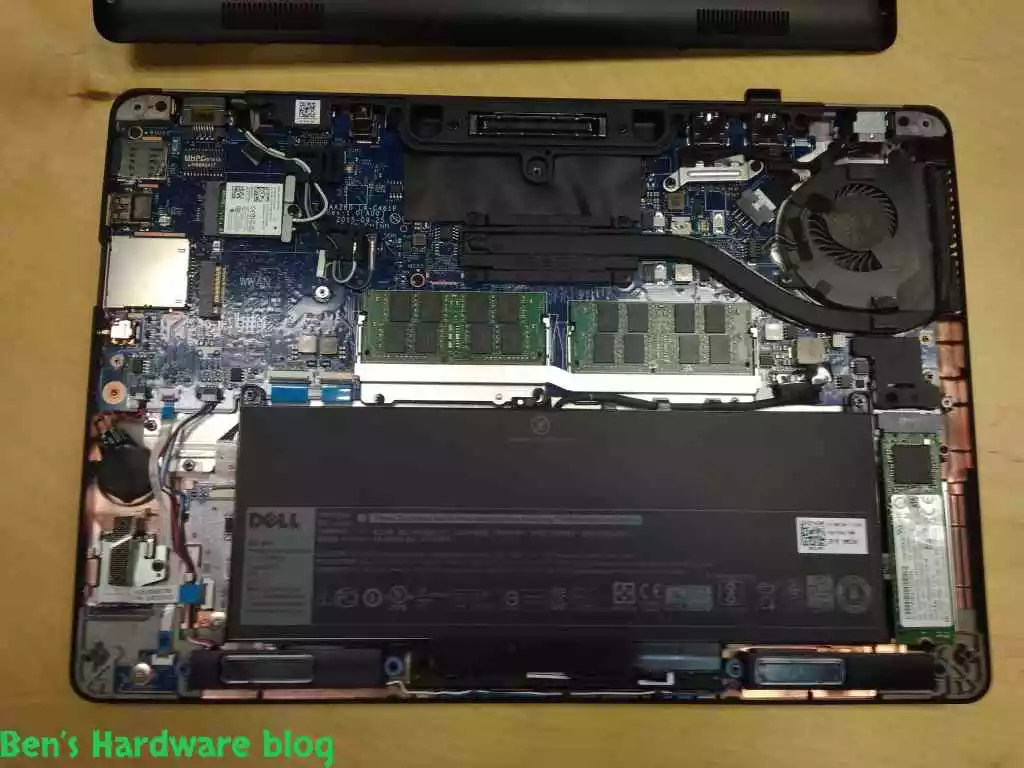
Remove the bottom cover completely

RABFADLE7450 19 RABFADLE7450 20
RABFADLE7450 21 RABFADLE7450 22

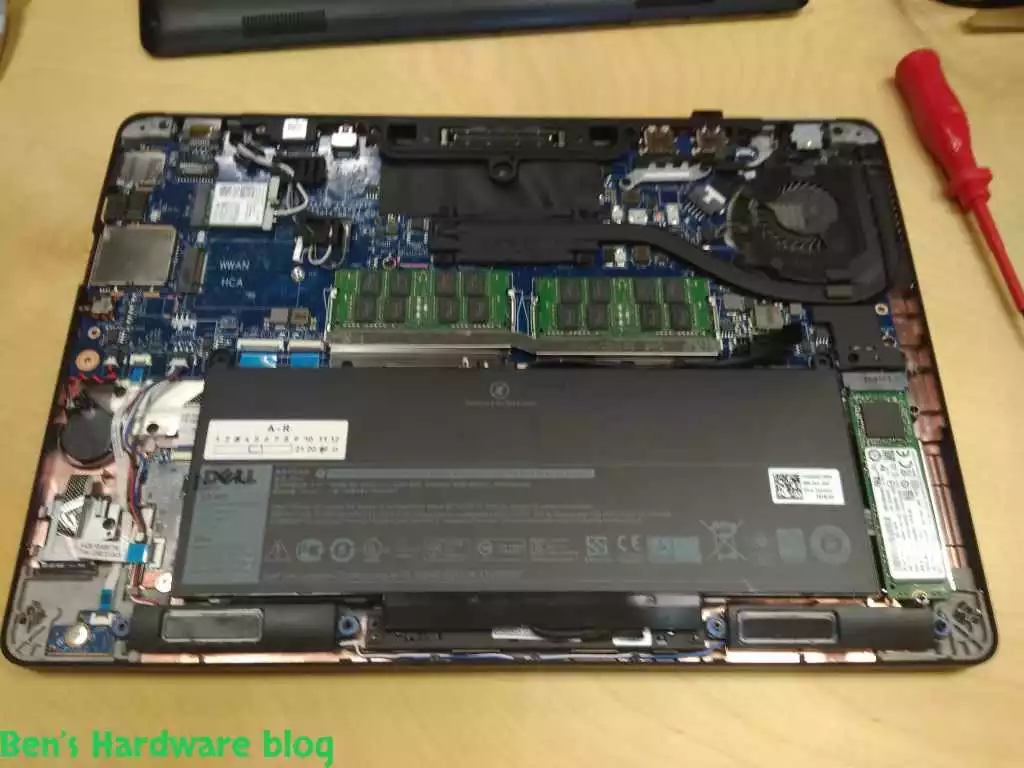
Disconnecting and removing the old battery:

- Prior to disconnecting the battery – check for signs of acid leaks or any other liquid or semi-liquid material present near, on and in exposed parts of the battery swollen internal parts. Use gloves from this point on if you do find these.
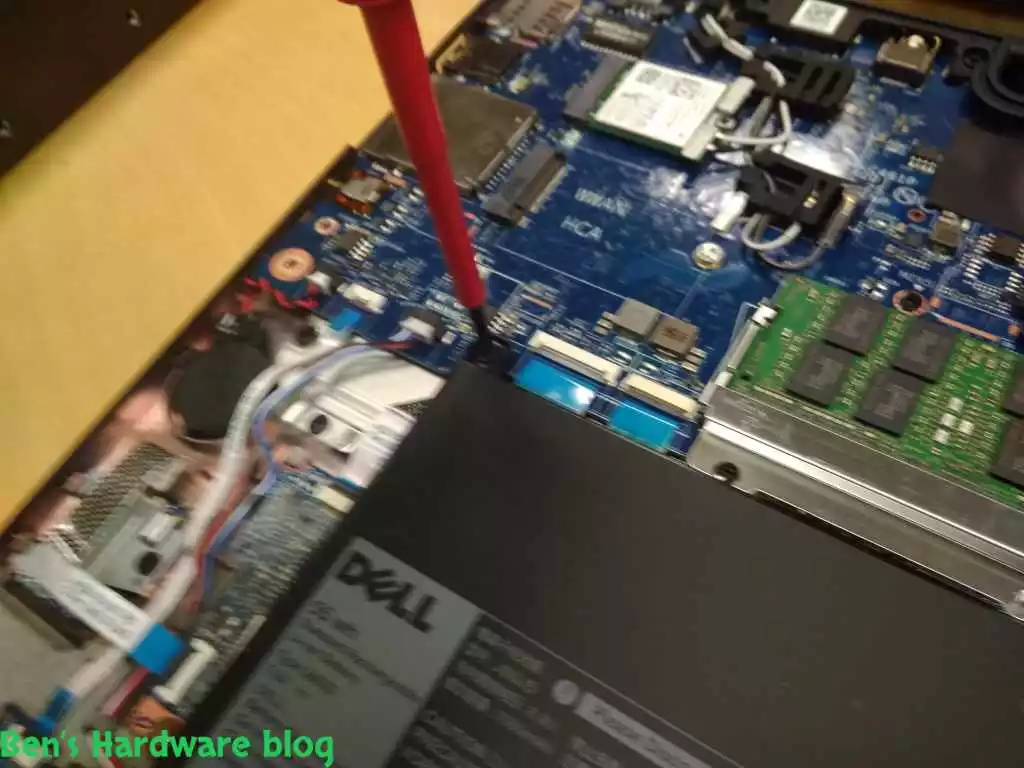
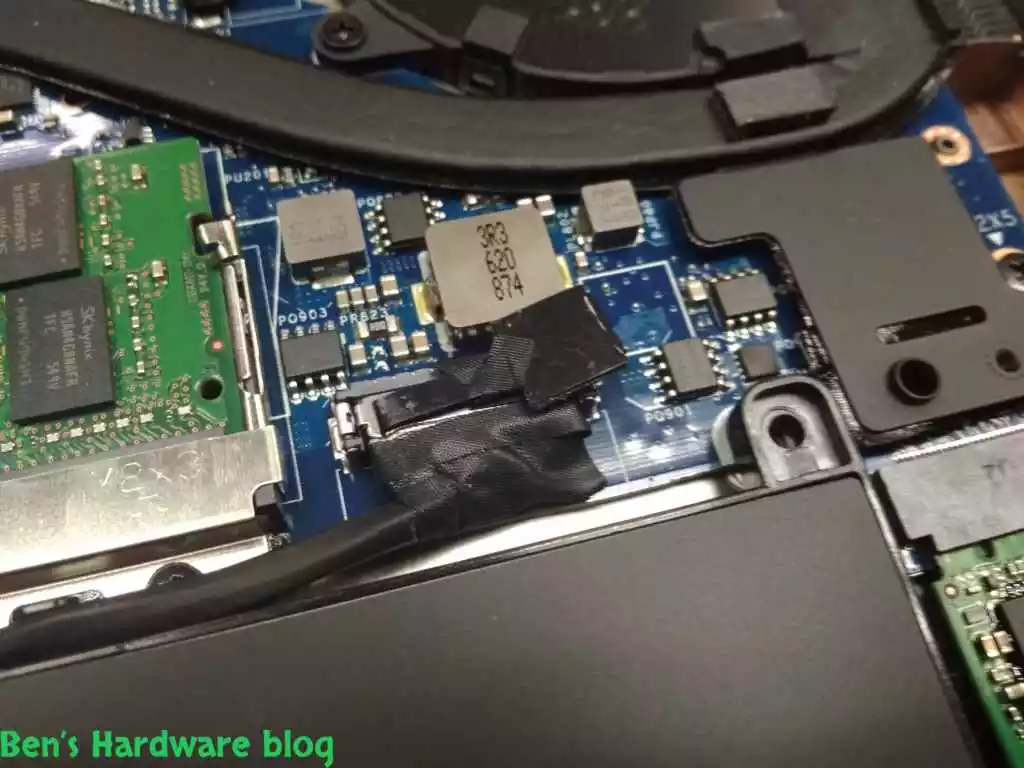
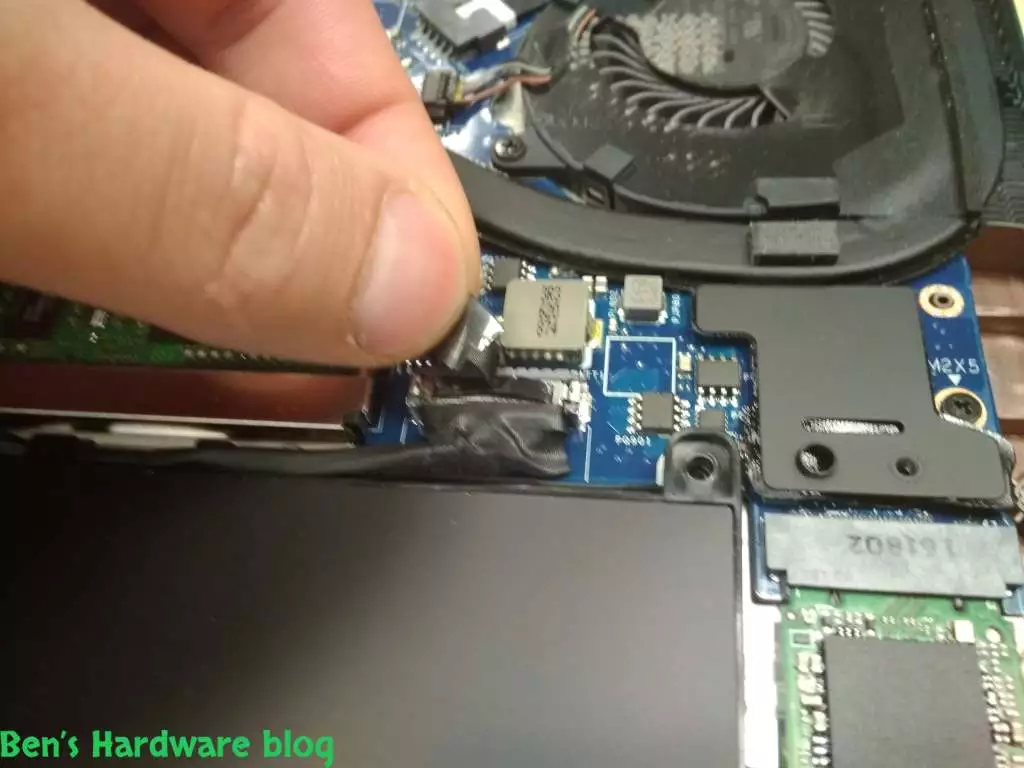
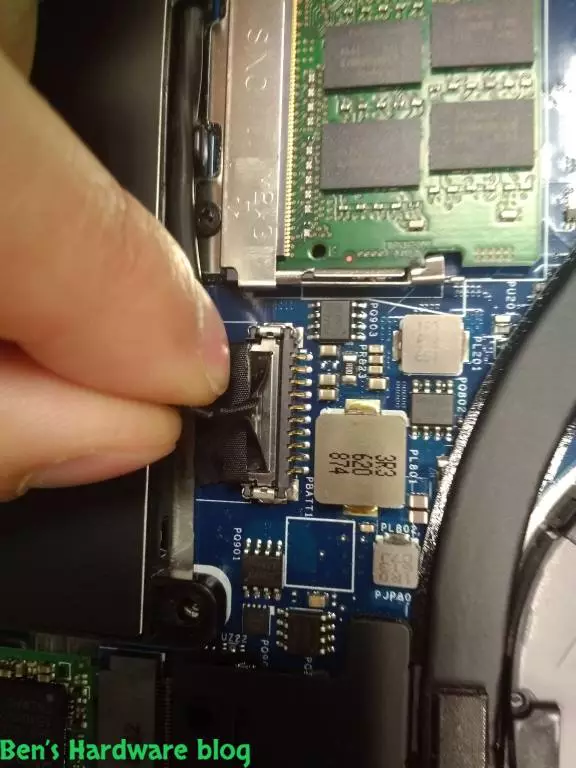
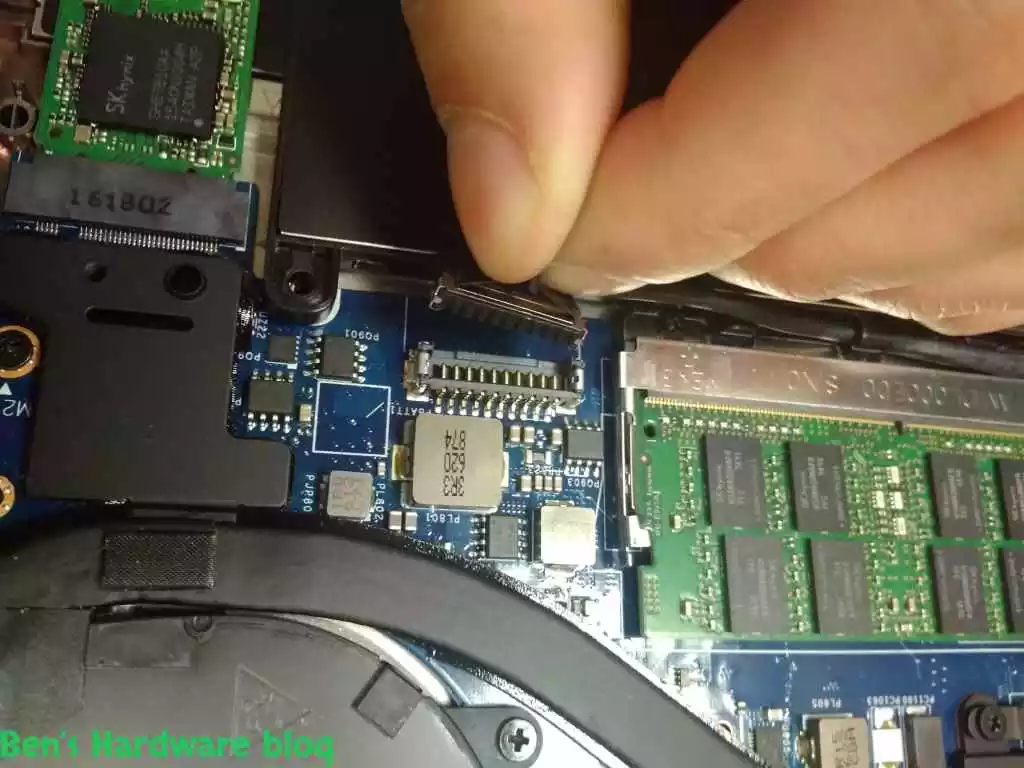
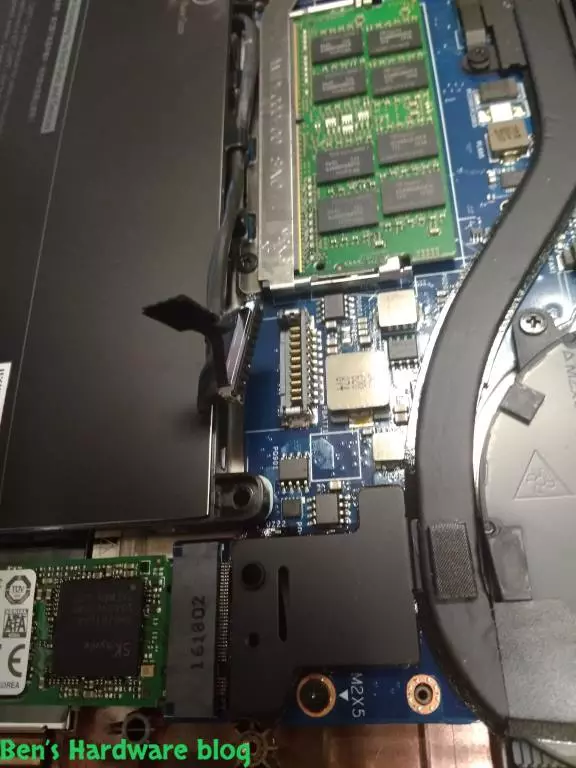
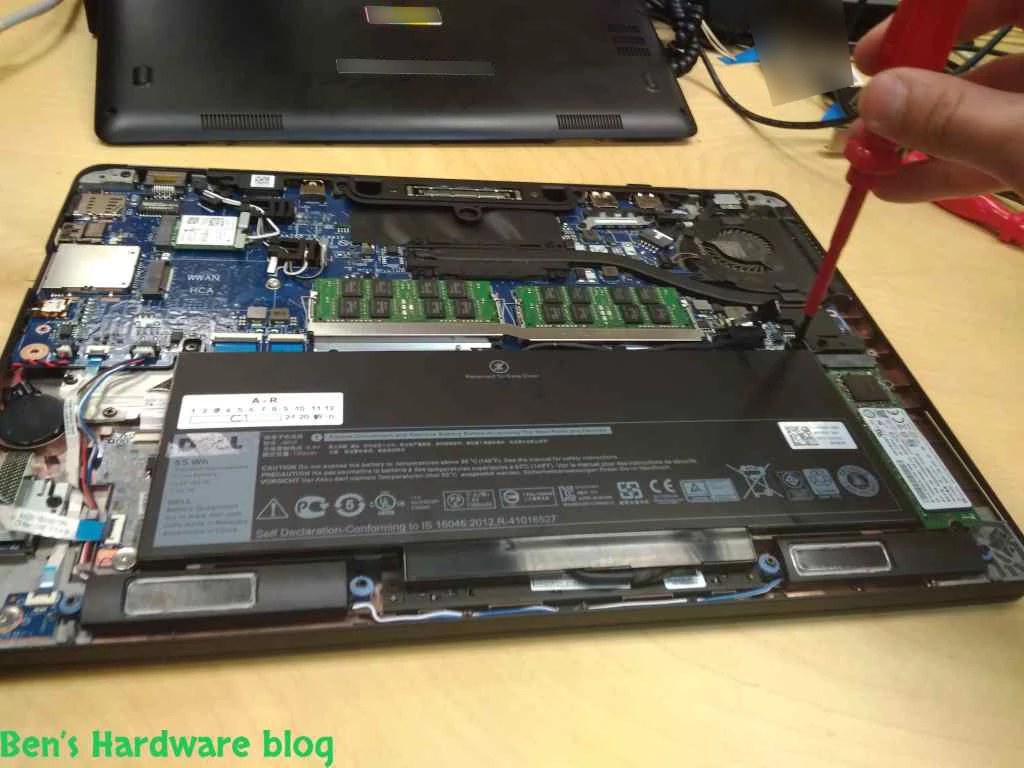
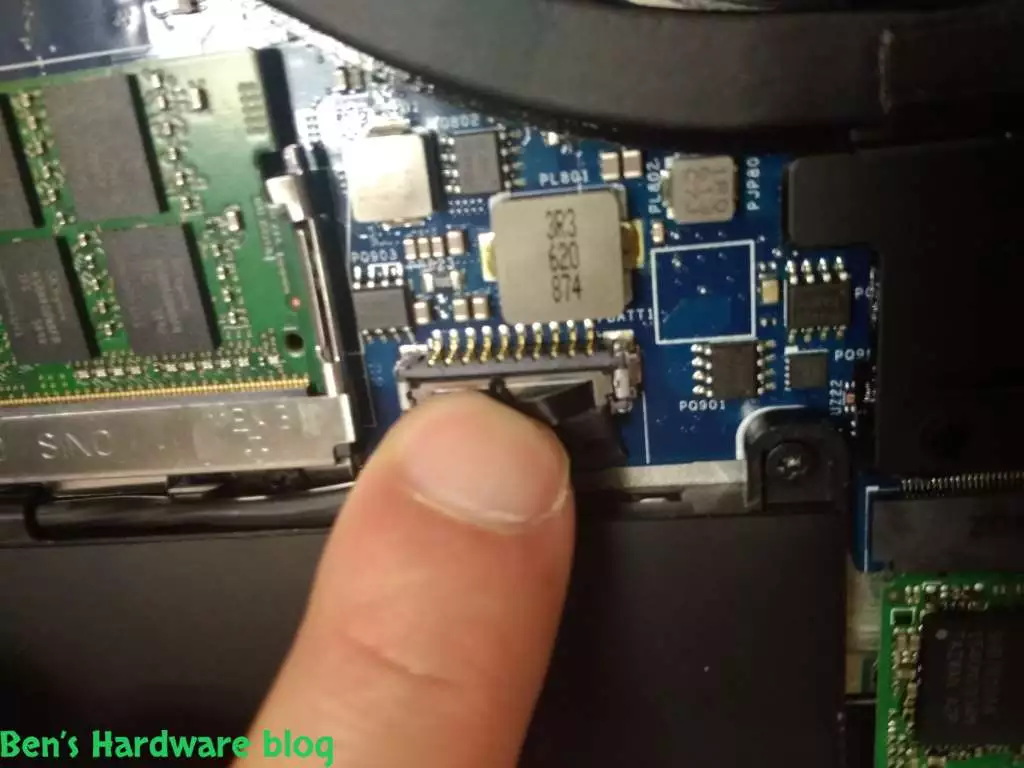
- Disconnect the power cable connecting the battery to the motherboard by gently pulling outwards on its thin black head cloth.

RABFADLE7450 29 RABFADLE7450 30

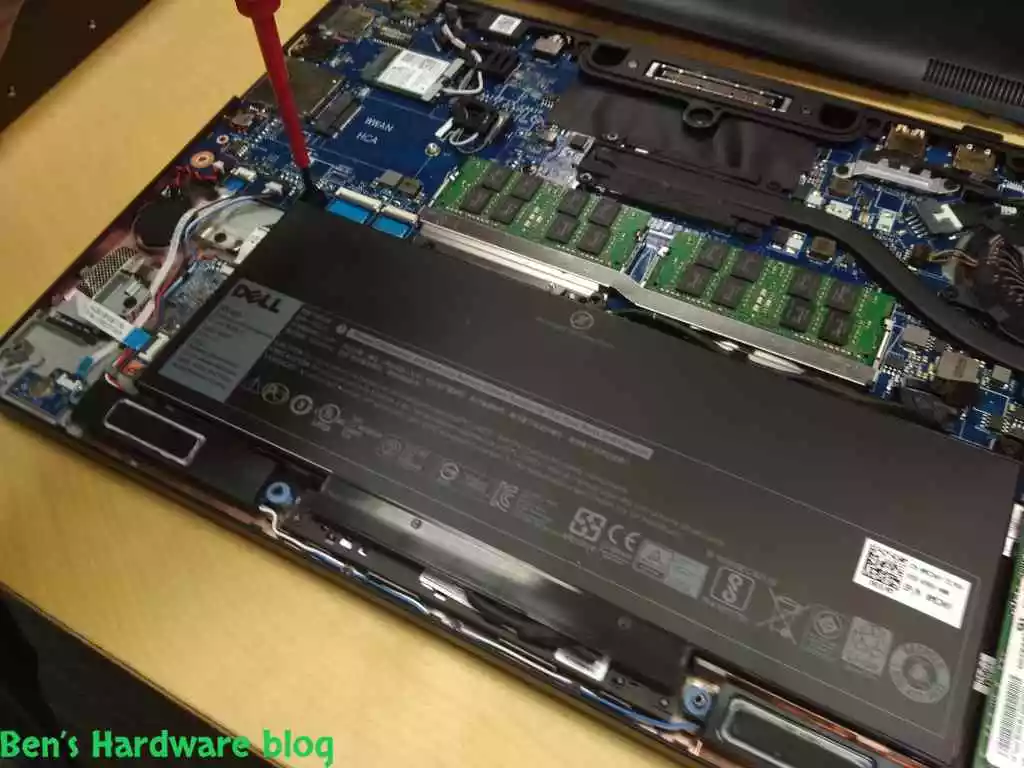
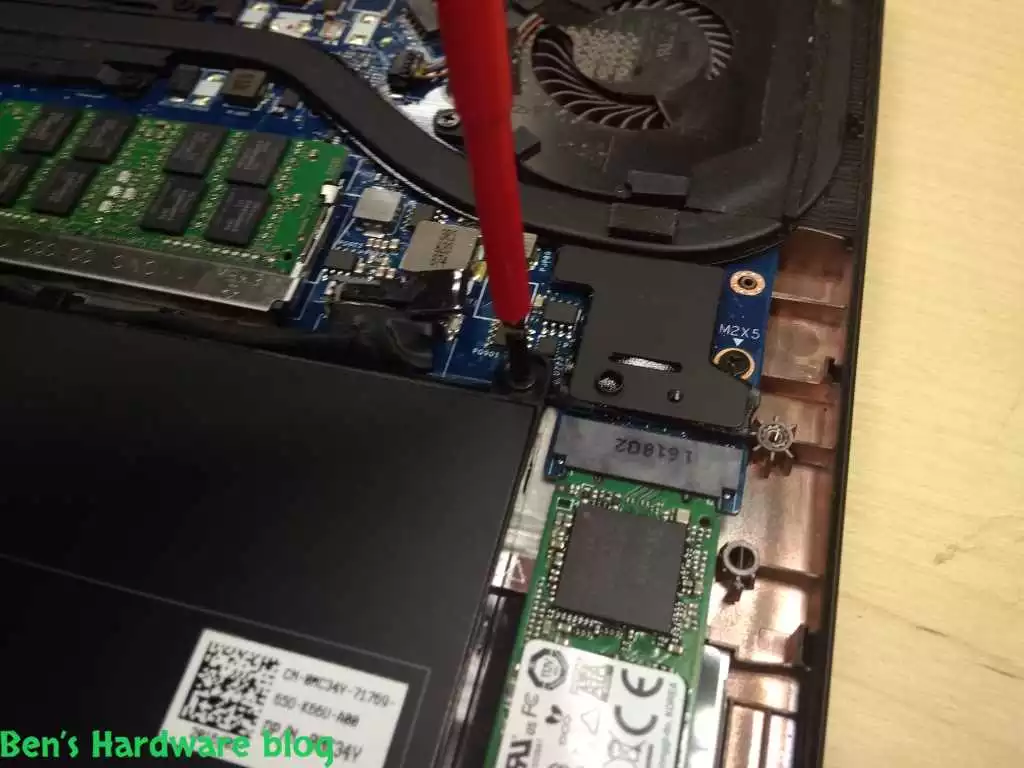
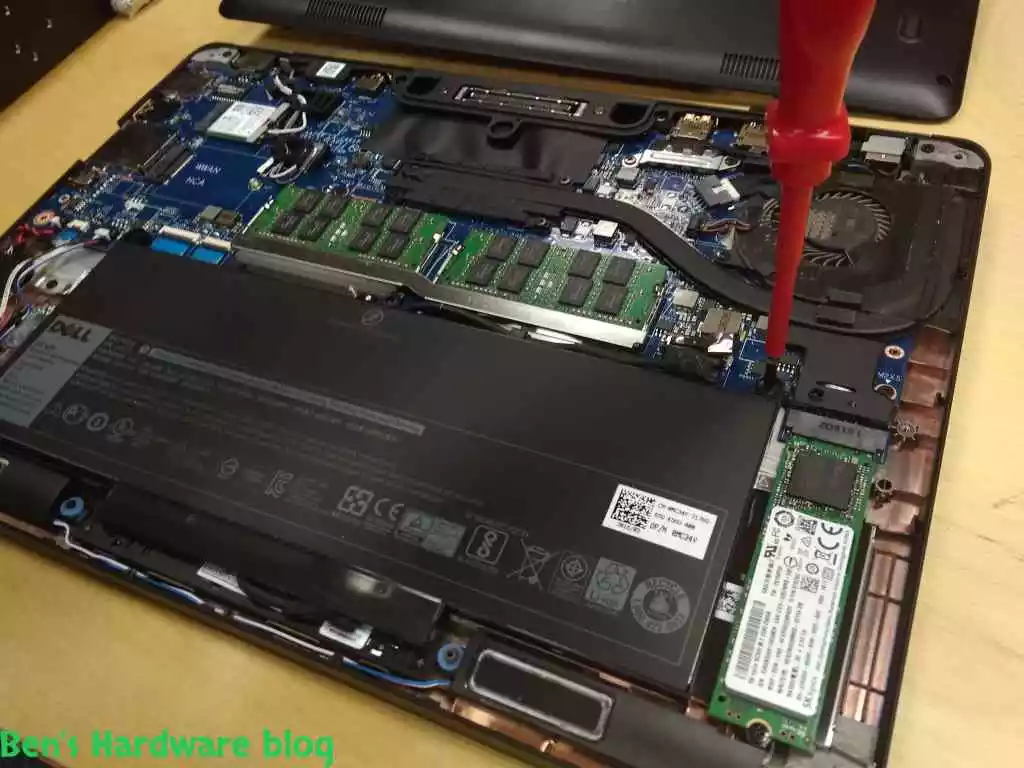
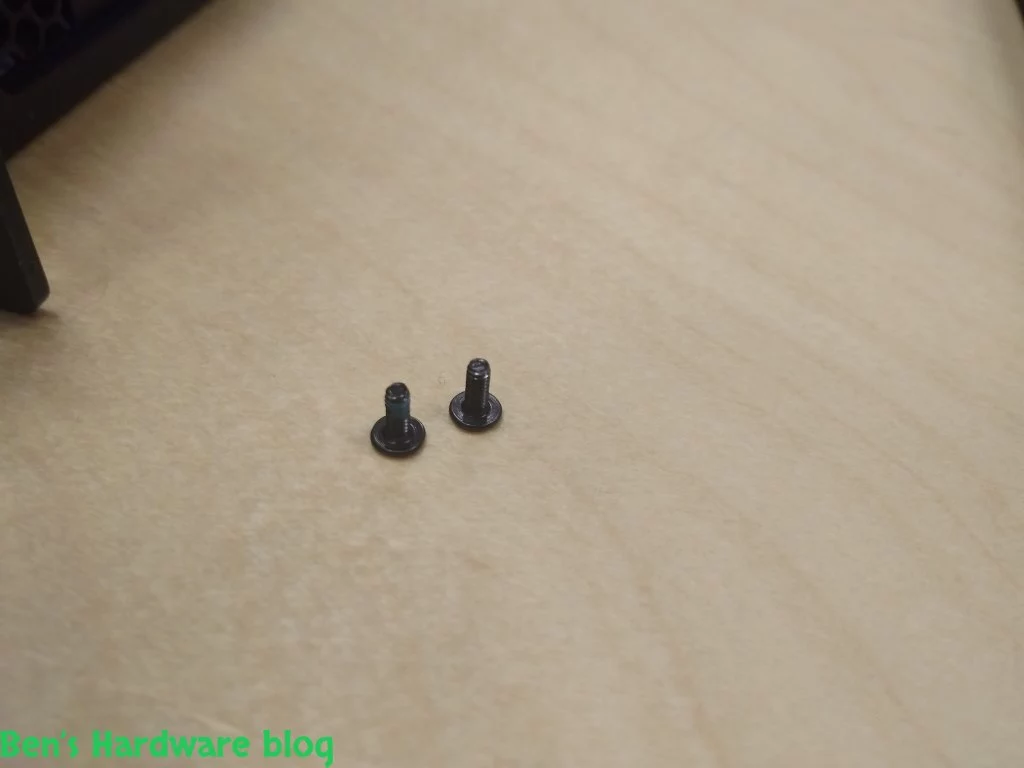
- After the disconnection of the power plug from the motherboard, unscrew the two screws holding the battery down against the laptop's battery cradle.

RABFADLE7450 24 RABFADLE7450 25
RABFADLE7450 26 RABFADLE7450 27

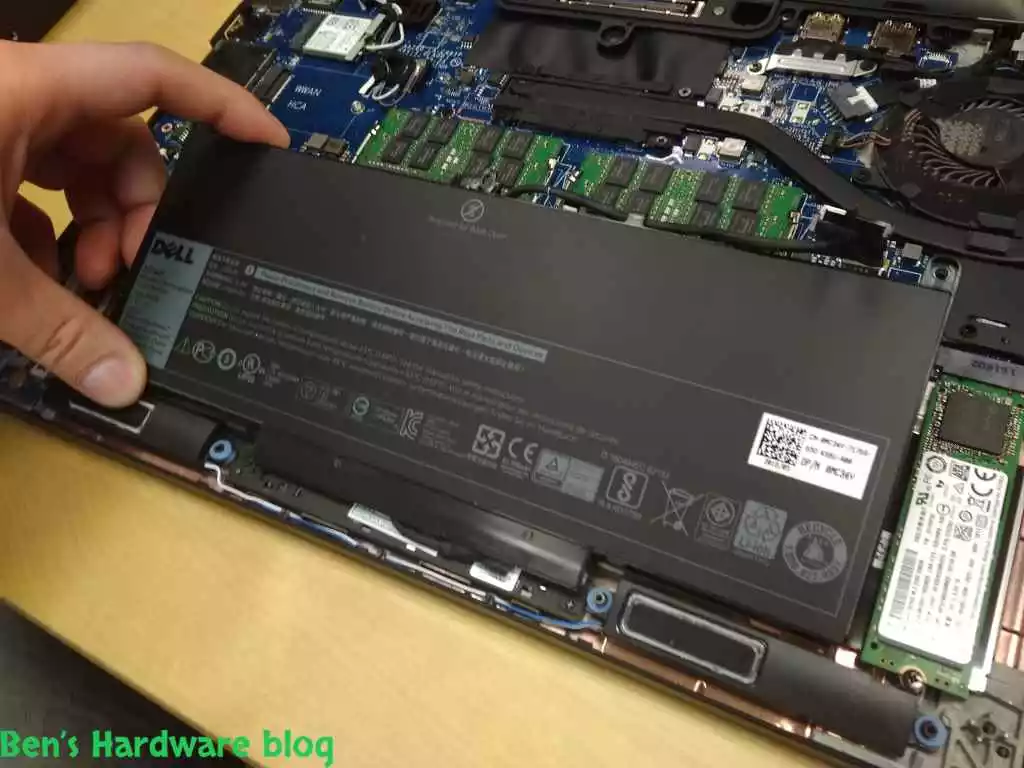
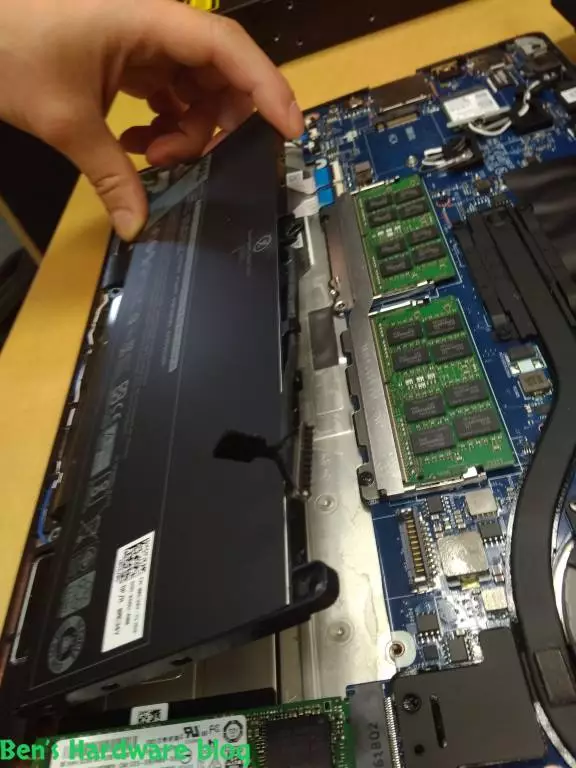
- Pull the battery gently from the side of the screws upwards and pull the entire battery out of the laptop.

- Clean up any acid or other liquids an debris from the battery's cradle.

Transferring the power cable from the old battery to the new one:

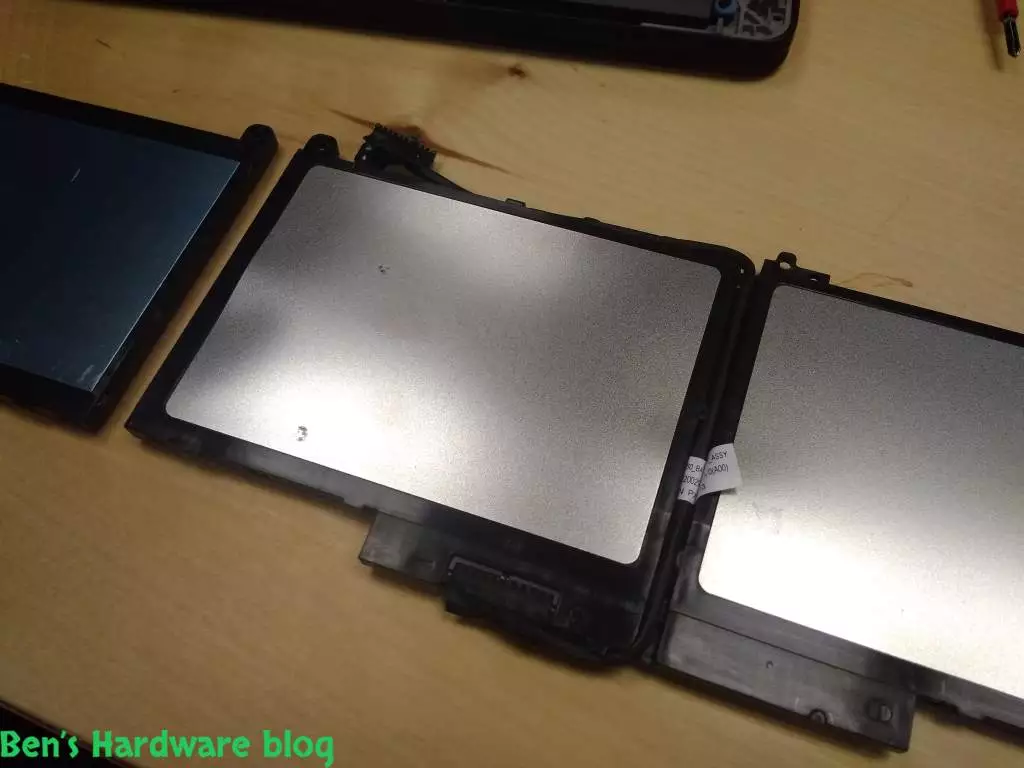
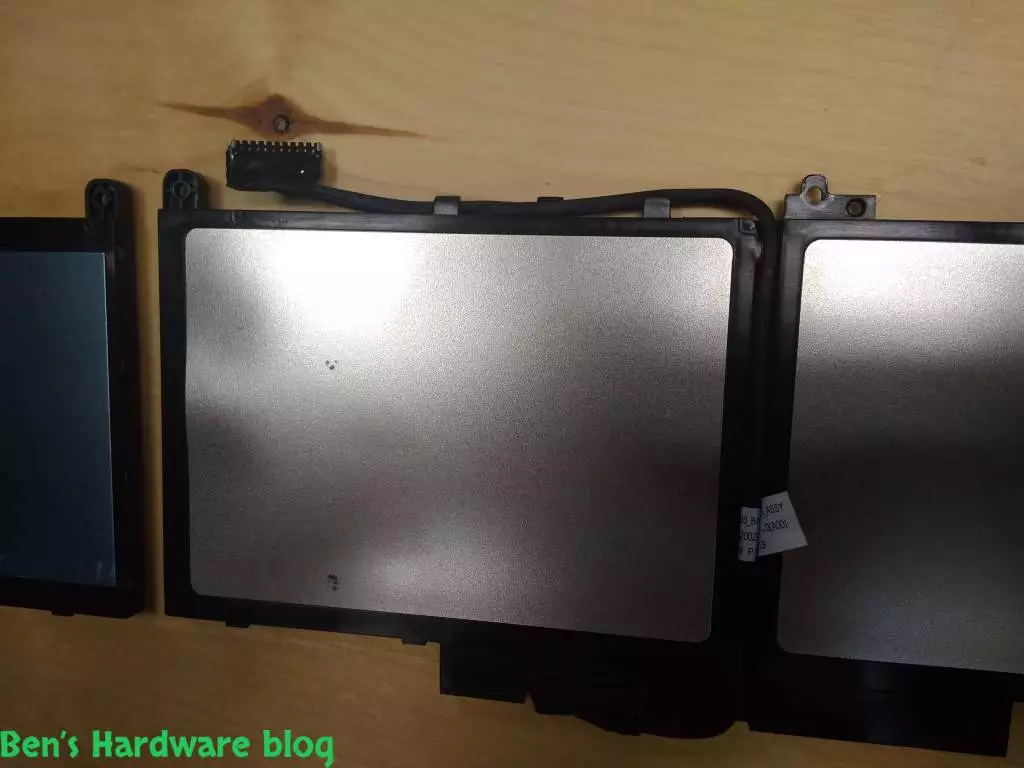
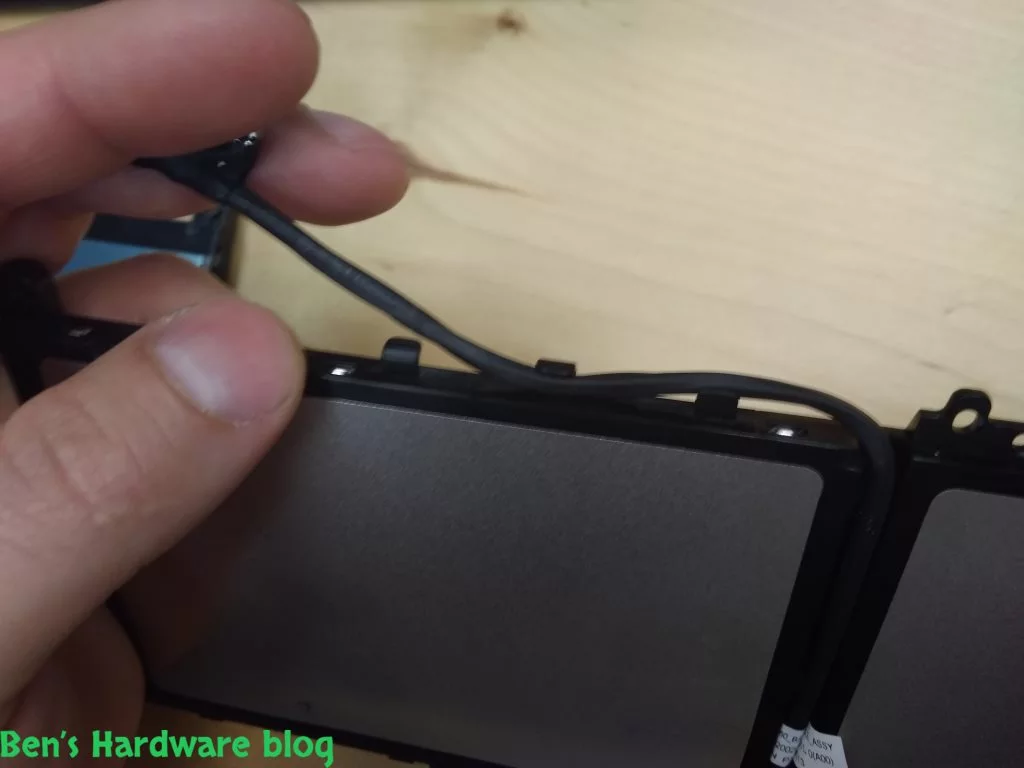
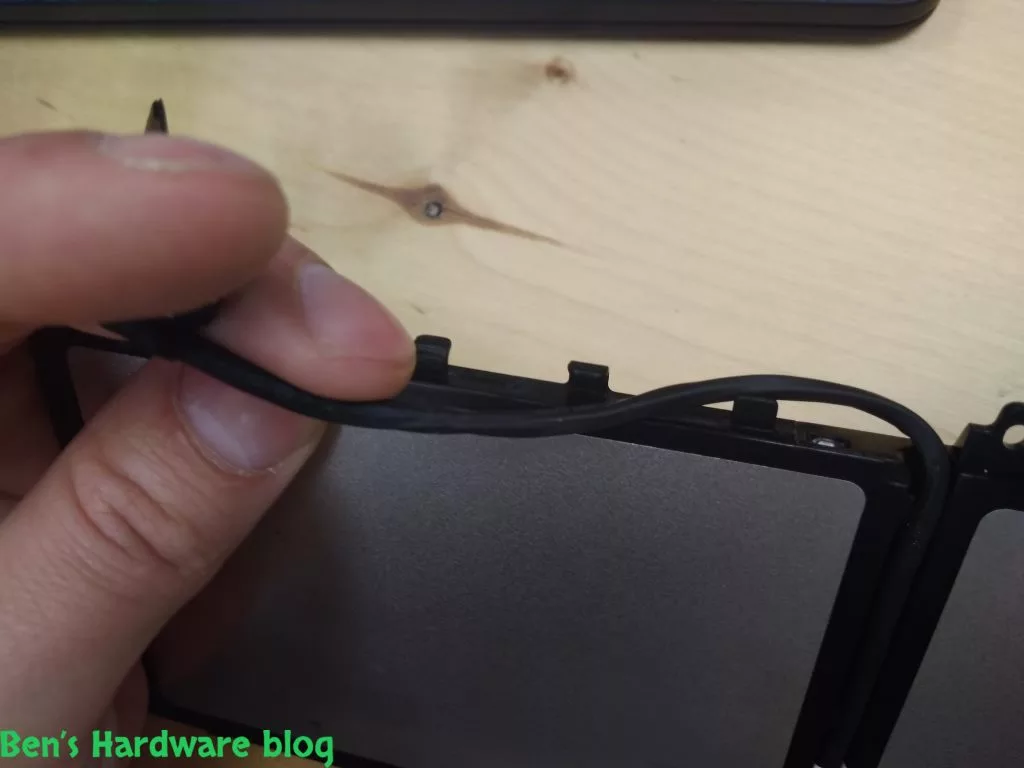
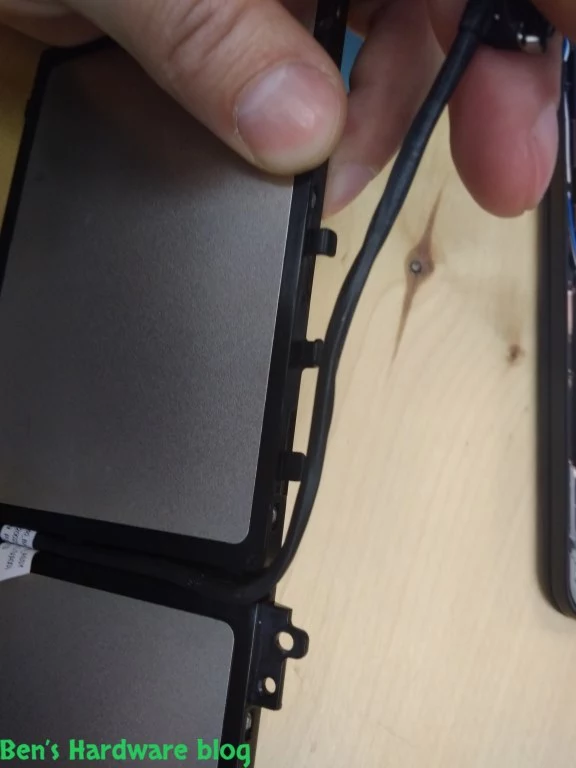
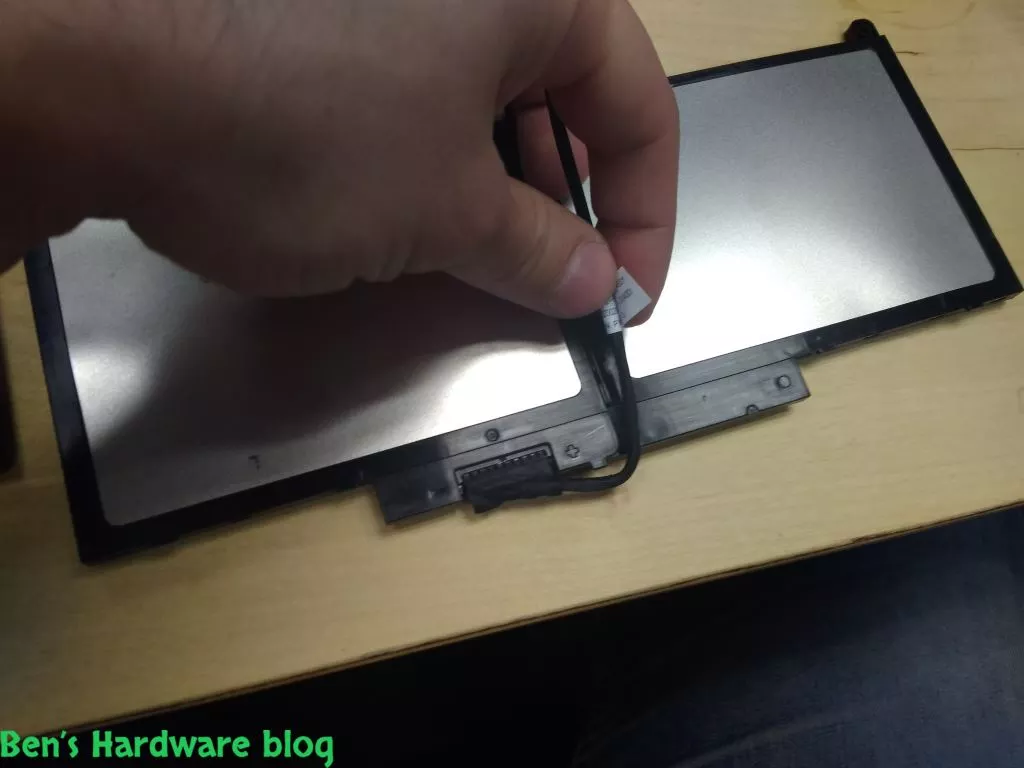
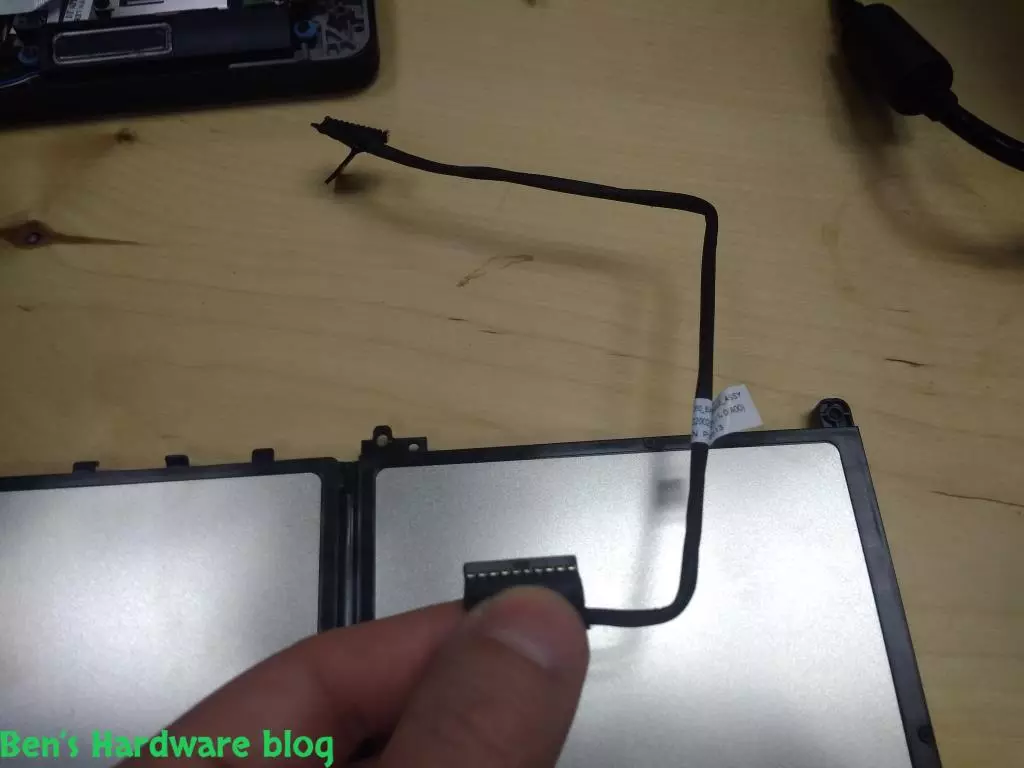
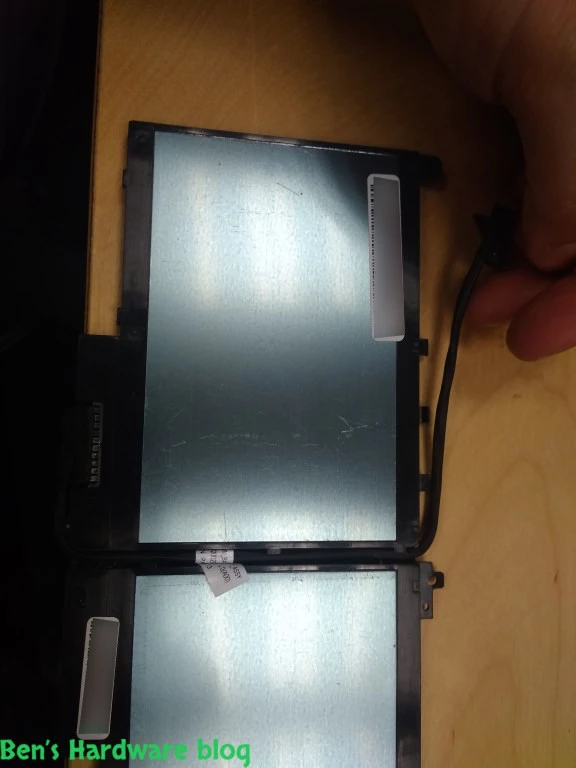
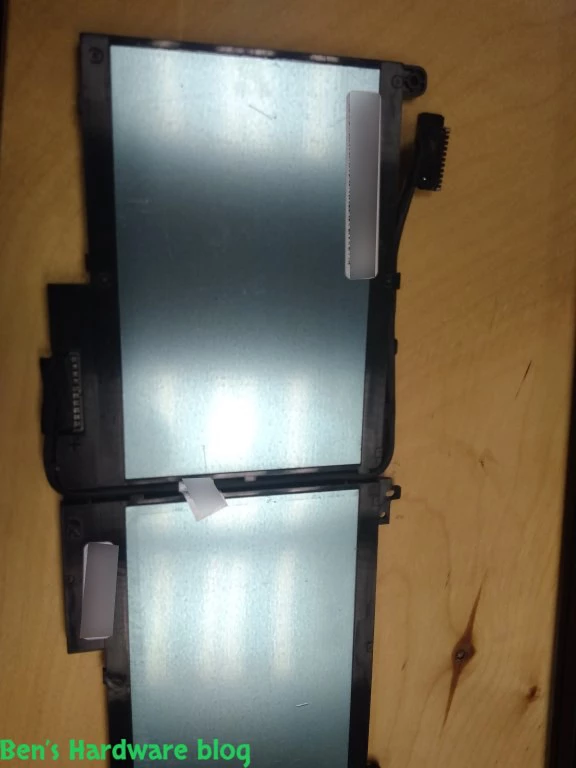
- After safely removing the old battery from the laptop,Starting with the motherboard connector, get the cable out of its plastic holders present on the battery's outer case until the entire cable is free except for the part that is still connected to the battery

RABFADLE7450 44 RABFADLE7450 45
RABFADLE7450 46 RABFADLE7450 47
RABFADLE7450 49 RABFADLE7450 50
RABFADLE7450 51 RABFADLE7450 52

- Remove the power cable off of the battery by pulling gently on it outwards on a few points at each time until it comes off entirely.

RABFADLE7450 53 RABFADLE7450 54
RABFADLE7450 57 RABFADLE7450 55
RABFADLE7450 58 RABFADLE7450 59

- Connect the power cable to the new battery by starting from the battery side first. The polarization cannot be confused here since the power cable itself is shaped according to the plastic holders and carvings on the bottom of the battery.

- Make sure the cable is well entangled into the plastic holders and the carving of the battery.

Important! - Remove the transparent adhesive nylon battery cells cover before installing the battery! 

Installing the new battery:

- place the back side of the battery onto the battery cradle on the laptop first and then push the battery downward towards the laptop entirely.

- Connect the motherboard side of the power cable to the motherboard by carefully positioning it over the exposed connector on the motherboard. push on the connector gently until a “click” sound is heard. Push on it again with ease to make sure its firm and is aligned with the connector on the motherboard.

- Screw the two screws back into the two screw holes on the upper side of the battery

5. Prior Usage:

After the new battery is connected to the laptop, before re-inserting the laptop bottom cover, open the lid, connect the laptop to its charger.
Power up the laptop. Make sure the laptop powers up correctly, make sure the CPU fan works, touch the battery and see if its overheated.
Turn the laptop off from within the operating system

If all seems to be well – re-insert the laptop bottom cover and screw the 8 screws. Make sure to tighten them.

6. Usage:

After completing the battery replacement, charge the laptop all the way. After it is charged, disconnect the charger.
It is now safe to work with the laptop. Considering the severity of usage, make sure that the battery is now drained in a reasonable amount of time, usually 2-3 hours.

7. Cons:
Risk of coming in contact with hazardous materials

8. Pros:

Extends the usability of the laptop
Easy and fast replacement
Easy to understand procedure
Replacing_a_Battery_for_a_Dell_Latitude_E-74501.webpReplacing_a_Battery_for_a_Dell_Latitude_E-74502.webpReplacing_a_Battery_for_a_Dell_Latitude_E-74503.webpReplacing_a_Battery_for_a_Dell_Latitude_E-74504.webpReplacing_a_Battery_for_a_Dell_Latitude_E-74505.webpReplacing_a_Battery_for_a_Dell_Latitude_E-74506.webpReplacing_a_Battery_for_a_Dell_Latitude_E-74507.webpReplacing_a_Battery_for_a_Dell_Latitude_E-74508.webpReplacing_a_Battery_for_a_Dell_Latitude_E-74509.webpReplacing_a_Battery_for_a_Dell_Latitude_E-745010.webpReplacing_a_Battery_for_a_Dell_Latitude_E-745011.webpReplacing_a_Battery_for_a_Dell_Latitude_E-745012.webpReplacing_a_Battery_for_a_Dell_Latitude_E-745013.webpReplacing_a_Battery_for_a_Dell_Latitude_E-745014.webpReplacing_a_Battery_for_a_Dell_Latitude_E-745015.webpReplacing_a_Battery_for_a_Dell_Latitude_E-745016.webpReplacing_a_Battery_for_a_Dell_Latitude_E-745017.webpReplacing_a_Battery_for_a_Dell_Latitude_E-745018.webpReplacing_a_Battery_for_a_Dell_Latitude_E-745019.webpReplacing_a_Battery_for_a_Dell_Latitude_E-745020.webpReplacing_a_Battery_for_a_Dell_Latitude_E-745021.webpReplacing_a_Battery_for_a_Dell_Latitude_E-745022.webpReplacing_a_Battery_for_a_Dell_Latitude_E-745023.webpReplacing_a_Battery_for_a_Dell_Latitude_E-745024.webpReplacing_a_Battery_for_a_Dell_Latitude_E-745025.webpReplacing_a_Battery_for_a_Dell_Latitude_E-745026.webpReplacing_a_Battery_for_a_Dell_Latitude_E-745027.webpReplacing_a_Battery_for_a_Dell_Latitude_E-745028.webpReplacing_a_Battery_for_a_Dell_Latitude_E-745029.webpReplacing_a_Battery_for_a_Dell_Latitude_E-745030.webpReplacing_a_Battery_for_a_Dell_Latitude_E-745031.webpReplacing_a_Battery_for_a_Dell_Latitude_E-745032.webpReplacing_a_Battery_for_a_Dell_Latitude_E-745033.webpReplacing_a_Battery_for_a_Dell_Latitude_E-745034.webpReplacing_a_Battery_for_a_Dell_Latitude_E-745035.webpReplacing_a_Battery_for_a_Dell_Latitude_E-745036.webpReplacing_a_Battery_for_a_Dell_Latitude_E-745037.webpReplacing_a_Battery_for_a_Dell_Latitude_E-745038.webpReplacing_a_Battery_for_a_Dell_Latitude_E-745039.webpReplacing_a_Battery_for_a_Dell_Latitude_E-745040.webpReplacing_a_Battery_for_a_Dell_Latitude_E-745041.webpReplacing_a_Battery_for_a_Dell_Latitude_E-745042.webpReplacing_a_Battery_for_a_Dell_Latitude_E-745043.webpReplacing_a_Battery_for_a_Dell_Latitude_E-745044.webpReplacing_a_Battery_for_a_Dell_Latitude_E-745045.webpReplacing_a_Battery_for_a_Dell_Latitude_E-745046.webpReplacing_a_Battery_for_a_Dell_Latitude_E-745047.webpReplacing_a_Battery_for_a_Dell_Latitude_E-745048.webpReplacing_a_Battery_for_a_Dell_Latitude_E-745049.webpReplacing_a_Battery_for_a_Dell_Latitude_E-745050.webpReplacing_a_Battery_for_a_Dell_Latitude_E-745051.webpReplacing_a_Battery_for_a_Dell_Latitude_E-745052.webpReplacing_a_Battery_for_a_Dell_Latitude_E-745053.webpReplacing_a_Battery_for_a_Dell_Latitude_E-745054.webpReplacing_a_Battery_for_a_Dell_Latitude_E-745055.webpReplacing_a_Battery_for_a_Dell_Latitude_E-745056.webpReplacing_a_Battery_for_a_Dell_Latitude_E-745057.webpReplacing_a_Battery_for_a_Dell_Latitude_E-745058.webpReplacing_a_Battery_for_a_Dell_Latitude_E-745059.webpReplacing_a_Battery_for_a_Dell_Latitude_E-745060.webpReplacing_a_Battery_for_a_Dell_Latitude_E-745061.webpReplacing_a_Battery_for_a_Dell_Latitude_E-745062.webpReplacing_a_Battery_for_a_Dell_Latitude_E-745063.webpReplacing_a_Battery_for_a_Dell_Latitude_E-745064.webpReplacing_a_Battery_for_a_Dell_Latitude_E-745065.webpReplacing_a_Battery_for_a_Dell_Latitude_E-745066.webp